Overview
Windows Update normally installs driver updates automatically. That is convenient, but sometimes an automatic driver replaces a working one with a buggy version, or overwrites a specific driver you need. This guide shows three ways to stop Windows from automatically updating your drivers, and how to install drivers manually instead.
You can stop Windows from automatically updating device drivers.
Key Takeaways
- Device Installation Settings is the simplest way to stop automatic driver updates.
- Group Policy and the Registry offer more control on Pro/Enterprise systems.
- Disabling automatic driver updates means you should install important drivers yourself.
- You can re-enable automatic updates at any time by reversing the change.
Method 1 — Device Installation Settings
1. Press Windows key + R, type sysdm.cpl, and press Enter to open System Properties.
2. Switch to the Hardware tab and click Device Installation Settings.
3. Choose "No (your device might not work as expected)".
4. Click Save Changes.
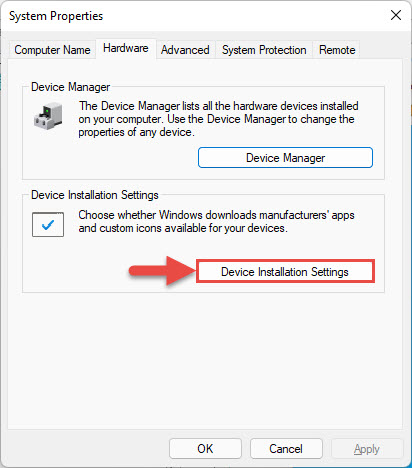
Set Device Installation Settings to “No” to stop automatic driver updates.
Method 2 — Group Policy
1. Press Windows key + R, type gpedit.msc, and press Enter (Pro/Enterprise editions).
2. Go to Computer Configuration > Administrative Templates > Windows Components > Windows Update > Manage updates offered from Windows Update.
3. Open "Do not include drivers with Windows Updates", set it to Enabled, and click OK.
4. Restart the PC to apply.
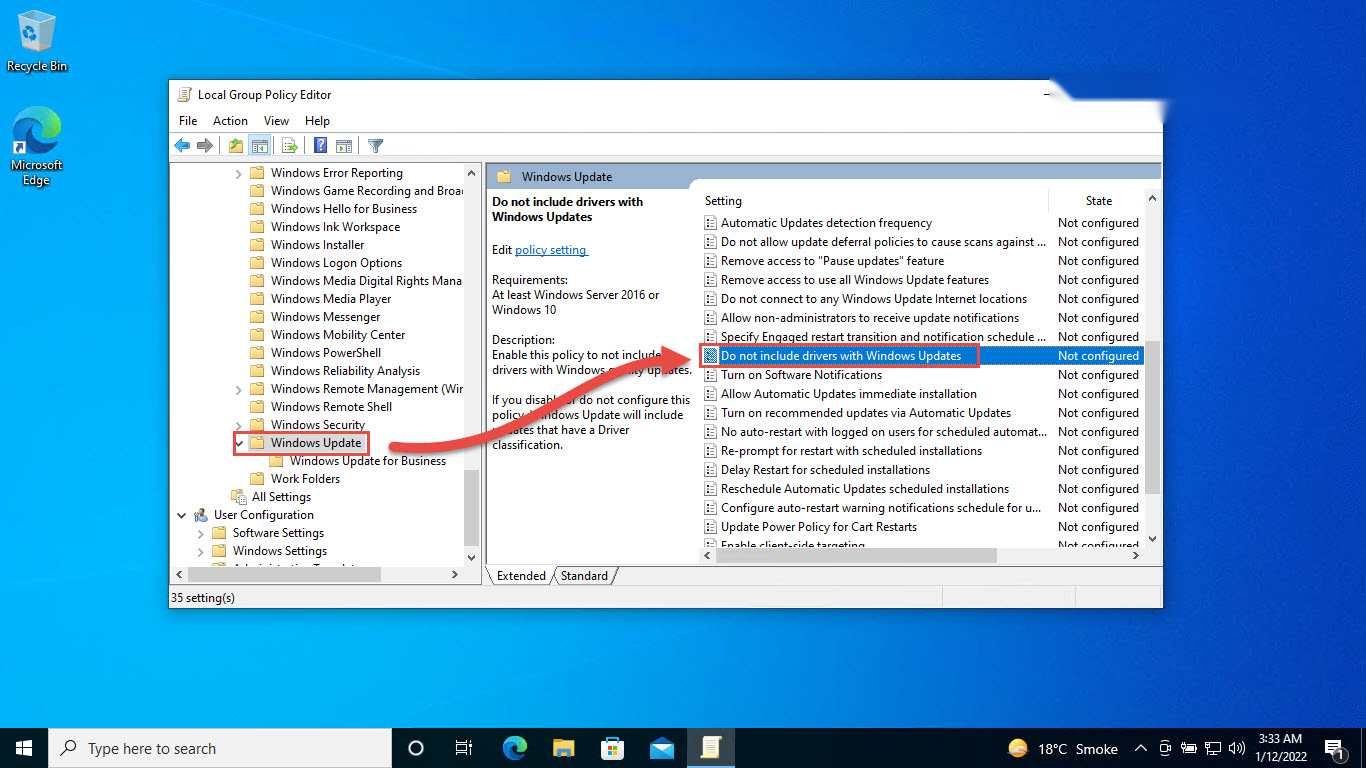
Enable the Group Policy to exclude drivers from Windows Update.
Method 3 — Windows Registry
Warning: Editing the registry incorrectly can cause problems. Back up the registry (File > Export) before making changes.
1. Press Windows key + R, type regedit, and press Enter.
2. Go to HKEY_LOCAL_MACHINE\SOFTWARE\Microsoft\Windows\CurrentVersion\DriverSearching.
3. Set the SearchOrderConfig value to 0 to stop Windows from searching Windows Update for drivers.
4. Restart the PC. To re-enable, set the value back to 1.
Installing Drivers Manually
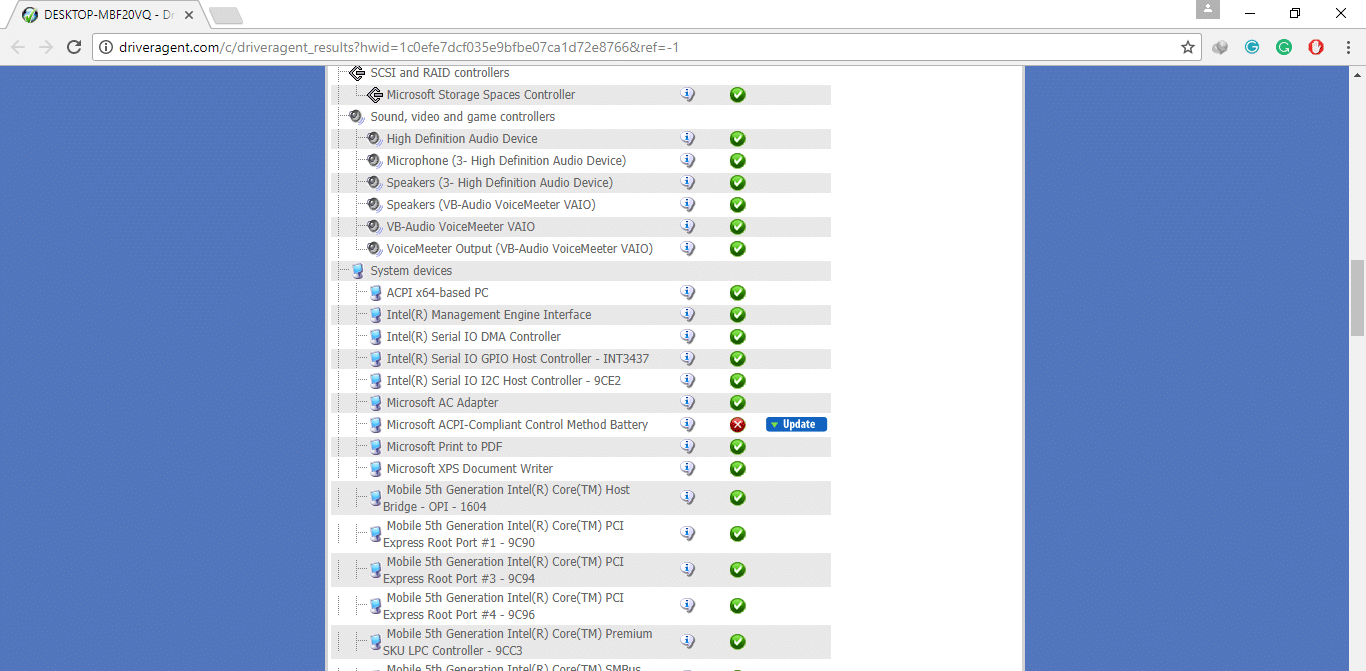
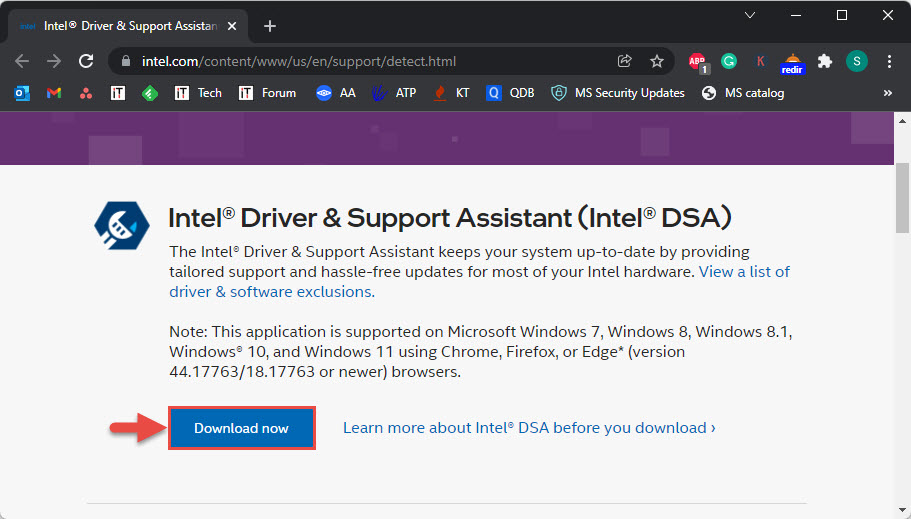
1. Download the driver from your device or PC manufacturer’s official support page.
2. Open Device Manager, right-click the device, and choose Update driver.
3. Select Browse my computer for drivers and point to the downloaded files.
4. Follow the prompts and restart if required.
Troubleshooting
Problem: Windows still updates a driver after changing the setting.
Solution: Apply the Group Policy or Registry method in addition to Device Installation Settings, and restart. Some quality updates may still include critical drivers.
Problem: gpedit.msc is not available.
Solution: Group Policy Editor is only on Pro/Enterprise editions. Use the Registry method instead on Home editions.
Problem: A device stopped working after blocking updates.
Solution: Install the correct driver manually from the manufacturer, or temporarily re-enable automatic updates to let Windows supply it.
Problem: You want updates back.
Solution: Reverse the change: set Device Installation Settings to Yes, the policy to Not Configured, or the registry value to 1.
Conclusion
Disabling automatic driver updates gives you control over which drivers run on your PC. Use Device Installation Settings for a quick change, or Group Policy/Registry for stronger control — and remember to install important drivers yourself afterward.
</w:pBdr><w:spacing w:before="220" w:after="40"/></w:pPr><w:r><w:rPr><w:b/><w:bCs/><w:color w:val="0B5394"/><w:sz w:val="21"/><w:szCs w:val="21"/><w:rFonts w:ascii="Calibri" w:cs="Calibri" w:eastAsia="Calibri" w:hAnsi="Calibri"/></w:rPr><w:t xml:space="preserve">About TechHub
This guide is part of the TechHub Knowledge Base. For more step-by-step IT guides and support, visit techhub.com.lk.