Windows Automatic Restart එක Disable කරන ක්රම 4ක්
Updates වලට හෝ system crash එකකට පස්සේ Windows ඉබේම reboot වෙන එක නවත්තන්න.
Overview
Updates install කරාට පස්සේ හෝ blue-screen crash එකකට පස්සේ Windows එක ඉබේම restart වෙන්න පුළුවන් — සමහරවිට ඔයාගේ වැඩ නැති වෙනවා. මේ guide එකෙන් automatic restart එක disable කරන ක්රම හතරක් පෙන්නනවා: Group Policy, Registry, Task Scheduler, සහ crash (BSOD) setting එක.
Windows updates වලට පස්සේ automatic restart එක disable කිරීම.
Key Takeaways
- Group Policy හෝ Registry එකෙන් post-update restarts නවත්තන්න.
- Task Scheduler එකෙන් reboot task එක disable කරන්න පුළුවන්.
- Error එක කියවන්න BSOD එකේදී auto-restart එක off කරන්න.
- ලේසි විකල්පයක් විදිහට active hours set කරන්න.
Method 1: Group Policy
1. gpedit.msc run කරන්න (Pro/Enterprise).
2. Computer Configuration > Administrative Templates > Windows Components > Windows Update වලට යන්න.
3. "No auto-restart with logged on users for scheduled automatic updates installations" enable කරන්න.
4. gpupdate /force run කරන්න.
Method 2: Registry
Warning: Registry එක වැරදියට edit කරොත් ප්රශ්න ඇති වෙන්න පුළුවන්. කලින් Registry එක back up කරගන්න.
1. regedit open කරලා HKEY_LOCAL_MACHINE\SOFTWARE\Policies\Microsoft\Windows වලට යන්න.
2. WindowsUpdate key එකක් හදලා, ඒක ඇතුළේ AU subkey එකක් හදන්න.
3. "NoAutoRebootWithLoggedOnUsers" කියලා DWORD එකක් හදලා ඒක 1 ට set කරන්න.
4. Apply කරන්න restart කරන්න.
Method 3: Task Scheduler
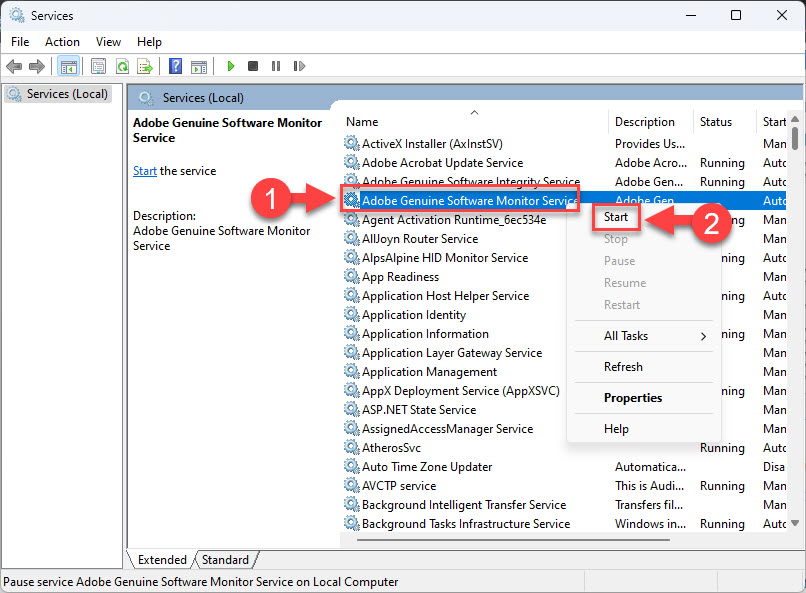
1. Task Scheduler (taskschd.msc) open කරන්න.
2. Task Scheduler Library > Microsoft > Windows > UpdateOrchestrator වලට යන්න.
3. "Reboot"/reboot task එක disable කරන්න.
4. මේකෙන් orchestrated auto-restart එක නවතිනවා.
Method 4: Disable Auto-Restart on Crash (BSOD)
1. sysdm.cpl > Advanced > Startup and Recovery > Settings run කරන්න.
2. System failure යටතේ "Automatically restart" untick කරන්න.
3. OK click කරන්න; දැන් BSOD එකක් screen එකේ රැඳී තියෙනවා, stop code එක කියවන්න පුළුවන්.
Troubleshooting
Problem: gpedit.msc missing.
Solution: ඔයා Windows Home එකේ — ඒ වෙනුවට Registry method එක use කරන්න.
Problem: Reboot task එක ආයෙ ඉබේම enable වෙනවා.
Solution: Windows Update එකෙන් ඒක reset කරන්න පුළුවන් — Group Policy/Registry setting එක තව durable.
Problem: Updates වලට පස්සේ තාම restart වෙනවා.
Solution: Active Hours (Settings > Windows Update) set කරන්න, එතකොට restarts ඔයාගේ වැඩ කරන වෙලාවෙන් වළකිනවා.
Problem: BSOD එකක් කියවන්න ඕන.
Solution: Screen එක පේන්න තියාගන්න Startup and Recovery එකේ "Automatically restart" disable කරන්න.
Conclusion
Group Policy හෝ NoAutoRebootWithLoggedOnUsers Registry value එකෙන් unwanted reboots නවත්තන්න, UpdateOrchestrator reboot task එක disable කරන්න, Startup and Recovery එකේ crashes වලදී auto-restart off කරන්න පුළුවන්. Active Hours set කරන එක ලේසි අමතර safeguard එකක්.