Overview
Windows 11 shows a compact right-click menu with "Show more options" hiding the classic menu. This guide restores the full legacy context menu by default using the Registry, a command, or a .reg file.
Restoring the old context menu in Windows 11.
Key Takeaways
- Windows 11’s new menu hides classic options behind "Show more options".
- A Registry key restores the old menu by default.
- A single command applies the change quickly.
- Reverting is just as easy.
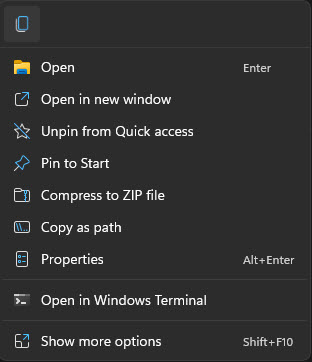
The default Windows 11 context menu.
Method 1: Command Prompt (Quickest)
1. Open Command Prompt.
2. Run: reg add "HKCU\Software\Classes\CLSID\{86ca1aa0-34aa-4e8b-a509-50c905bae2a2}\InprocServer32" /f /ve
3. Restart Explorer (or sign out/in).
4. The classic full context menu now appears by default.
Method 2: Registry Editor
Warning: Editing the Registry incorrectly can cause problems. Back up the Registry first.
1. Open regedit and go to HKEY_CURRENT_USER\Software\Classes\CLSID.
2. Create a key named {86ca1aa0-34aa-4e8b-a509-50c905bae2a2}.
3. Inside it create a subkey named InprocServer32.
4. Leave its (Default) value empty and restart Explorer.
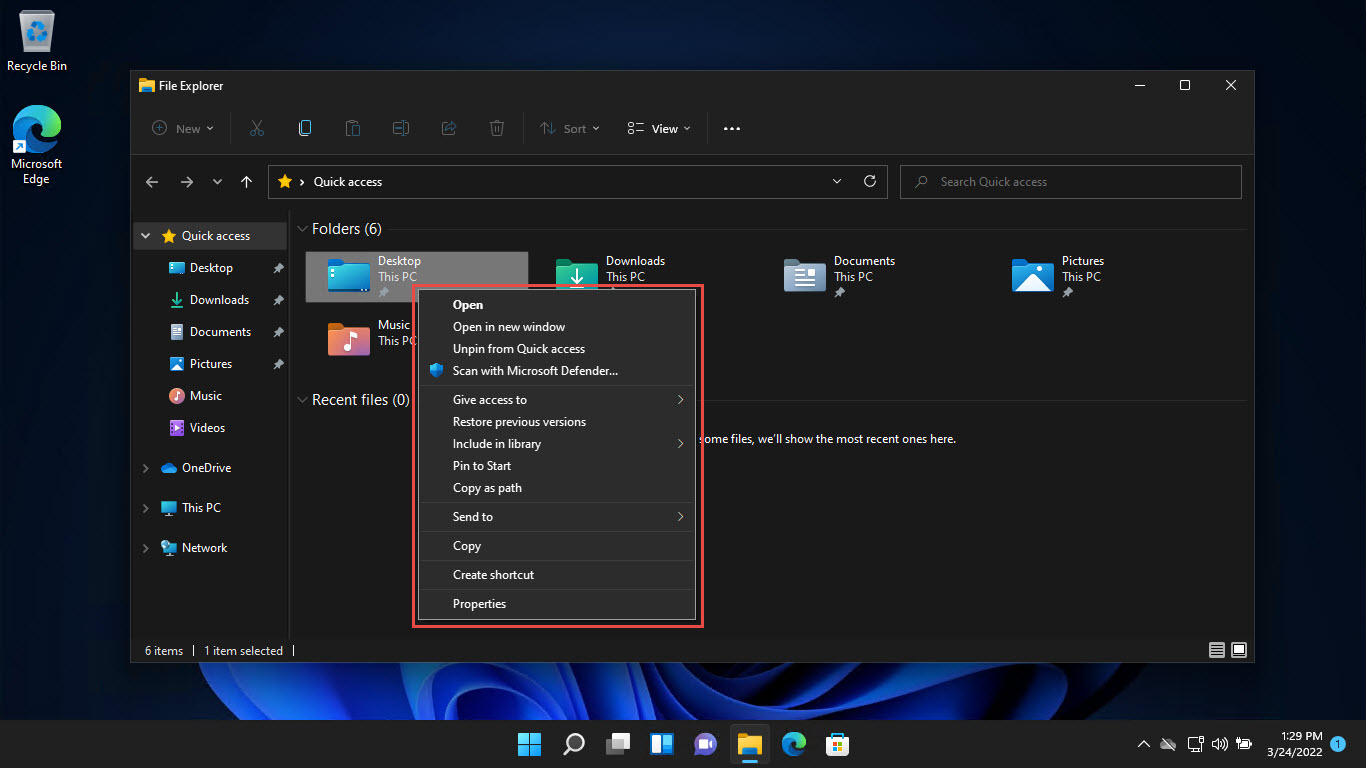
Setting the classic menu as default.
Method 3: .REG File
1. Create a .reg file containing the key above with an empty InprocServer32 default value.
2. Double-click it and confirm the merge.
3. Restart Explorer to apply.
Revert to the Windows 11 Menu
1. Open Command Prompt and run: reg delete "HKCU\Software\Classes\CLSID\{86ca1aa0-34aa-4e8b-a509-50c905bae2a2}" /f
2. Restart Explorer.
3. The compact Windows 11 menu returns.
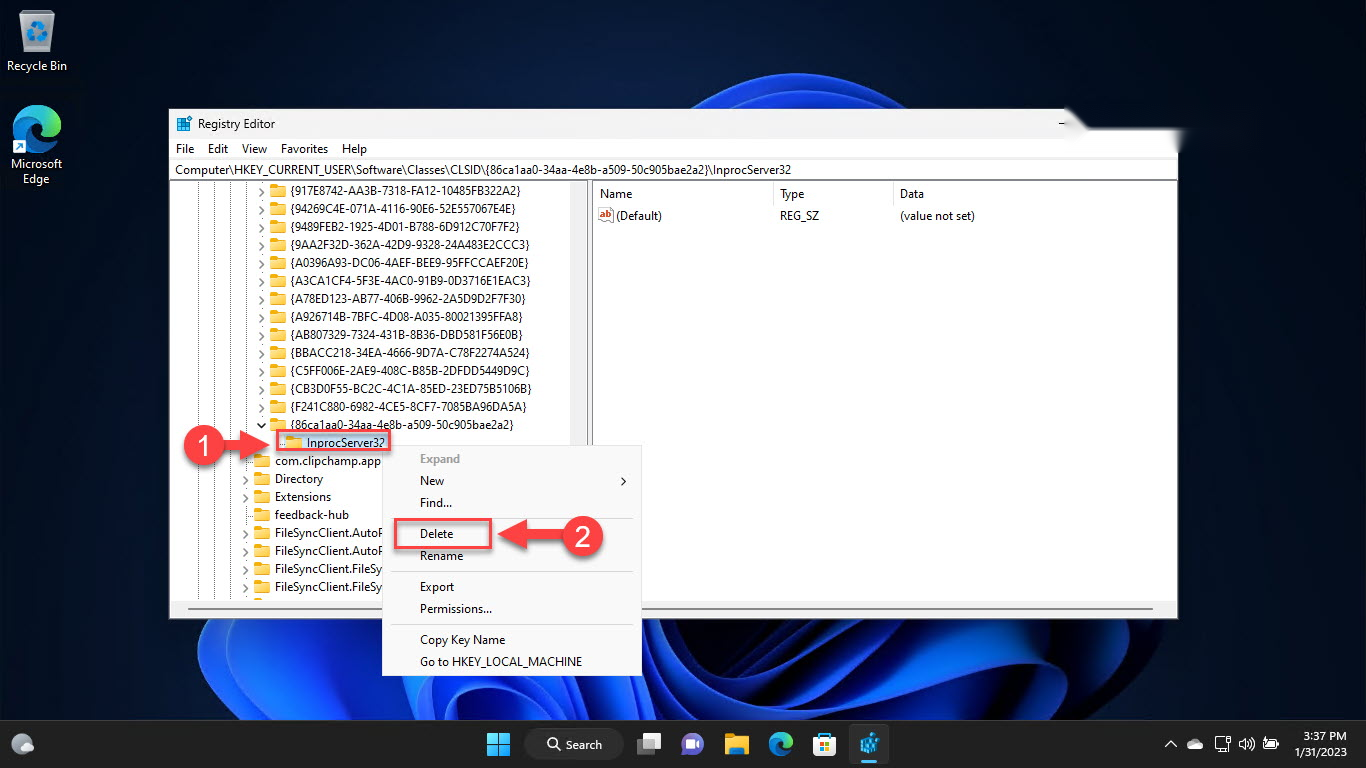
Delete the key to revert.
Troubleshooting
Problem: The menu didn’t change.
Solution: Restart Explorer via Task Manager, or sign out and back in for the change to take effect.
Problem: The command errored.
Solution: Copy it exactly, including the /ve switch and the full CLSID; run it in a standard (not necessarily elevated) prompt for HKCU.
Problem: Want it back to default.
Solution: Delete the CLSID key with the reg delete command and restart Explorer.
Problem: Change lost after a feature update.
Solution: Major Windows updates can reset it — simply reapply the command.
Conclusion
If you prefer Windows 10’s full right-click menu, a single Registry key restores it by default in Windows 11. Apply it via the command line for speed, and delete the key any time to return to the modern compact menu.
</w:pBdr><w:spacing w:before="220" w:after="40"/></w:pPr><w:r><w:rPr><w:b/><w:bCs/><w:color w:val="0B5394"/><w:sz w:val="21"/><w:szCs w:val="21"/><w:rFonts w:ascii="Calibri" w:cs="Calibri" w:eastAsia="Calibri" w:hAnsi="Calibri"/></w:rPr><w:t xml:space="preserve">About TechHub
This guide is part of the TechHub Knowledge Base. For more step-by-step IT guides and support, visit techhub.com.lk.