Windows එකේ Hosts File එක Edit කරන හැටි
Testing, blocking, හෝ redirecting සඳහා hostnames locally IPs වලට map කරන්න — safely සහ admin rights එක්ක.
Overview
Hosts file එකෙන් hostnames locally IP addresses වලට map කරනවා, ඒ machine එකට DNS එක override කරමින්. Sites test කරන්න, domains block කරන්න, හෝ hostnames redirect කරන්න මේක පාවිච්චි කරනවා. මේ guide එකෙන් එක safely edit කරන හැටි පෙන්නනවා.
Windows hosts file එක edit කිරීම.
Warning: Hosts file එක ඔබේ PC එක names resolve කරන හැටියට බලපානවා. තේරෙන entries විතරක් add කරන්න — malware සමහරවිට sites redirect කරන්න මේක abuse කරනවා. Original එකේ backup එකක් තියාගන්න.
Key Takeaways
- Hosts file එකෙන් මේ PC එකට විතරක් DNS override වෙනවා.
- එක තියෙන්නේ C:\Windows\System32\drivers\etc\hosts.
- එක administrator විදිහට edit කරන්න ඕන.
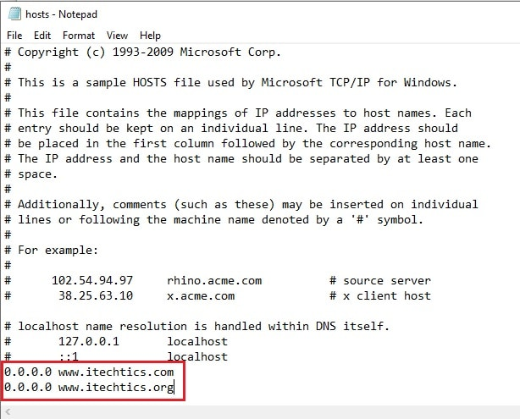
- Format: IP address එකක්, space/tab එකක්, ඊට පස්සේ hostname එක.
What the Hosts File Is For
- DNS changes කරන්න කලින් specific server එකක site එකක් test කරන්න.
- Domain එකක් 127.0.0.1 / 0.0.0.0 වලට point කරලා block කරන්න.
- Internal IPs වලට local shortcuts හදන්න.
- Troubleshooting සඳහා DNS override කරන්න.
Edit the Hosts File (Notepad)
1. Start එක press කරලා, Notepad type කරලා, right-click කරලා, "Run as administrator" තෝරන්න.
2. Notepad එකේ, File > Open click කරලා C:\Windows\System32\drivers\etc වලට යන්න.
3. File filter එක "All Files" කරලා "hosts" open කරන්න.
4. Line එකක් add කරන්න, උදා: 192.168.1.50 myserver.local
5. Site එකක් block කරන්න: 0.0.0.0 example.com
6. File එක save කරන්න (extension එකක් නැතුව "hosts" විදිහටම තියෙනවා).
Hosts file එක edit කිරීම.
Edit via the Command Line
1. Command Prompt එක administrator විදිහට open කරන්න.
2. Entry එකක් append කරන්න: echo 0.0.0.0 example.com >> C:\Windows\System32\drivers\etc\hosts
3. Apply කරන්න DNS flush කරන්න: ipconfig /flushdns
Apply and Verify
1. Save කළාට පස්සේ ipconfig /flushdns run කරන්න.
2. Test කරන්න: ping myhostname (එක ඔබේ entry එකට resolve වෙන්න ඕන).
3. Line එක remove කරලා DNS flush කරලා revert කරන්න.
Troubleshooting
Problem: Save කරද්දී "Access denied".
Solution: Editor එක administrator විදිහට open කරන්න; hosts file එක protected.
Problem: Entry එක effect වෙන්නේ නෑ.
Solution: ipconfig /flushdns run කරන්න, සහ leading # එකක් නැති බව confirm කරන්න (එකෙන් line එක comment out වෙනවා).
Problem: File එක hosts.txt විදිහට save වෙලා.
Solution: Save කරද්දී "All Files" තෝරලා .txt extension එක remove කරන්න, එතකොට එක "hosts" විතරක් වෙනවා.
Problem: Security software එක edits block කරනවා.
Solution: සමහර AVs tampering වලින් hosts file එක protect කරනවා — AV එකේ change එක allow කරලා, ඊට පස්සේ edit කරන්න.
Conclusion
Hosts file එක edit කිරීමෙන් testing, blocking, හෝ redirecting hostnames සඳහා single PC එකක DNS override කරන්න පුළුවන්. එක administrator විදිහට edit කරන්න, IP-then-hostname format එක පාවිච්චි කරන්න, apply කරන්න DNS flush කරන්න, සහ backup එකක් තියාගන්න — malicious hosts entries ගැන සැලකිල්ලෙන් ඉන්නම.