Overview
You may want to disable your laptop touchpad to avoid accidental cursor jumps while typing or when using an external mouse — or re-enable it when you need it. This guide covers every way to toggle the touchpad on Windows.
Enable or disable your laptop touchpad several ways.
Key Takeaways
- Many laptops have a function-key (Fn) shortcut to toggle the touchpad.
- Windows Settings can disable it, or auto-disable it when a mouse is connected.
- Device Manager can disable the touchpad device entirely.
- Some laptops have a double-tap corner gesture to toggle it.
Method 1 — Keyboard Shortcut
1. Look for the touchpad icon on your function keys (often F5, F6, F7, or F9).
2. Press it directly, or hold Fn while pressing it.
3. Watch for an on-screen indicator confirming the toggle.

Many laptops toggle the touchpad with a function key.
Method 2 — Windows Settings
1. Open Settings > Bluetooth & devices > Touchpad.
2. Toggle Touchpad Off (or On).
3. Expand the Touchpad section and untick "Leave touchpad on when a mouse is connected" if you want it to auto-disable with a mouse.
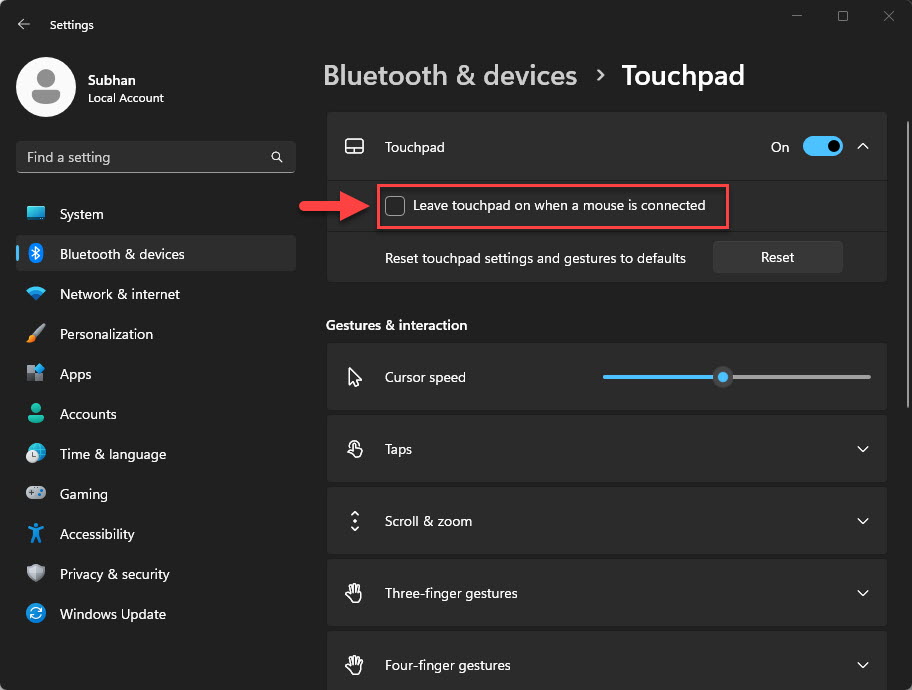
Auto-disable the touchpad when a mouse is connected.
Method 3 — Device Manager
1. Right-click Start and open Device Manager.
2. Expand Human Interface Devices or Mice and other pointing devices.
3. Right-click the touchpad and choose Disable device (or Enable device).
Method 4 — Manufacturer Software / Gesture
- Some touchpads support a double-tap in the top-left corner to toggle on/off.
- Vendor apps (Synaptics, ELAN, or maker utilities like Lenovo Vantage) offer touchpad on/off settings.
- Use these if the Settings toggle is missing.
Frequently Asked Questions
Problem: The Touchpad option is missing in Settings.
Solution: Install the proper touchpad (precision/Synaptics/ELAN) driver from your laptop maker; the generic driver hides the settings.
Problem: The Fn key does nothing.
Solution: Install the manufacturer’s function-key/hotkey software, and check the touchpad is enabled in BIOS.
Problem: The touchpad re-enables after restart.
Solution: Use the Settings toggle (which persists) rather than only the Fn shortcut, or disable it in Device Manager.
Problem: I disabled it and now have no pointer.
Solution: Use keyboard navigation (Tab/arrows, Windows key) to reach Settings or Device Manager and re-enable it, or plug in a mouse.
Conclusion
You can toggle your touchpad with a function key for quick changes, Windows Settings for a persistent setting (including auto-disable with a mouse), or Device Manager to turn the device off entirely.
</w:pBdr><w:spacing w:before="220" w:after="40"/></w:pPr><w:r><w:rPr><w:b/><w:bCs/><w:color w:val="0B5394"/><w:sz w:val="21"/><w:szCs w:val="21"/><w:rFonts w:ascii="Calibri" w:cs="Calibri" w:eastAsia="Calibri" w:hAnsi="Calibri"/></w:rPr><w:t xml:space="preserve">About TechHub
This guide is part of the TechHub Knowledge Base. For more step-by-step IT guides and support, visit techhub.com.lk.