Overview
A backlit keyboard makes typing in low light easy, but the controls differ by laptop brand. Some models use a dedicated function key, others rely on manufacturer software, and a few expose brightness through Windows itself. This guide walks through the common ways to switch the backlight on, adjust its brightness, and fix it when the light refuses to come on.
Key Takeaways
- Most laptops toggle the backlight with a function key, often F5, F9, or a key showing a keyboard icon.
- You may need to hold the Fn key while pressing the backlight key.
- Brand software such as Dell, HP, Lenovo, or ASUS utilities gives finer control and timeout settings.
- Not every keyboard has a backlight — check your model's specifications first.
Turn On the Backlight with Function Keys
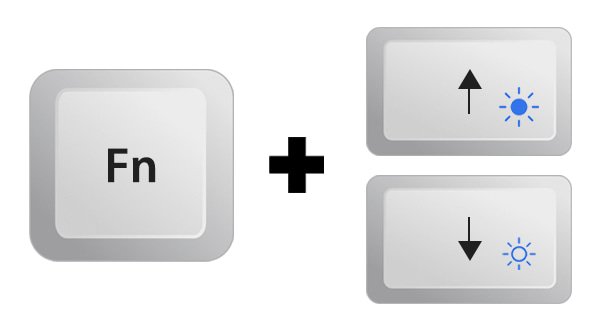
1. Look along the top row (F1–F12) and the Space bar area for a key showing an illuminated-keyboard icon.
2. Press that key on its own, or hold Fn and press it if the top-row keys default to media actions.
3. Press again to cycle through brightness levels — many keyboards offer dim, bright, and off.
4. If nothing happens, continue to the manufacturer software method below.
A typical keyboard-backlight function key.
Adjust the Backlight in Windows Mobility Center
1. Press Windows + R, type mblctr, and press Enter to open Windows Mobility Center.
2. Look for a Keyboard Brightness tile (available on some laptops).
3. Use the slider to set the brightness, or open its settings to configure an auto-off timeout.
<w:bottom w:val="single" w:color="DEEAF6" w:sz="4"/><w:left w:val="single" w:color="0B5394" w:sz="24" w:space="10"/><w:right w:val="single" w:color="DEEAF6" w:sz="4"/></w:pBdr><w:shd w:fill="DEEAF6" w:color="auto" w:val="clear"/><w:spacing w:before="120" w:after="120"/></w:pPr><w:r><w:rPr><w:b/><w:bCs/><w:color w:val="0B5394"/><w:sz w:val="22"/><w:szCs w:val="22"/><w:rFonts w:ascii="Calibri" w:cs="Calibri" w:eastAsia="Calibri" w:hAnsi="Calibri"/></w:rPr><w:t xml:space="preserve">Note: The Keyboard Brightness tile only appears if your laptop's driver exposes it. If it is missing, use the brand utility instead.
Use Manufacturer Software
1. Identify your laptop brand and install its official utility — for example Dell (via Dell Command or the keyboard settings), HP (HP System Event Utility), Lenovo (Lenovo Vantage), or ASUS (Armoury Crate / MyASUS).
2. Open the app and find the keyboard or lighting section.
3. Turn the backlight on and set brightness or an inactivity timeout.
4. Download utilities only from the manufacturer's official website to avoid bundled or fake software.
<w:bottom w:val="single" w:color="E2F0D9" w:sz="4"/><w:left w:val="single" w:color="2E7D32" w:sz="24" w:space="10"/><w:right w:val="single" w:color="E2F0D9" w:sz="4"/></w:pBdr><w:shd w:fill="E2F0D9" w:color="auto" w:val="clear"/><w:spacing w:before="120" w:after="120"/></w:pPr><w:r><w:rPr><w:b/><w:bCs/><w:color w:val="2E7D32"/><w:sz w:val="22"/><w:szCs w:val="22"/><w:rFonts w:ascii="Calibri" w:cs="Calibri" w:eastAsia="Calibri" w:hAnsi="Calibri"/></w:rPr><w:t xml:space="preserve">Tip: Backlights often dim or switch off automatically to save battery. Increase the timeout in the brand utility if the light keeps turning off while you read.
Troubleshooting
Problem: The function key does nothing.
Solution: Install or update the keyboard/hotkey driver from your laptop maker's support site, then reboot and try again.
Problem: There is no backlight key at all.
Solution: Confirm your model actually has a backlit keyboard in its specifications — many budget laptops do not include one.
Problem: The light turns off after a few seconds.
Solution: Open the manufacturer utility and extend or disable the backlight auto-off timeout.
Problem: Backlight stopped working after a Windows update.
Solution: Reinstall the vendor hotkey software and check Device Manager for any keyboard device with a warning icon.
Conclusion
Turning on a keyboard backlight usually takes one keypress once you know which key controls it. When the shortcut is missing or unreliable, the manufacturer's utility gives you full control over brightness and timeout, so your keys stay visible exactly when you need them.
About TechHub
This guide is part of the TechHub Knowledge Base. For more step-by-step IT guides and support, visit techhub.com.lk.