Overview
Sync Settings lets Windows carry your personal configuration — themes, saved passwords, language preferences, and other options — across all PCs where you sign in with the same Microsoft account. When it works, moving to a new machine feels instant and familiar. When it stops, your settings appear stuck on one device. This guide shows how to turn sync on or off and how to repair it when it refuses to work.
Key Takeaways
- Sync Settings requires a Microsoft account; local accounts cannot sync.
- You control sync from Settings > Accounts > Sync your settings (Windows 10) or Windows backup (Windows 11).
- Group Policy or Registry can force sync on or off across managed machines.
- Most sync failures trace back to account verification, corrupted system files, or a policy override.
Enable Sync Settings
1. Open Settings by pressing Windows + I.
2. Go to Accounts, then select Sync your settings (on Windows 11, open Accounts > Windows backup > Remember my preferences).
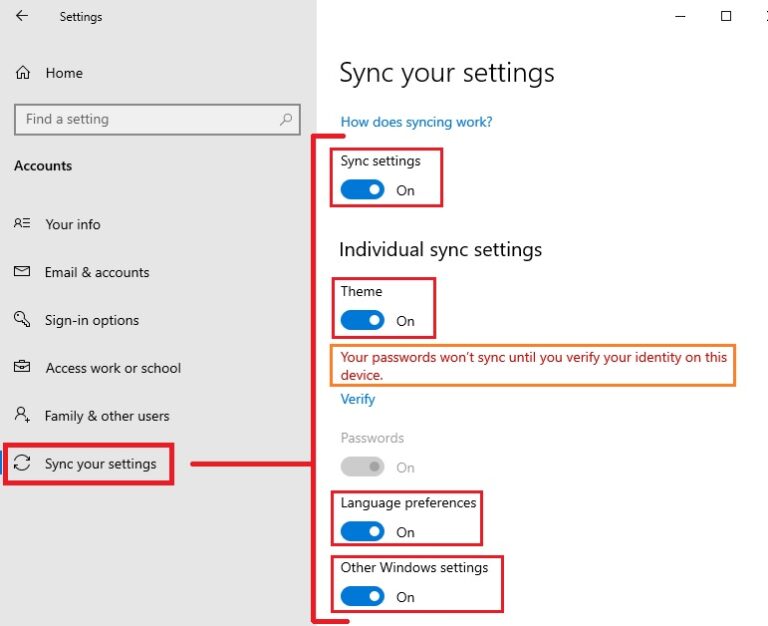
3. Toggle the main Sync settings switch to On.
4. Turn on the individual categories you want to sync, such as Theme, Passwords, and Language preferences.
5. Sign in with the same Microsoft account on your other devices to see the settings appear.
The Sync your settings page under Accounts.
Disable Sync Settings
1. Open Settings > Accounts > Sync your settings.
2. Switch the master Sync settings toggle to Off to stop all syncing at once.
3. Alternatively, leave the master toggle on and disable only the categories you do not want shared.
4. Repeat on each device where you want syncing turned off.
<w:bottom w:val="single" w:color="E2F0D9" w:sz="4"/><w:left w:val="single" w:color="2E7D32" w:sz="24" w:space="10"/><w:right w:val="single" w:color="E2F0D9" w:sz="4"/></w:pBdr><w:shd w:fill="E2F0D9" w:color="auto" w:val="clear"/><w:spacing w:before="120" w:after="120"/></w:pPr><w:r><w:rPr><w:b/><w:bCs/><w:color w:val="2E7D32"/><w:sz w:val="22"/><w:szCs w:val="22"/><w:rFonts w:ascii="Calibri" w:cs="Calibri" w:eastAsia="Calibri" w:hAnsi="Calibri"/></w:rPr><w:t xml:space="preserve">Tip: If you share a computer, disabling password sync keeps your saved credentials from reaching a shared device.
Force Sync On or Off with Group Policy
1. Press Windows + R, type gpedit.msc, and press Enter.
2. Navigate to Computer Configuration > Administrative Templates > Windows Components > Sync your settings.
3. Double-click Do not sync, then choose Enabled to block sync or Disabled/Not Configured to allow it.
4. Click OK and restart the PC for the policy to apply.
<w:bottom w:val="single" w:color="DEEAF6" w:sz="4"/><w:left w:val="single" w:color="0B5394" w:sz="24" w:space="10"/><w:right w:val="single" w:color="DEEAF6" w:sz="4"/></w:pBdr><w:shd w:fill="DEEAF6" w:color="auto" w:val="clear"/><w:spacing w:before="120" w:after="120"/></w:pPr><w:r><w:rPr><w:b/><w:bCs/><w:color w:val="0B5394"/><w:sz w:val="22"/><w:szCs w:val="22"/><w:rFonts w:ascii="Calibri" w:cs="Calibri" w:eastAsia="Calibri" w:hAnsi="Calibri"/></w:rPr><w:t xml:space="preserve">Note: The Group Policy Editor is available on Pro, Enterprise, and Education editions. On Home editions, use the Registry method below.
Force Sync with the Registry
1. Press Windows + R, type regedit, and press Enter.
2. Go to HKEY_LOCAL_MACHINE\SOFTWARE\Policies\Microsoft\Windows\SettingSync.
3. Create a DWORD named DisableSettingSync and set it to 2 to disable sync, or 1 to allow it.
4. Close the editor and restart the computer.
<w:bottom w:val="single" w:color="FBE4E4" w:sz="4"/><w:left w:val="single" w:color="C0392B" w:sz="24" w:space="10"/><w:right w:val="single" w:color="FBE4E4" w:sz="4"/></w:pBdr><w:shd w:fill="FBE4E4" w:color="auto" w:val="clear"/><w:spacing w:before="120" w:after="120"/></w:pPr><w:r><w:rPr><w:b/><w:bCs/><w:color w:val="C0392B"/><w:sz w:val="22"/><w:szCs w:val="22"/><w:rFonts w:ascii="Calibri" w:cs="Calibri" w:eastAsia="Calibri" w:hAnsi="Calibri"/></w:rPr><w:t xml:space="preserve">Warning: Editing the registry incorrectly can cause system problems. Back up the registry (File > Export) before making changes.
Troubleshooting
Problem: The Sync settings toggle is greyed out.
Solution: Confirm you are signed in with a Microsoft account rather than a local account, and check that no Group Policy or registry value is blocking sync.
Problem: Settings will not sync across devices.
Solution: Verify your identity on each device via Settings > Accounts > Your info, then run the Microsoft account troubleshooter.
Problem: Sync stopped after a Windows update.
Solution: Run sfc /scannow from an elevated Command Prompt to repair corrupted system files, then restart.
Problem: Only some categories sync.
Solution: Open Sync your settings and make sure each individual category toggle is switched on, not just the master switch.
Conclusion
Sync Settings is a quiet convenience that keeps your Windows experience consistent everywhere you sign in. Enable it for a seamless multi-device setup, disable it on shared machines for privacy, and use the Group Policy, Registry, and repair steps above whenever it needs a nudge.
About TechHub
This guide is part of the TechHub Knowledge Base. For more step-by-step IT guides and support, visit techhub.com.lk.