Overview
You do not have to open the Settings app or the Quick Settings panel to change your screen brightness. Windows lets you set brightness directly from the command line using WMI, through either Command Prompt or PowerShell. This is useful for automation, keyboard shortcuts, and adjusting brightness during remote or scripted sessions.
Key Takeaways
- Windows exposes brightness control through the WMI classes WmiMonitorBrightness and WmiMonitorBrightnessMethods.
- PowerShell can both read the current brightness and set a new level from 0 to 100 percent.
- Command Prompt can change brightness by calling the same PowerShell command inline.
- This method works on most laptops and all-in-one PCs with software-controlled backlights, but not on many external desktop monitors.
Note: Command-line brightness control relies on the display supporting software brightness (the same control used by the Windows brightness slider). Many standalone desktop monitors only expose brightness through their physical buttons and will not respond.
Change Brightness Using PowerShell
PowerShell gives the cleanest control and can also report the current level.
1. Right-click the Start button and open "Windows PowerShell" or "Terminal".
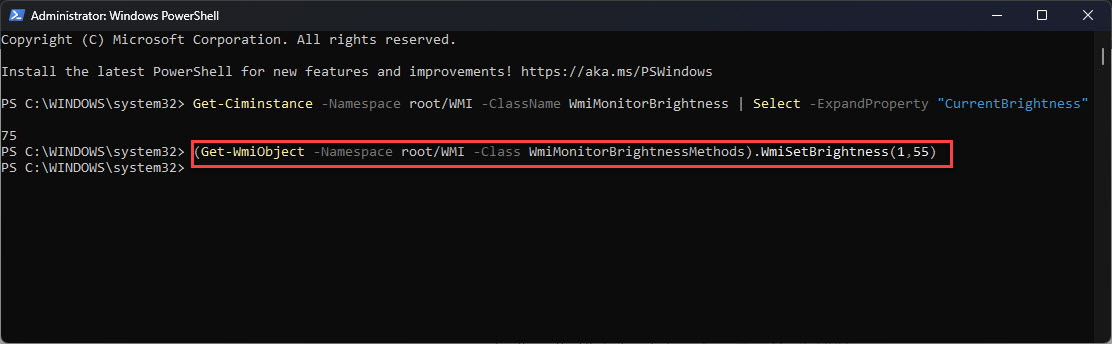
2. To check the current brightness, run: (Get-WmiObject -Namespace root/WMI -Class WmiMonitorBrightness).CurrentBrightness
3. To set the brightness, run: (Get-WmiObject -Namespace root/WMI -Class WmiMonitorBrightnessMethods).WmiSetBrightness(1,LEVEL) — replace LEVEL with a value from 0 to 100.
4. For example, (Get-WmiObject -Namespace root/WMI -Class WmiMonitorBrightnessMethods).WmiSetBrightness(1,50) sets brightness to 50 percent.
Setting the screen brightness level from PowerShell.
Tip: The first argument (1) is a timeout in seconds for the change to take effect. Save your favorite levels as one-line scripts or shortcuts for instant day/night brightness switching.
Change Brightness Using Command Prompt
Command Prompt does not have a native brightness command, but it can run the same PowerShell one-liner inline.
1. Open the Start menu, type cmd, and open Command Prompt.
2. Run: powershell (Get-WmiObject -Namespace root/WMI -Class WmiMonitorBrightnessMethods).WmiSetBrightness(1,LEVEL)
3. Replace LEVEL with your desired percentage, for example 80 for bright or 10 for dim.
4. Press Enter and the brightness changes immediately.
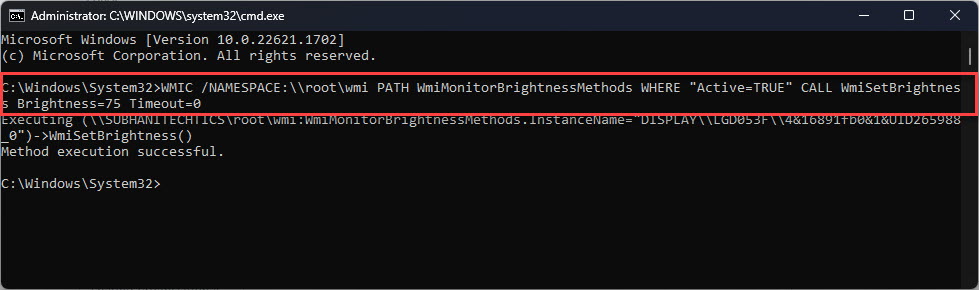
Changing screen brightness by calling PowerShell from Command Prompt.
Troubleshooting
Problem: The command runs but brightness does not change.
Solution: Your display likely does not support software brightness control. This is common on external desktop monitors — use the monitor's physical buttons or a tool like Monitorian for DDC/CI control.
Problem: PowerShell returns an error about the WMI class not being found.
Solution: Run PowerShell as administrator and confirm you are on a device with a laptop-style backlight. Some systems require the display driver's WMI provider to be present.
Problem: CurrentBrightness returns a value but WmiSetBrightness fails.
Solution: Ensure the LEVEL value is an integer between 0 and 100 and that no third-party brightness app is overriding the setting.
Problem: You want a quick toggle without typing the full command.
Solution: Save the command in a .ps1 or .bat file, or create a desktop shortcut, so you can set a preset brightness with a single click.
Conclusion
Controlling brightness from the command line is fast and scriptable. PowerShell can both read and set the level through WMI, and Command Prompt can call the same command inline. Save your preferred levels as shortcuts to switch brightness instantly without ever opening Settings.
About TechHub
This guide is part of the TechHub Knowledge Base. For more step-by-step IT guides and support, visit techhub.com.lk.