Overview
Display calibration එකෙන් gamma, brightness, contrast සහ color balance හදලා images නිවැරදිව පෙනෙන්න සකස් කරනවා. Windows එකට built-in calibration wizard එකක් තියෙනවා, ඒක ඔබව step by step එක්ක ගෙනියනවා. මේ guide එකෙන් ඒක පාවිච්චි කරන හැටි කියලා දෙනවා.
Key Takeaways
- Calibration එකෙන් color accuracy සහ consistency වැඩි කරනවා.
- Windows එකට built-in Display Color Calibration wizard එකක් තියෙනවා.
- ඒක gamma, brightness, contrast සහ color balance හරහා ඔබව ගෙනියනවා.
- Professionals ලාට hardware calibrators වලින් වැඩිම precision එක ලැබෙනවා.
Run the Calibration Wizard
1. Windows + R press කරලා, dccw කියලා type කරලා Enter කරන්න.
2. Sample image එක පාවිච්චි කරලා gamma set කරන්න wizard එක follow කරන්න.
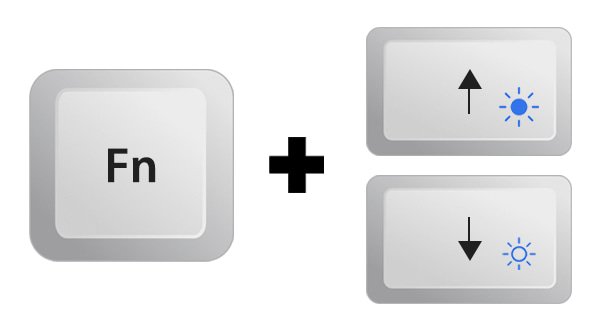
3. Wizard එකේ කියන විදිහට ඔබේ monitor controls වලින් brightness සහ contrast adjust කරන්න.
4. Color casts අයින් කරන්න red, green සහ blue levels balance කරන්න.
Finish and Compare
1. අන්තිමට, දැන් තියෙන calibration එක කලින් තිබුණ එක්ක compare කරන්න.
2. අලුත් calibration එක හොඳට පෙනෙනවා නම් ඒක තියාගන්න.
3. Prompt වුණොත් ClearType text tuning එකත් enable කරගන්න පුළුවන්.
4. Lighting conditions ලොකුවට වෙනස් වුණොත් නැවත recalibrate කරන්න.
Tip: Photo හෝ video editing වගේ color-critical වැඩ වලට, ඇහැට වඩා hardware calibration device එකකින් හුඟක් නිවැරදි results ලැබෙනවා.
Troubleshooting
Problem: Calibrate කරාට පස්සෙත් colors වැරදියට පෙනෙනවා.
Solution: මුලින්ම monitor එක factory defaults වලට reset කරලා, consistent lighting එකේ නැවතත් wizard එක run කරන්න.
Problem: Calibration එක save වෙන්නෙ නෑ.
Solution: Windows color management calibration loader එක startup එකේදී run වෙන්න allow කරලා තියෙනවද කියලා බලන්න.
Problem: Wizard එකේ brightness adjust කරන්න බෑ.
Solution: Wizard එක guide කරන එකයි කරන්නෙ, ඒ නිසා brightness සහ contrast වලට monitor එකේම buttons පාවිච්චි කරන්න.
Problem: ඔබට නිවැරදි accuracy ඕන.
Solution: Screen එක කෙලින්ම measure කරන hardware colorimeter එකක් පාවිච්චි කරන්න, එතකොට professional results ලැබෙනවා.
Conclusion
Built-in calibration wizard එකෙන් මිනිත්තු කිහිපයකින් color එකයි clarity එකයි පැහැදිලිවම දියුණු කරනවා. Professional accuracy වලට, ඒක hardware calibrator එකක් එක්ක එකතු කරන්න.
About TechHub
මේ guide එක TechHub Knowledge Base එකේ කොටසක්. තව step-by-step IT guides සහ support වලට techhub.com.lk එකට යන්න.