Overview
Type කරනකොට accidental cursor jumps වළක්වන්න, නැත්නම් external mouse එකක් පාවිච්චි කරනකොට, laptop touchpad එක disable කරන්න ඔබට ඕන වෙන්න පුළුවන් — නැත්නම් ඕන වුණාම ආපහු enable කරන්න. මේ guide එකෙන් Windows එකේ touchpad එක toggle කරන හැම ක්රමයක්ම cover කරනවා.
Laptop touchpad එක ක්රම කිහිපයකින් enable/disable කරන්න.
Key Takeaways
- ගොඩක් laptops වල touchpad එක toggle කරන්න function-key (Fn) shortcut එකක් තියෙනවා.
- Windows Settings එකෙන් disable කරන්න, නැත්නම් mouse එකක් connect කරාම auto-disable කරන්න පුළුවන්.
- Device Manager එකෙන් touchpad device එක සම්පූර්ණයෙන් disable කරන්න පුළුවන්.
- සමහර laptops වල toggle කරන්න double-tap corner gesture එකක් තියෙනවා.
Method 1 — Keyboard Shortcut
1. Function keys වල touchpad icon එක හොයන්න (බොහෝවිට F5, F6, F7, හෝ F9).
2. ඒක direct press කරන්න, නැත්නම් Fn අල්ලගෙන press කරන්න.
3. Toggle එක confirm කරන on-screen indicator එකක් බලන්න.

ගොඩක් laptops function key එකකින් touchpad එක toggle කරනවා.
Method 2 — Windows Settings
1. Settings > Bluetooth & devices > Touchpad open කරන්න.
2. Touchpad Off (හෝ On) toggle කරන්න.
3. Touchpad section එක expand කරලා, mouse එකක් එක්ක auto-disable ඕන නම් "Leave touchpad on when a mouse is connected" untick කරන්න.
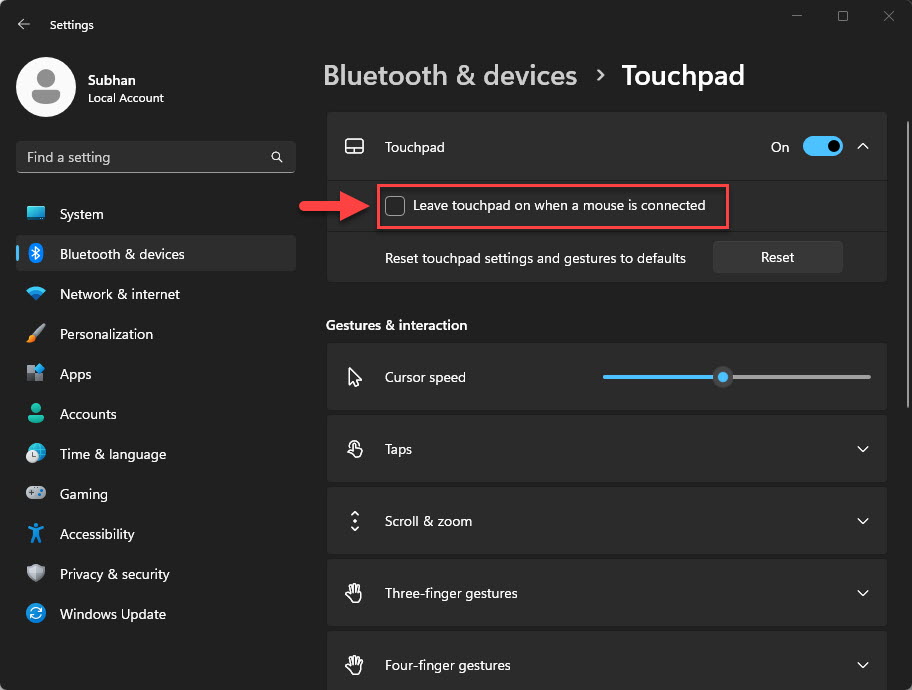
Mouse එකක් connect කරාම touchpad එක auto-disable කරන්න.
Method 3 — Device Manager
1. Start එක right-click කරලා Device Manager open කරන්න.
2. Human Interface Devices හෝ Mice and other pointing devices expand කරන්න.
3. Touchpad එක right-click කරලා Disable device (හෝ Enable device) තෝරන්න.
Method 4 — Manufacturer Software / Gesture
- සමහර touchpads top-left corner එකේ double-tap එකකින් on/off toggle support කරනවා.
- Vendor apps (Synaptics, ELAN, හෝ Lenovo Vantage වගේ maker utilities) touchpad on/off settings දෙනවා.
- Settings toggle එක නෑ නම් මේවා පාවිච්චි කරන්න.
Frequently Asked Questions
Problem: Settings එකේ Touchpad option එක නෑ.
Solution: ඔබේ laptop maker එකෙන් හරි touchpad (precision/Synaptics/ELAN) driver එක install කරන්න; generic driver එකෙන් settings hide කරනවා.
Problem: Fn key එකෙන් මුකුත් වෙන්නේ නෑ.
Solution: Manufacturer's function-key/hotkey software එක install කරලා, touchpad එක BIOS එකේ enabled කියලා බලන්න.
Problem: Restart එකට පස්සේ touchpad එක ආපහු enable වෙනවා.
Solution: Fn shortcut එක විතරක් නෙවෙයි Settings toggle එක (ඒක persist වෙනවා) පාවිච්චි කරන්න, නැත්නම් Device Manager එකෙන් disable කරන්න.
Problem: Disable කළා, දැන් pointer එකක් නෑ.
Solution: Settings හෝ Device Manager වලට යන්න keyboard navigation (Tab/arrows, Windows key) පාවිච්චි කරලා ආපහු enable කරන්න, නැත්නම් mouse එකක් plug කරන්න.
Conclusion
Touchpad එක quick changes වලට function key එකෙන්, persistent setting එකකට Windows Settings එකෙන් (mouse එකක් එක්ක auto-disable ඇතුළුව), හෝ device එක සම්පූර්ණයෙන් off කරන්න Device Manager එකෙන් toggle කරන්න පුළුවන්.
About TechHub
මේ guide එක TechHub Knowledge Base එකේ කොටසක්. තව step-by-step IT guides සහ support වලට techhub.com.lk එකට යන්න.