Overview
Default විදිහට, malicious code වලින් ඔබව ආරක්ෂා කරන්න PowerShell script files (.ps1) run කරන එක block කරනවා. ඔබේම scripts run කරන්න, Set-ExecutionPolicy එකෙන් execution policy එක වෙනස් කරන්න ඕන. මේ guide එකෙන් policies සහ scopes පැහැදිලි කරලා, scripts safely enable කරන ආකාරය පෙන්නනවා.
Execution policy එක වෙනස් කරනකම් PowerShell default විදිහට scripts block කරනවා.
Key Takeaways
- RemoteSigned තමයි recommended balance එක: local scripts run වෙනවා; download කරපු ඒවා signed වෙන්න ඕන.
- Scope එකට set කරන්න — CurrentUser මුළු machine එකට වඩා safe.
- දැනට තියෙන settings බලන්න Get-ExecutionPolicy -List පාවිච්චි කරන්න.
- Bypass/Unrestricted protection අයින් කරනවා — තාවකාලිකව මිසක් ඒවා avoid කරන්න.
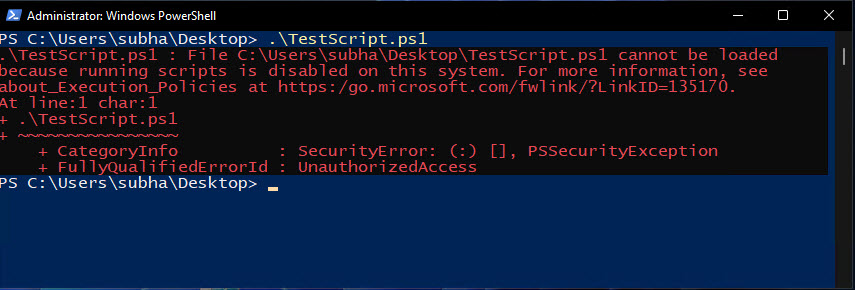
Default Restricted policy එක යටතේ script එකක් run වෙන්නේ නෑ.
Execution Policies
- Restricted — scripts run වෙන්නේ නෑ (clients වල default).
- RemoteSigned — local scripts run වෙනවා; download කරපු scripts වලට trusted signature එකක් ඕන (recommended).
- AllSigned — හැම script එකක්ම trusted publisher කෙනෙකුගෙන් signed වෙන්න ඕන.
- Unrestricted / Bypass — scripts checks අඩුවෙන් හෝ නැතුව run වෙනවා (least secure).
Execution Scopes
- Process — දැනට තියෙන PowerShell session එකට විතරයි apply වෙන්නේ.
- CurrentUser — ඔබේ account එකට විතරයි.
- LocalMachine — users ඔක්කොටම (admin ඕන).
Scripts Enable කරන්න (Recommended: RemoteSigned)
1. PowerShell open කරන්න (machine-wide changes වලට administrator විදිහට).
2. Run: Set-ExecutionPolicy RemoteSigned
3. Prompt වුණාම Y එකෙන් confirm කරන්න.
4. දැන් local scripts run වෙනවා; download කරපු scripts වලට තවම signature එකක් ඕන.
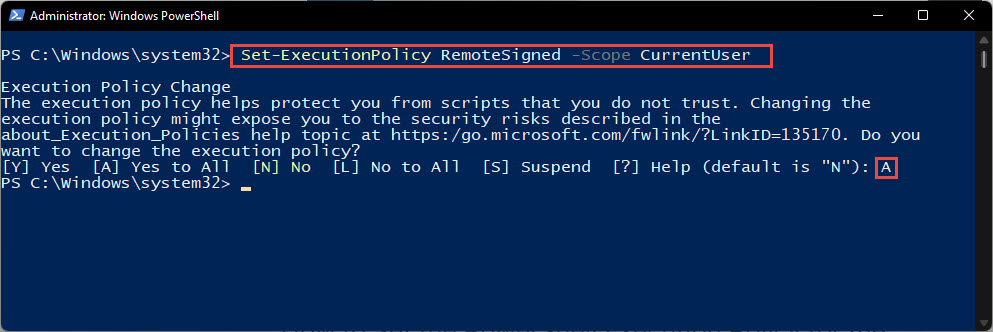
Execution policy එක RemoteSigned වලට වෙනස් වුණා.
Specific Scope එකකට Policy වෙනස් කරන්න
1. ඔබේ account එකට විතරයි: Set-ExecutionPolicy -Scope CurrentUser RemoteSigned
2. දැනට තියෙන session එකට විතරයි: Set-ExecutionPolicy -Scope Process Bypass
3. System settings වෙනස් නොකර එක script එකක් run කරන්න Process scope එක නියමයි.
Script එකක් එක පාරක් විතරයි Allow කරන්න
1. PowerShell open කරන්න.
2. Run: powershell -ExecutionPolicy Bypass -File "C:\path\script.ps1"
3. මේකෙන් saved policy එක වෙනස් නොකර ඒ එක script එක run කරනවා.
Policy එක Check කරලා Revert කරන්න
1. Scopes ඔක්කොම check කරන්න: Get-ExecutionPolicy -List
2. Default එකට revert කරන්න: Set-ExecutionPolicy Restricted (හෝ scope එකකට Undefined).
3. වෙනස confirm කරන්න PowerShell restart කරන්න.
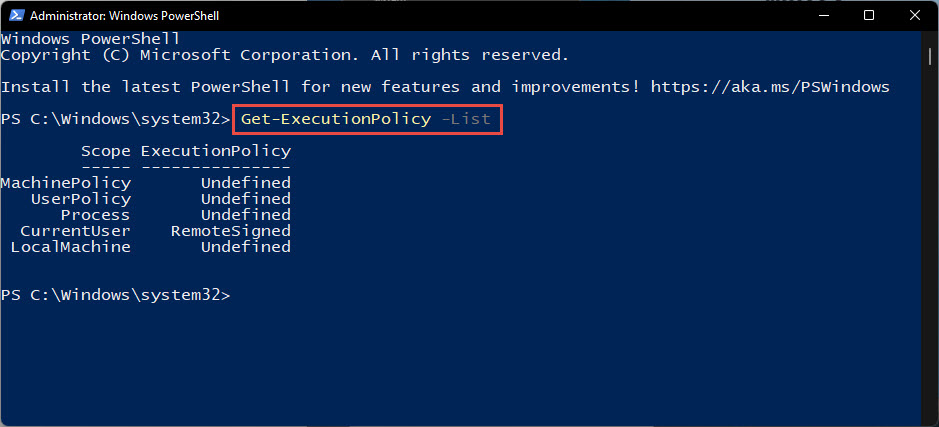
දැනට තියෙන execution policy settings check කරන්න.
Warning: Policy එක system-wide Unrestricted හෝ Bypass විදිහට තියන්න එපා — ඕනෑම script එකක් run වෙන්න දෙනවා. RemoteSigned prefer කරන්න, නැත්නම් Bypass per-process විතරයි.
Troubleshooting
Problem: "running scripts is disabled on this system".
Solution: Policy එක RemoteSigned වලට set කරන්න (Set-ExecutionPolicy -Scope CurrentUser RemoteSigned), ඊට පස්සේ script එක ආපහු run කරන්න.
Problem: Group Policy එකෙන් change එක block වෙනවා.
Solution: Managed PCs වල policy එක enforce කරලා ඇති. එක session එකට -Scope Process Bypass පාවිච්චි කරන්න, නැත්නම් administrator එක්ක කතා කරන්න.
Problem: Download කරපු script එකක් තවම run වෙන්නේ නෑ.
Solution: ඒක blocked කියලා mark වෙලා ඇති. File එක right-click > Properties > Unblock, නැත්නම් sign කරන්න, නැත්නම් -ExecutionPolicy Bypass එකෙන් run කරන්න.
Problem: LocalMachine වෙනස් කරනකොට Access denied.
Solution: Machine-wide scope වලට PowerShell administrator විදිහට run කරන්න, නැත්නම් elevation ඕන නැති CurrentUser පාවිච්චි කරන්න.
Conclusion
Set-ExecutionPolicy එකෙන් PowerShell scripting unlock කරනවා. Safe default එකකට RemoteSigned (ideally CurrentUser scope එකේ), one-off scripts වලට Bypass per-process පාවිච්චි කරන්න, system එක fully unrestricted විදිහට තියන එක avoid කරන්න.
About TechHub
මේ guide එක TechHub Knowledge Base එකේ කොටසක්. තව step-by-step IT guides සහ support වලට techhub.com.lk එකට යන්න.