Overview
The BIOS or UEFI firmware controls low-level hardware settings such as boot order, Secure Boot, virtualization, and system time. Reaching it requires pressing a specific key during startup, though modern Windows also offers a menu-based route. This guide covers both approaches and the common keys by manufacturer.
Key Takeaways
- BIOS/UEFI is entered by pressing a setup key immediately at power-on.
- Common keys are Del, F2, F10, F12, and Esc, depending on the manufacturer.
- Windows can boot straight into UEFI firmware through Advanced startup.
- Fast Startup can make the key press unreliable, so the Windows menu route is a dependable fallback.
Method 1: Press the Setup Key at Startup
1. Fully shut down the computer.
2. Power it on and immediately begin tapping the setup key repeatedly.
3. Use the key for your brand — Del on many desktops, F2 on Dell and ASUS, F10 on HP, F1 or Enter then F1 on Lenovo desktops.
4. Keep tapping until the firmware screen appears.
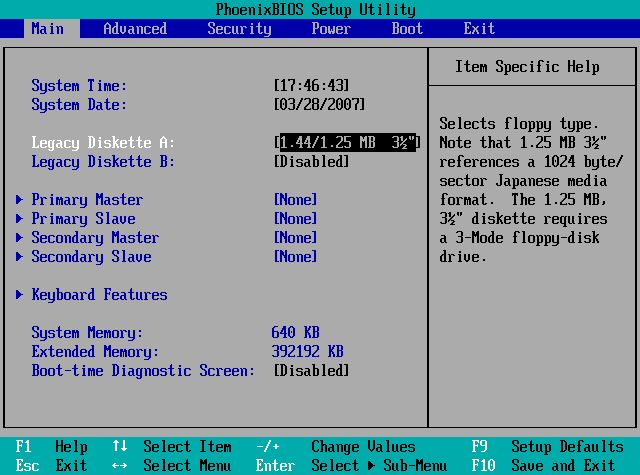
A typical BIOS setup screen reached with the startup key.
Method 2: Enter UEFI From Windows
This route avoids timing the key press and works reliably on UEFI systems.
1. Open Settings > Update & Security > Recovery.
2. Under Advanced startup, click Restart now.
3. Choose Troubleshoot > Advanced options > UEFI Firmware Settings.
4. Click Restart and the PC boots directly into UEFI setup.
Note: The UEFI Firmware Settings option only appears on UEFI-based systems. Older BIOS-only machines must use the startup key.
Tip: If the setup key never catches, disable Fast Startup in Power Options, or hold Shift while clicking Restart to reach Advanced startup.
Warning: Change only the settings you understand. Incorrect firmware changes — especially to boot mode, Secure Boot, or overclocking values — can stop Windows from booting, so note the original values before editing.
Troubleshooting
Problem: The PC boots into Windows before you can press the key.
Solution: Disable Fast Startup in Power Options, or use the Advanced startup menu to reach UEFI without timing a key.
Problem: You do not know which key your PC uses.
Solution: Watch for a brief on-screen prompt at power-on, or check the manufacturer’s support page for your exact model.
Problem: UEFI Firmware Settings is missing from the recovery menu.
Solution: Your system likely uses legacy BIOS; use the startup key method instead.
Problem: A wireless keyboard does not register the key.
Solution: Use a wired USB keyboard, since wireless keyboards may not be active early enough during boot.
Conclusion
Getting into BIOS or UEFI is simple once you know your setup key or the Windows recovery route. When timing the key press is tricky, the Advanced startup menu is the most reliable way in.
About TechHub
This guide is part of the TechHub Knowledge Base. For more step-by-step IT guides and support, visit techhub.com.lk.