Overview
BIOS හෝ UEFI firmware එකෙන් boot order, Secure Boot, virtualization, සහ system time වගේ low-level hardware settings control කරනවා. මේකට යන්න පුළුවන් වෙන්නේ startup වෙද්දී specific key එකක් press කරලා, නමුත් modern Windows වල menu එකක් හරහා යන route එකකුත් තියෙනවා. මේ guide එකේ approaches දෙකම සහ manufacturer අනුව common keys ගැන කතා කරනවා.
Key Takeaways
- BIOS/UEFI එකට enter වෙන්නේ power-on වෙද්දීම setup key එකක් press කරලා.
- Common keys තමයි Del, F2, F10, F12, සහ Esc — manufacturer එක අනුව වෙනස් වෙනවා.
- Windows වලින් Advanced startup හරහා කෙලින්ම UEFI firmware එකට boot වෙන්න පුළුවන්.
- Fast Startup නිසා key press එක unreliable වෙන්න පුළුවන්, ඒ නිසා Windows menu route එක reliable fallback එකක්.
Method 1: Press the Setup Key at Startup
1. Computer එක සම්පූර්ණයෙන්ම shut down කරන්න.
2. Power on කරලා වහාම setup key එක නැවත නැවත tap කරන්න පටන් ගන්න.
3. ඔබේ brand එකට අදාළ key එක use කරන්න — desktops ගොඩකට Del, Dell සහ ASUS වලට F2, HP වලට F10, Lenovo desktops වලට F1 හෝ Enter ඊට පස්සේ F1.
4. Firmware screen එක එනකම් tap කරමින් ඉන්න.
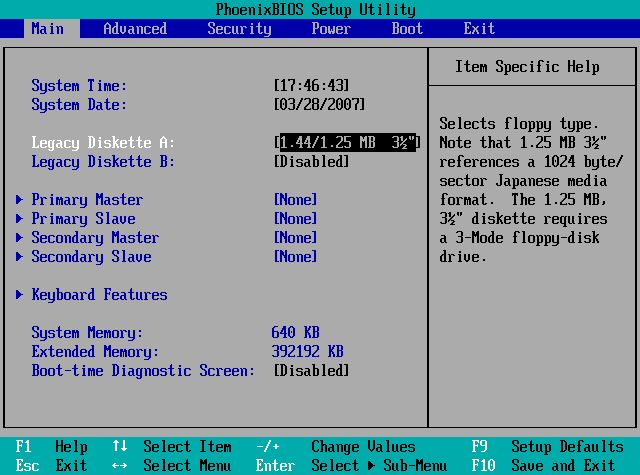
Startup key එකෙන් ලැබෙන typical BIOS setup screen එකක්.
Method 2: Enter UEFI From Windows
මේ route එකෙන් key press එකේ timing එක avoid වෙනවා සහ UEFI systems වල reliable විදිහට වැඩ කරනවා.
1. Settings > Update & Security > Recovery open කරන්න.
2. Advanced startup යටතේ, Restart now click කරන්න.
3. Troubleshoot > Advanced options > UEFI Firmware Settings තෝරන්න.
4. Restart click කරන්න, PC එක කෙලින්ම UEFI setup එකට boot වෙනවා.
Note: UEFI Firmware Settings option එක පෙනෙන්නේ UEFI-based systems වල විතරයි. පරණ BIOS-only machines වලට setup key එක use කරන්නම වෙනවා.
Tip: Setup key එක කවදාවත් catch වෙන්නේ නැත්නම්, Power Options වල Fast Startup disable කරන්න, නැත්නම් Restart click කරද්දී Shift අල්ලාගෙන Advanced startup එකට යන්න.
Warning: ඔබ තේරුම් ගන්නා settings විතරක් වෙනස් කරන්න. වැරදි firmware changes — විශේෂයෙන් boot mode, Secure Boot, හෝ overclocking values වලට — නිසා Windows boot වීම නවතින්න පුළුවන්, ඒ නිසා edit කරන්න කලින් original values note කරගන්න.
Troubleshooting
Problem: Key එක press කරන්න කලින් PC එක Windows එකට boot වෙනවා.
Solution: Power Options වල Fast Startup disable කරන්න, නැත්නම් key එකේ timing එකක් නැතුව UEFI එකට යන්න Advanced startup menu එක use කරන්න.
Problem: ඔබේ PC එක මොන key එකද use කරන්නේ කියලා ඔබ දන්නේ නෑ.
Solution: Power-on වෙද්දී පොඩි on-screen prompt එකක් තියෙනවද බලන්න, නැත්නම් ඔබේ exact model එකට manufacturer ගේ support page එක බලන්න.
Problem: Recovery menu එකේ UEFI Firmware Settings නෑ.
Solution: ඔබේ system එක බොහෝවිට legacy BIOS use කරනවා; ඒ වෙනුවට startup key method එක use කරන්න.
Problem: Wireless keyboard එකෙන් key එක register වෙන්නේ නෑ.
Solution: Wired USB keyboard එකක් use කරන්න, මොකද wireless keyboards boot එකේදී එච්චර ඉක්මනට active වෙන්නේ නැති නිසා.
Conclusion
ඔබේ setup key එක හෝ Windows recovery route එක දැනගත්තම BIOS හෝ UEFI එකට යාම සරලයි. Key press එකේ timing එක අමාරු වෙද්දී, Advanced startup menu එක තමයි වඩාත්ම reliable මාර්ගය.
About TechHub
මේ guide එක TechHub Knowledge Base එකේ කොටසක්. තව step-by-step IT guides සහ support වලට techhub.com.lk එකට යන්න.