Overview
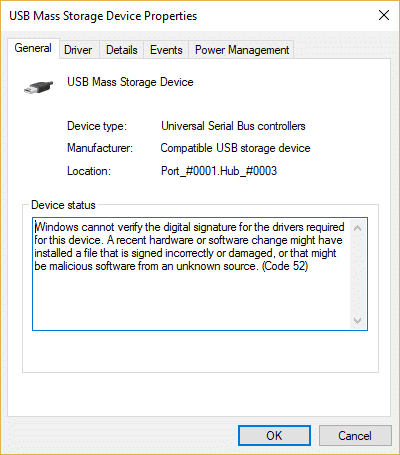
Error Code 52 means Windows can’t verify a driver’s digital signature, so it blocks the device. The safest fix is to install a properly signed driver; disabling signature enforcement is a last resort. This guide covers both, in the right order.
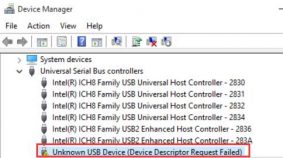
Device Manager Error Code 52.
Warning: Driver signature enforcement protects you from tampered or malicious drivers. Disable it only temporarily and only if you fully trust the driver’s source.
Key Takeaways
- Code 52 = unverified driver signature.
- Best fix: get a signed driver from the official vendor.
- Corrupt USB filter entries can also trigger it.
- Disabling enforcement is a temporary last resort.
Fix 1: Install a Properly Signed Driver (Recommended)
1. Uninstall the problem device in Device Manager (tick "Delete the driver software").
2. Download the latest signed driver from the hardware maker’s official website.
3. Install it and restart.
4. Windows should now verify the signature and load the device.
Fix 2: Repair Corrupt USB Filter Entries
Warning: Editing the Registry incorrectly can cause problems. Back up the Registry first.
1. Open regedit and go to HKEY_LOCAL_MACHINE\SYSTEM\CurrentControlSet\Control\Class\{36FC9E60-C465-11CF-8056-444553540000}.
2. Delete the UpperFilters and LowerFilters values if present.
3. Restart the PC and reconnect the device.
Fix 3: Update Windows and Run SFC
1. Install all Windows updates.
2. Run sfc /scannow and DISM /Online /Cleanup-Image /RestoreHealth in an elevated prompt.
3. Restart and recheck the device.
Last Resort: Temporarily Disable Signature Enforcement
1. Open Settings > System > Recovery > Advanced startup > Restart now.
2. Go to Troubleshoot > Advanced options > Startup Settings > Restart.
3. Press 7 for "Disable driver signature enforcement".
4. Install the trusted driver, then reboot normally to re-enable enforcement.
Troubleshooting
Problem: Error returns after reboot.
Solution: The Startup-Settings method is temporary; obtain a properly signed driver for a permanent fix.
Problem: No signed driver exists.
Solution: Contact the vendor; using an unsigned driver long-term is risky and may be blocked by Secure Boot.
Problem: Deleting filters broke USB.
Solution: Reboot — Windows recreates needed entries; restore your Registry backup if necessary.
Problem: Secure Boot blocks the driver.
Solution: Only properly signed drivers load with Secure Boot on; prefer a signed driver over disabling Secure Boot.
Conclusion
Error Code 52 is best solved by installing a properly signed driver from the official vendor. Repair corrupt USB filters and run system-file checks if needed — and only disable signature enforcement temporarily for a driver you fully trust.
</w:pBdr><w:spacing w:before="220" w:after="40"/></w:pPr><w:r><w:rPr><w:b/><w:bCs/><w:color w:val="0B5394"/><w:sz w:val="21"/><w:szCs w:val="21"/><w:rFonts w:ascii="Calibri" w:cs="Calibri" w:eastAsia="Calibri" w:hAnsi="Calibri"/></w:rPr><w:t xml:space="preserve">About TechHub
This guide is part of the TechHub Knowledge Base. For more step-by-step IT guides and support, visit techhub.com.lk.