0xC0000005 error එක access violation එකකි — program එකක් අවසර නැති memory එකක් භාවිතා කිරීමට උත්සාහ කළ නිසා Windows එය නැවැත්වීමයි. Apps launch වන විට crash වීම, installs අතරතුර, හෝ blue-screen code එකක් ලෙස මෙය පෙනේ. හේතු: RAM දෝෂ, corrupted system files, drivers, malware, DEP ගැටුම්. පහත විසඳුම් පිළිවෙලින් කරන්න — වේගවත්ම එකේ සිට.
1. RAM එක test කරන්න (මිනිත්තු ~15)
Win+R ඔබා mdsched.exe run කර Restart now and check for problems තෝරන්න. Errors ආවොත් RAM module එක නැවත සවි කරන්න හෝ මාරු කරන්න.
2. System files repair — SFC සහ DISM (මිනිත්තු ~20)
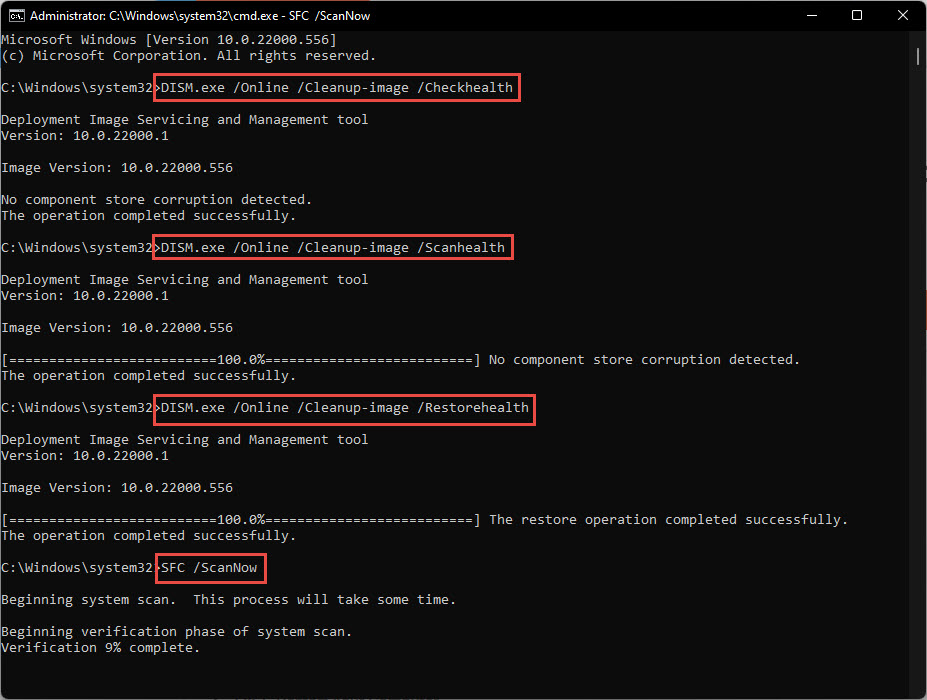
Command Prompt එක administrator ලෙස open කර පිළිවෙලින් run කරන්න:
sfc /scannow
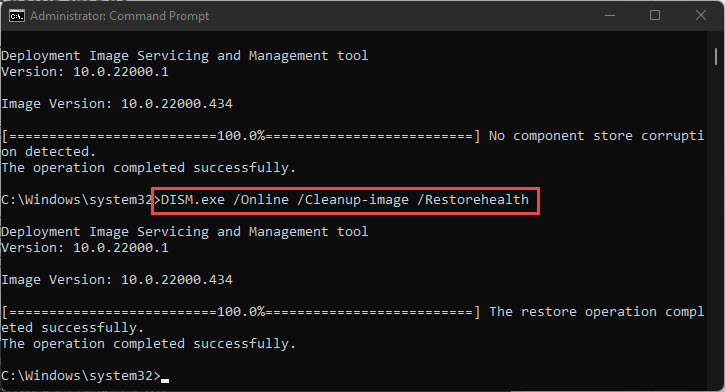
DISM /Online /Cleanup-Image /RestoreHealth
sfc /scannow
ඉන්පසු restart කරන්න. වඩාත්ම සුලභ හේතුව වන corrupted system files මෙයින් නිවැරදි වේ.
3. Malware scan එකක් (මිනිත්තු ~30)
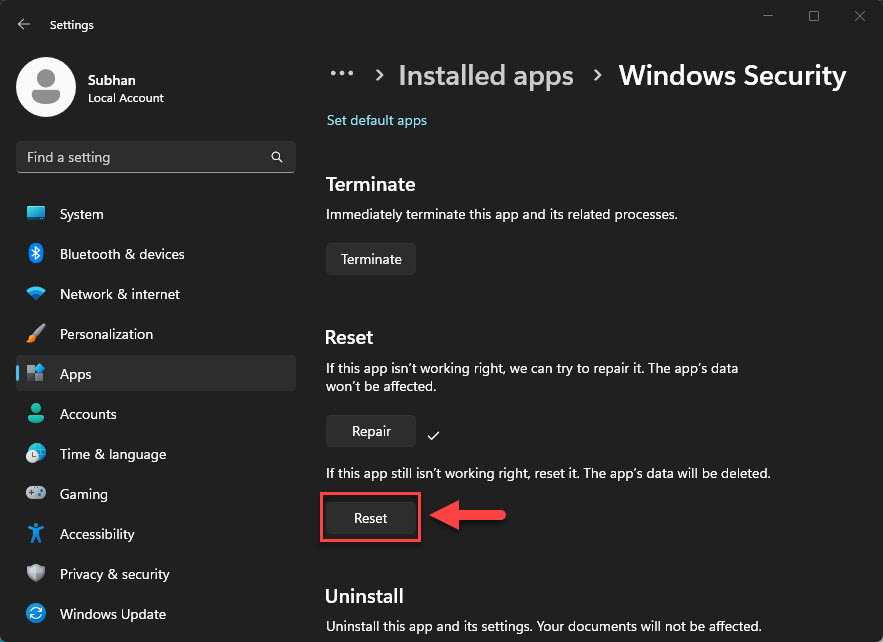
Windows Security → Virus & threat protection → Scan options → Full scan (දරුණු අවස්ථා සඳහා Microsoft Defender Offline scan).
4. Drivers update / roll back (මිනිත්තු ~15)
Device Manager එකේ display adapter එක සහ warning icon ඇති devices update කරන්න. Driver update එකකට පසුම error එක ආවා නම් Roll Back Driver භාවිතා කරන්න.
5. ගැටලුකාරී Windows update එක uninstall කරන්න (මිනිත්තු ~10)
Settings → Windows Update → Update history → Uninstall updates → අලුත්ම update එක ඉවත් කර test කරන්න.
6. DEP එකෙන් app එක exclude කරන්න (මිනිත්තු ~5)
System → About → Advanced system settings → Performance Settings → Data Execution Prevention → "Turn on DEP for all programs except…" → crash වන app එක add කරන්න. විශ්වාස කරන software සඳහා පමණයි.
7. Virtual memory reset (මිනිත්තු ~5)
එම Performance settings → Advanced → Virtual memory → Change → Automatically manage paging file size tick කර restart කරන්න.
8. Clean boot (මිනිත්තු ~15)
msconfig → Services → Microsoft services hide කර → Disable all → Task Manager එකෙන් startup apps disable කර restart. Error එක නැති වුණොත් services කොටස් වශයෙන් නැවත enable කර ගැටුම්කාරී එක සොයන්න.
9. App එක reinstall කරන්න (මිනිත්තු ~15)
එක program එකක් පමණක් crash වේ නම් එය uninstall කර අලුත් installer එකක් download කරන්න. Microsoft Visual C++ Redistributables අලුත්ම version එකද install කරන්න — runtimes නැතිකමද මේ error එකට හේතුවකි.
10. System Restore හෝ Reset (මිනිත්තු 30–90)
අවසාන විසඳුම: ගැටලුව ආරම්භ වීමට පෙර restore point එකකට යන්න, නැතහොත් Settings → System → Recovery → Reset this PC (Keep my files සමඟ).
අමතර — disk එක පරීක්ෂා කරන්න
Admin Command Prompt එකේ: chkdsk C: /f /r — ඊළඟ restart එකේදී scan වේ.
තවමත් විසඳුනේ නැද්ද?
TechHub වෙතින් ගත් Microsoft Office/Windows activate කරන අතරතුර 0xC0000005 ආවොත් screenshot එකක් සමඟ support ticket එකක් open කරන්න — activation ආශ්රිත ගැටලු අප නොමිලේ විසඳා දෙනවා.