Overview
An orange (amber) light on a router or modem usually signals a connection problem — often no internet from your ISP, a sync issue, or a loose cable. This guide explains what it means and how to fix it.
An orange light on a router usually signals a connection problem.
Key Takeaways
- Orange/amber on the internet (WAN) light often means no internet signal from the ISP.
- Power cycling the modem and router fixes many temporary glitches.
- Check for an ISP outage and loose/damaged cables.
- A factory reset or firmware update helps persistent cases.
What Does the Orange Light Mean?
- Internet/WAN light orange — the device cannot get a valid internet connection from the ISP.
- Power light orange — the device may be booting, updating, or faulty.
- It can also indicate a slower/limited link or a sync problem on the line.
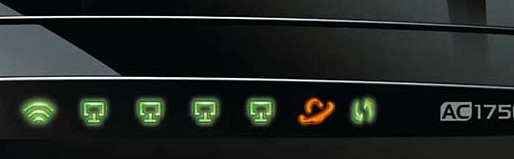
An orange light on the WAN/Internet indicator usually means no internet.
Fix 1 — Power Cycle the Devices
1. Unplug both the modem and router from power.
2. Wait about 60 seconds.
3. Plug the modem in first and let it fully connect, then power on the router.
4. Check whether the light turns white/green/blue (connected).
Fix 2 — Check for an ISP Outage
1. Check your ISP’s app, website, or social media for outage notices.
2. Call your ISP to confirm there is no area outage or account issue.
3. If it is an outage, wait for it to be resolved.
Fix 3 — Check Physical Connections
1. Ensure the coax/DSL/fibre cable from the wall is firmly connected.
2. Check the Ethernet cable between modem and router is secure and undamaged.
3. Try a different cable or port to rule out a faulty lead.
Fix 4 — Reset and Update
1. Press the recessed Reset button for ~30 seconds to factory reset (you will need to reconfigure Wi-Fi).
2. Log in to the router and update its firmware.
3. If the orange light persists with no outage, the modem/router may be failing and need replacing.
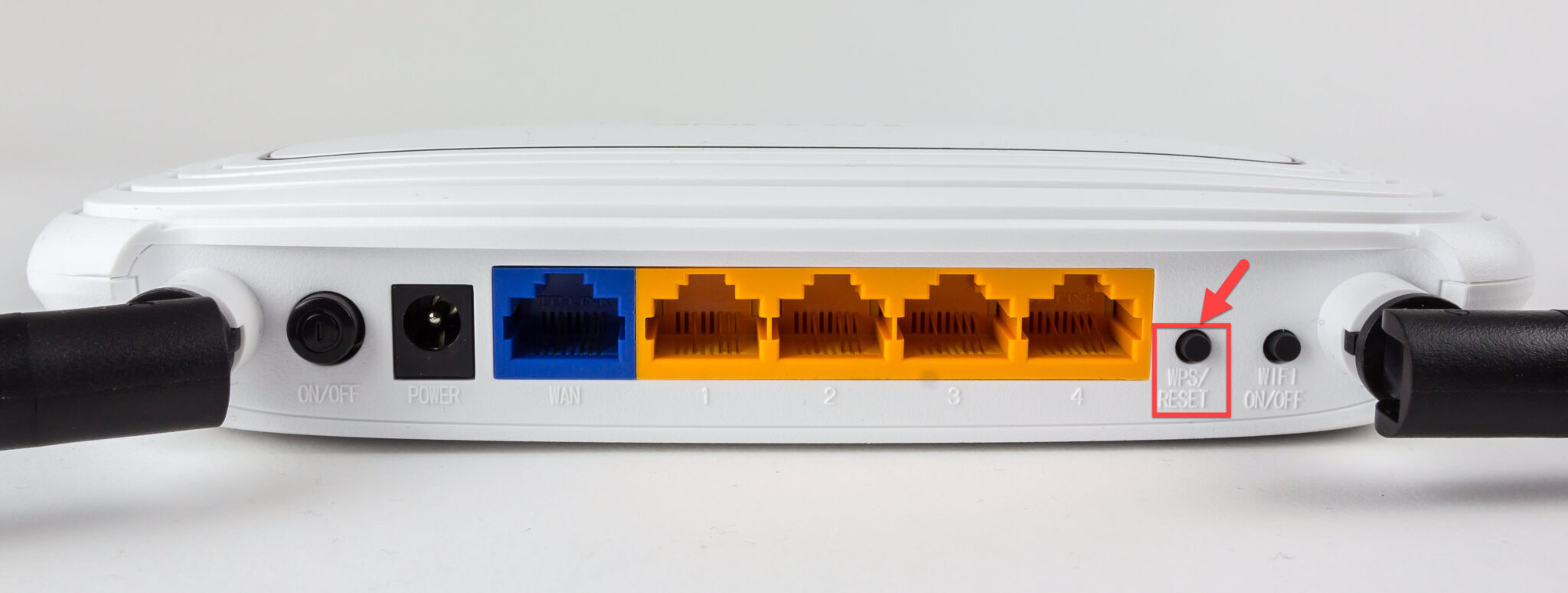
The reset button on a router.
Troubleshooting
Problem: Light stays orange after power cycling.
Solution: Confirm there is no ISP outage, reseat the incoming line and Ethernet cables, then factory reset the device.
Problem: Only the WAN light is orange.
Solution: This points to no internet from the ISP — check the line, contact your provider, and confirm your account is active.
Problem: It turns orange intermittently.
Solution: A loose cable or line sync issue; replace cables and ask your ISP to check the line quality.
Problem: Nothing helps.
Solution: The modem/router may be faulty or end-of-life — try ISP-provided equipment or replace it.
Conclusion
An orange light usually means a connection problem. Power cycle the modem and router, rule out an ISP outage, check the cables, and reset or update the device — and replace it if the light persists with no outage.
</w:pBdr><w:spacing w:before="220" w:after="40"/></w:pPr><w:r><w:rPr><w:b/><w:bCs/><w:color w:val="0B5394"/><w:sz w:val="21"/><w:szCs w:val="21"/><w:rFonts w:ascii="Calibri" w:cs="Calibri" w:eastAsia="Calibri" w:hAnsi="Calibri"/></w:rPr><w:t xml:space="preserve">About TechHub
This guide is part of the TechHub Knowledge Base. For more step-by-step IT guides and support, visit techhub.com.lk.