Overview
A Windows update can occasionally break Wi-Fi — often through a driver mismatch or reset network settings. This guide covers the common symptoms and fixes to get you back online.
Fixing Wi-Fi issues after a Windows update.
Key Takeaways
- Updates can replace or break the Wi-Fi driver.
- Updating/rolling back the driver often fixes it.
- A network reset clears bad configurations.
- Adapter power settings can drop the connection.
Common Symptoms
- "No Internet, secured" despite being connected.
- Limited or no connectivity.
- "Wi-Fi doesn’t have a valid IP configuration".
- Wi-Fi adapter missing from settings.
Fix 1: Update or Roll Back the Wi-Fi Driver
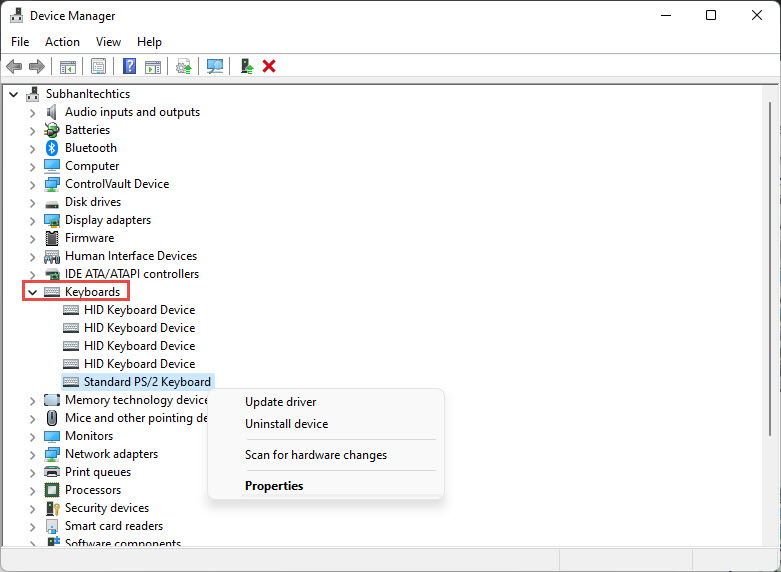
1. Open Device Manager > Network adapters.
2. Right-click the Wi-Fi adapter > Update driver (get the latest from the PC/adapter maker’s official site).
3. If Wi-Fi broke right after the update, use Properties > Driver > Roll Back Driver.
4. Restart the PC.
Fix 2: Run the Network Troubleshooter
1. Open Settings > System > Troubleshoot > Other troubleshooters.
2. Run "Network and Internet" / "Internet Connections".
3. Apply any suggested fixes.
Fix 3: Reset the Network
1. Open Settings > Network & Internet > Advanced network settings > Network reset.
2. Click "Reset now" and restart (this reinstalls adapters and clears settings).
3. Reconnect to your Wi-Fi and re-enter the password.
Fix 4: Renew IP and Flush DNS
1. Open Command Prompt as administrator.
2. Run: ipconfig /release then ipconfig /renew
3. Then: ipconfig /flushdns
4. Reconnect to the network.
Fix 5: Adapter Power and IPv6
1. In Device Manager > Wi-Fi adapter > Properties > Power Management, untick "Allow the computer to turn off this device to save power".
2. If issues persist, try disabling IPv6 in the adapter’s properties temporarily to test.
Troubleshooting
Problem: Wi-Fi adapter is missing entirely.
Solution: Show hidden devices in Device Manager, reinstall the driver, or run a network reset.
Problem: "No valid IP configuration".
Solution: Release/renew the IP, restart the router, and set the adapter to obtain IP/DNS automatically.
Problem: Connected but no internet.
Solution: Restart the router, disable VPN/third-party firewall temporarily, and flush DNS.
Problem: Keeps dropping.
Solution: Disable adapter power saving and update the driver; check for router firmware updates.
Conclusion
Post-update Wi-Fi problems usually trace to the driver or reset network settings. Update or roll back the Wi-Fi driver, run the troubleshooter, and reset the network if needed — and disable adapter power saving to stop future drops.
</w:pBdr><w:spacing w:before="220" w:after="40"/></w:pPr><w:r><w:rPr><w:b/><w:bCs/><w:color w:val="0B5394"/><w:sz w:val="21"/><w:szCs w:val="21"/><w:rFonts w:ascii="Calibri" w:cs="Calibri" w:eastAsia="Calibri" w:hAnsi="Calibri"/></w:rPr><w:t xml:space="preserve">About TechHub
This guide is part of the TechHub Knowledge Base. For more step-by-step IT guides and support, visit techhub.com.lk.