Overview
The taskbar can be set to hide automatically for more screen space, and a taskbar that has vanished can be restored. This guide covers auto-hide, manual control, and fixes for a missing taskbar.
Key Takeaways
- Auto-hide tucks the taskbar away until you point at its edge.
- You control it from Taskbar settings.
- A missing taskbar is often just auto-hidden or Explorer needs restarting.
- Full-screen apps hide the taskbar by design.
Turn On Auto-Hide
1. Right-click the taskbar and choose Taskbar settings.
2. Expand Taskbar behaviors.
3. Enable Automatically hide the taskbar.
4. Move your pointer to the screen edge to reveal it when needed.
Restore a Missing Taskbar
1. Point to the bottom edge in case auto-hide is on.
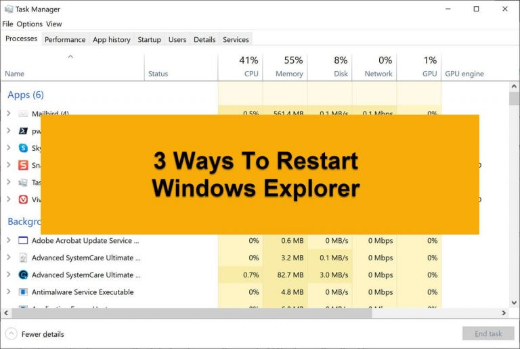
2. Press Ctrl + Shift + Esc to open Task Manager.
3. Find Windows Explorer, right-click it, and choose Restart.
4. The taskbar reappears once Explorer restarts.
Tip: You can also move a taskbar that seems missing — it may have been relocated to another screen edge.
Troubleshooting
Problem: The taskbar will not reappear on hover.
Solution: Restart Windows Explorer from Task Manager to reset the taskbar.
Problem: Auto-hide stops working.
Solution: An app demanding attention can block it; close or check the flashing app, then re-toggle auto-hide.
Problem: The taskbar is on the wrong edge.
Solution: Unlock it and drag it, or set its position in Taskbar settings.
Problem: It disappears only in some apps.
Solution: Those apps are full screen; exit full screen to see the taskbar.
Conclusion
Auto-hide frees up space while keeping the taskbar a mouse-move away, and an Explorer restart fixes most cases of a missing taskbar.
About TechHub
This guide is part of the TechHub Knowledge Base. For more step-by-step IT guides and support, visit techhub.com.lk.