Overview
Windows lets administrators hide individual pages in the Settings app, or restrict Settings to show only an approved list of pages. This is useful on shared, family, or managed computers where you want to prevent changes to certain areas. You can apply it through the Local Group Policy Editor on Pro and Enterprise editions, or through the registry on any edition.
Key Takeaways
- You can either hide specific pages or allow only a chosen set of pages.
- Group Policy is the easiest method on Pro, Enterprise, and Education editions.
- The registry method works on all editions, including Home.
- Each Settings page has a URI identifier (for example bluetooth) used to reference it.
Understanding Page URIs
Every Settings page has a short URI, such as home, bluetooth, display, windowsupdate, or about. You combine these into a semicolon-separated list, prefixed with either "hide:" to hide those pages or "showonly:" to display only those pages.
Method 1: Using Group Policy
1. Press Win + R, type gpedit.msc, and press Enter.
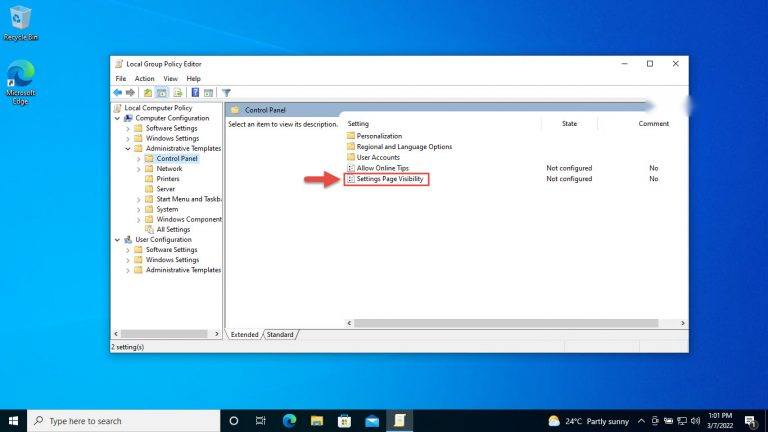
2. Go to Computer Configuration > Administrative Templates > Control Panel.
3. Double-click "Settings Page Visibility" and set it to Enabled.
4. In the Options box, enter your list, for example hide:bluetooth;display, then click OK.
Enter a hide: or showonly: list in the Settings Page Visibility policy.
Method 2: Using the Registry
1. Press Win + R, type regedit, and press Enter.
2. Navigate to HKEY_LOCAL_MACHINE\SOFTWARE\Microsoft\Windows\CurrentVersion\Policies\Explorer.
3. Create a new String Value named SettingsPageVisibility.
4. Set its value data to your list, for example showonly:home;windowsupdate, then restart the PC.
WARNING: Back up the registry before editing it (File > Export). An incorrect change to Policies keys can lock you out of parts of Settings.
TIP: To reverse the change, delete the SettingsPageVisibility value or set the Group Policy back to Not Configured.
Troubleshooting
Problem: The Settings app opens to a blank or empty window after applying a list.
Solution: Your showonly: list may be too restrictive or contain a typo. Include home in the list, and double-check each URI spelling.
Problem: Group Policy Editor is not available.
Solution: gpedit.msc is missing on Home editions. Use the registry method under Policies\Explorer instead.
Problem: Changes do not take effect.
Solution: Run gpupdate /force in an elevated Command Prompt, or restart the computer so the policy is applied.
Problem: You need to reset everything to default.
Solution: Delete the SettingsPageVisibility registry value, or set the policy to Not Configured, then restart.
Conclusion
Settings Page Visibility is a simple way to tidy up or lock down the Settings app. Use hide: to remove a few pages, or showonly: to expose just the ones users need, and always keep a registry backup before making the change.
About TechHub
This guide is part of the TechHub Knowledge Base. For more step-by-step IT guides and support, visit techhub.com.lk.