Windows Server 2025 Evaluation එක install කරලා, full Standard හෝ Datacenter edition එකට යන්න බලාගෙන ඉන්නවද? කරදර වෙන්න එපා — මම මේක step-by-step පැහැදිලි කරන්නම්, ඔබට කිසි hiccup එකක් නැතුව smoothly upgrade කරගන්න පුළුවන් වෙන්න.
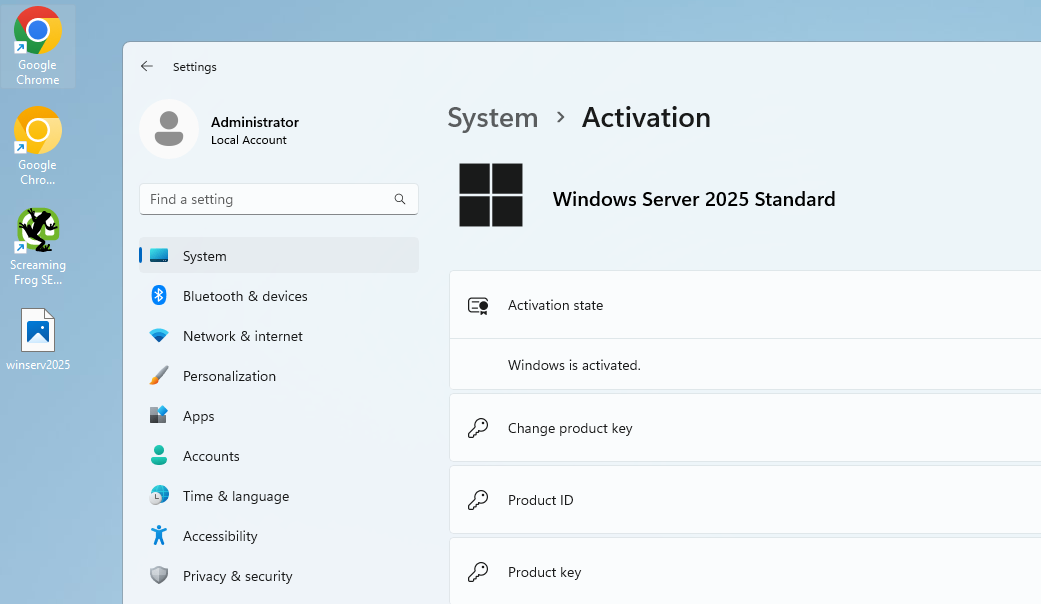
Evaluation Edition එක Upgrade කරන්නේ ඇයි?
Windows Server 2025 evaluation version එක testing වලට සහ දේවල් තේරුම් ගන්න නියමයි, ඒත් එකේ අවාසිත් තියෙනවා:
- එක free, ඒත් දවස් 180ක් විතරයි.
- ඔබට ඕන වෙන ඇතැම් enterprise features, proper licence එකක් නැතුව lock වෙලා තියෙනවා.
- ඒ වගේම නිතරම pop up වෙන activation nags ටිකත් අමතක කරන්න එපා.
Full version එකට switch කළාම server එකේ සම්පූර්ණ බලය unlock වෙලා, production එකේ හැම දෙයක්ම clockwork වගේ run වෙනවා.
පටන් ගන්න කලින්: අත්යවශ්ය දේවල්
මේක කියන්නත් ඕන නෑ තමයි, විශේෂයෙන් server එකේ වැදගත් data තියෙනවා නම් — ඒත් අවදානමක් ගන්න එපා. Conversion එකට බහින්න කලින්, පහත දේවල් සූදානම් කරගන්න:
- Data එක Back Up කරන්න: මේ process එකෙන් හැම දෙයක්ම intact තියාගන්න බලාපොරොත්තු වුණත්, safe වෙන එක හැමදාම හොඳයි. Solid backup එකක් තමයි ඔබේ safety net එක.
- Valid Licence Key එකක් ගන්න: Windows Server 2025 Standard හෝ Datacenter වලට proper product key එකක් ඕන වෙනවා.
- Admin Access: Commands run කරන්නත්, system එකට changes කරන්නත් admin privileges ඕන වෙනවා.
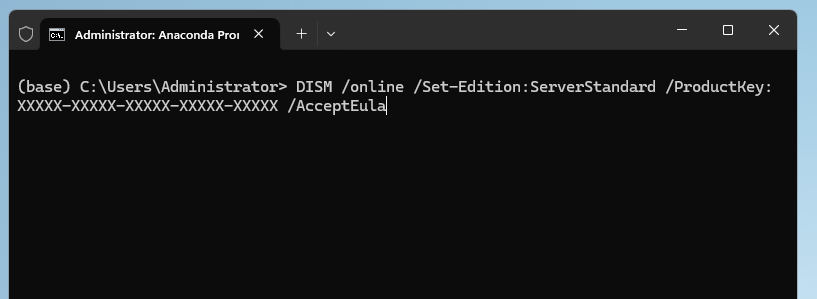
System එක start කරලා Command Prompt එක open කරන්න.
Windows + X keyboard shortcut එක press කරලා, Command Prompt (Admin) තෝරන්න.
පහත command එකෙන් ඔබේ system එකේ current version එක check කරන්න:
DISM /Online /Get-CurrentEditionඊළඟට, මේ command එක Command Prompt එකට enter කරලා Enter key එක press කරන්න. Command එකට පහළින් තියෙන අපේ පැහැදිලි කිරීම කියවලා, marked areas අවශ්ය පරිදි replace කරගන්න:
Edition එක Convert කිරීම
Switch එක කරගන්න ඕන command එක මෙන්න. XXXXX-XXXXX-XXXXX-XXXXX-XXXXX වෙනුවට ඔබේ licence key එක දාන්න විතරයි:
Standard edition එකට convert කරන්න
DISM /online /Set-Edition:ServerStandard /ProductKey:XXXXX-XXXXX-XXXXX-XXXXX-XXXXX /AcceptEulaDatacentre edition එකට convert කරන්න
DISM /online /Set-Edition:ServerDatacenter /ProductKey:XXXXX-XXXXX-XXXXX-XXXXX-XXXXX /AcceptEulaHeads up: මේ process එකට විනාඩි කිහිපයක් යනවා, conversion එකේදී server එක automatically restart වෙනවා. හදිසි ප්රශ්න වළක්වගන්න, අවශ්ය downtime එකට කලින් plan කරගන්න.
Windows Server 2025 Evaluation එකෙන් Standard හෝ Datacenter එකට switch වෙන එක, මේ steps පරෙස්සමින් follow කළොත් තරමක් සරල වැඩක්. Upgrade කළාට පස්සේ, හැම දෙයක්ම smoothly run කරගන්න enterprise-grade features වල සම්පූර්ණ බලය ඔබේ අතට එනවා.