Overview
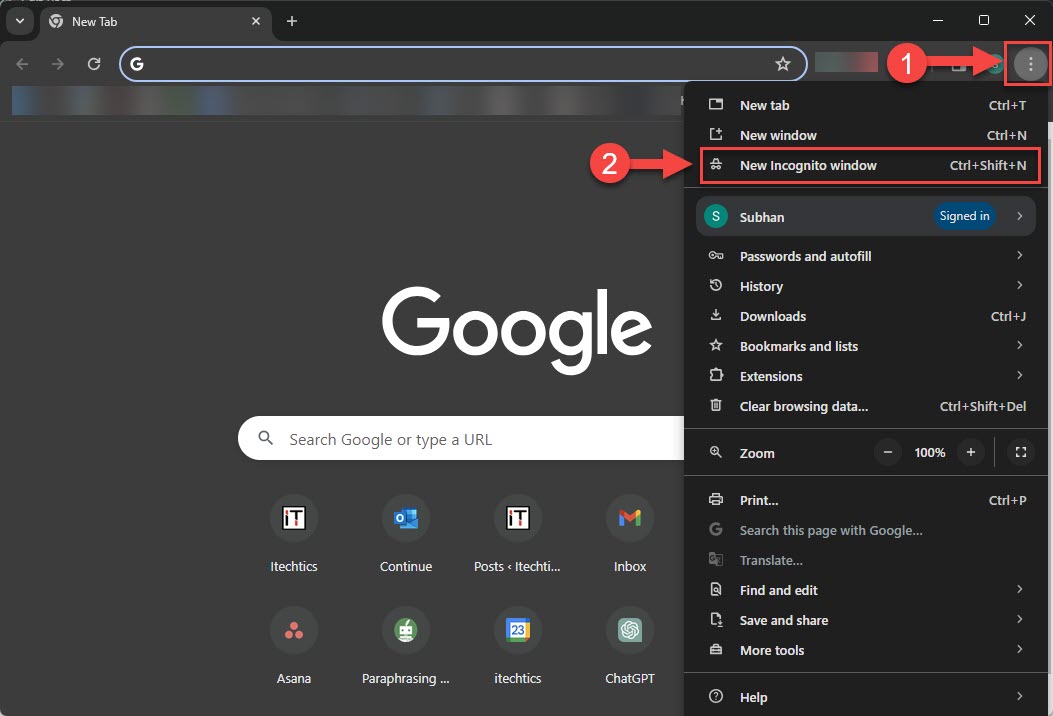
Incognito or private mode opens a separate browsing window that keeps no history. Exiting it simply means closing that private window. This guide shows how across the major browsers and clears up common confusion.
Key Takeaways
- Private mode runs in its own separate window.
- You exit by closing the private window, not just a tab.
- Each browser labels the mode differently but works the same way.
- Closing the window discards that session’s history.
Exit Private Mode
1. Identify the private window by its darker theme and incognito or private icon.
2. Close every tab in that window, or close the whole window.
3. In Chrome it is Incognito; in Edge, InPrivate; in Firefox, Private Browsing.
4. Your normal browsing window remains open and unaffected.
Confirm You Are Out
1. Open your regular browser window.
2. Check that the private/incognito badge is no longer shown.
3. Your normal history and extensions are active again.
4. Reopen private mode only when you need a fresh, historyless session.
Note: Private mode reduces local traces, but it does not make you anonymous to websites, your network, or your employer.
Troubleshooting
Problem: Closing a tab did not exit private mode.
Solution: Close the entire private window; individual tabs stay within the private session.
Problem: The browser reopens in private mode.
Solution: Check the shortcut target for an -incognito or -private switch and remove it.
Problem: You cannot tell if you are private.
Solution: Look for the mode badge in the corner; its presence means the window is private.
Problem: You want to disable private mode entirely.
Solution: Use a policy or registry setting for your browser to turn off private browsing.
Conclusion
Exiting private mode is as simple as closing the private window. Every major browser works the same way, returning you to your normal session with history and extensions intact.
About TechHub
This guide is part of the TechHub Knowledge Base. For more step-by-step IT guides and support, visit techhub.com.lk.