Overview
Sometimes an update will not arrive through Windows Update, or you need to patch a machine that has no internet access. Microsoft distributes standalone updates as .msu files and their extracted .cab packages, which you can install manually. This guide explains what these files are and how to install them with the built-in tools.
Key Takeaways
- An .msu is a self-contained Microsoft Update package; a .cab is the compressed payload inside it.
- Double-clicking an .msu launches the Windows Update Standalone Installer (wusa).
- wusa.exe installs .msu files from the command line; DISM installs .cab files.
- Download update files only from the official Microsoft Update Catalog.
Install an MSU File Normally
1. Download the .msu file from the Microsoft Update Catalog at catalog.update.microsoft.com.
2. Double-click the file to open the Windows Update Standalone Installer.
3. Follow the prompts and wait while the update is applied.
4. Restart the computer if you are asked to.
Installing an .msu file with the standalone installer.
Install an MSU File from Command Prompt
1. Open Command Prompt as Administrator.
2. Run: wusa.exe C:\path\to\update.msu /quiet /norestart.
3. The /quiet switch suppresses prompts; omit it to see progress.
4. Reboot when convenient to finish applying the update.
Extract and Install a CAB File
1. Extract the .cab from an .msu by running: expand -f:* C:\path\to\update.msu C:\extracted.
2. Open an elevated Command Prompt.
3. Run: DISM /Online /Add-Package /PackagePath:C:\extracted\update.cab.
4. Wait for DISM to report completion, then restart the PC.
<w:bottom w:val="single" w:color="DEEAF6" w:sz="4"/><w:left w:val="single" w:color="0B5394" w:sz="24" w:space="10"/><w:right w:val="single" w:color="DEEAF6" w:sz="4"/></w:pBdr><w:shd w:fill="DEEAF6" w:color="auto" w:val="clear"/><w:spacing w:before="120" w:after="120"/></w:pPr><w:r><w:rPr><w:b/><w:bCs/><w:color w:val="0B5394"/><w:sz w:val="22"/><w:szCs w:val="22"/><w:rFonts w:ascii="Calibri" w:cs="Calibri" w:eastAsia="Calibri" w:hAnsi="Calibri"/></w:rPr><w:t xml:space="preserve">Note: Use DISM for .cab files. The wusa tool no longer supports installing .cab packages directly, so DISM is the correct choice.
<w:bottom w:val="single" w:color="FBE4E4" w:sz="4"/><w:left w:val="single" w:color="C0392B" w:sz="24" w:space="10"/><w:right w:val="single" w:color="FBE4E4" w:sz="4"/></w:pBdr><w:shd w:fill="FBE4E4" w:color="auto" w:val="clear"/><w:spacing w:before="120" w:after="120"/></w:pPr><w:r><w:rPr><w:b/><w:bCs/><w:color w:val="C0392B"/><w:sz w:val="22"/><w:szCs w:val="22"/><w:rFonts w:ascii="Calibri" w:cs="Calibri" w:eastAsia="Calibri" w:hAnsi="Calibri"/></w:rPr><w:t xml:space="preserve">Warning: Only install updates that match your exact Windows version and architecture (x64 or ARM64). Applying the wrong package can fail or cause instability.
Troubleshooting
Problem: The update is not applicable to your computer.
Solution: Confirm the update matches your Windows edition, version, and architecture, and that any prerequisite update is already installed.
Problem: wusa reports the update is already installed.
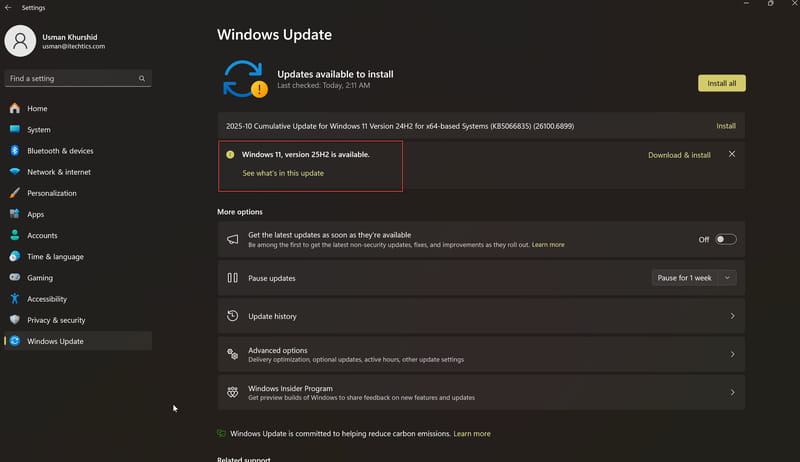
Solution: Check installed updates with wmic qfe list or Settings > Windows Update > Update history; the patch may already be present.
Problem: DISM fails with error 0x800f081f.
Solution: Verify the .cab path is correct and the file is not corrupted; re-download it from the Microsoft Update Catalog.
Problem: The installer hangs at searching for updates.
Solution: Restart the Windows Update service (net stop wuauserv then net start wuauserv) and run the installer again.
Conclusion
MSU and CAB installation gives you full control over patching, whether you are fixing a stuck update or servicing an offline machine. With wusa for .msu files and DISM for .cab packages, you can apply any standalone update reliably straight from the command line.
About TechHub
This guide is part of the TechHub Knowledge Base. For more step-by-step IT guides and support, visit techhub.com.lk.