Overview
A transparent taskbar gives Windows a sleek, modern look. This guide covers five ways to increase taskbar transparency — using the Settings app, the Registry, and lightweight third-party tools for full transparency.
A transparent taskbar in Windows.
Key Takeaways
- Settings offers basic transparency effects.
- A Registry tweak can boost the effect.
- Tools like TranslucentTB give full transparency.
- Combining methods yields the cleanest look.
Method 1: Settings App
1. Open Settings > Personalization > Colours.
2. Turn on "Transparency effects".
3. The taskbar, Start menu, and other surfaces become partly translucent.
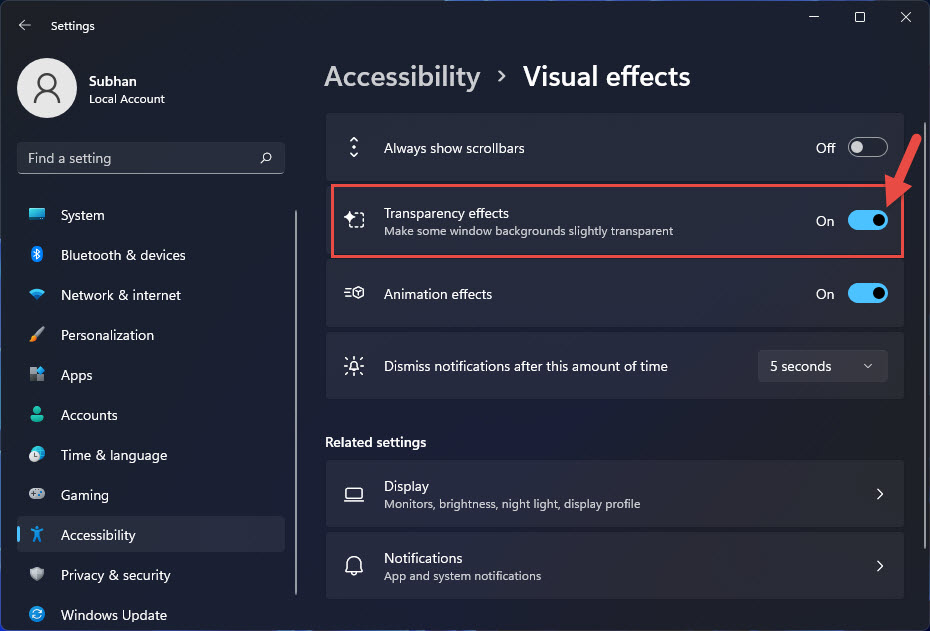
The Transparency effects option in Settings.
Method 2: Show Accent Colour (Stronger Tint)
1. In Settings > Personalization > Colours, set "Choose your mode" and pick an accent colour.
2. Enable "Show accent colour on Start and taskbar" (Windows 10) to control the tint.
3. Combine with transparency for a custom look.
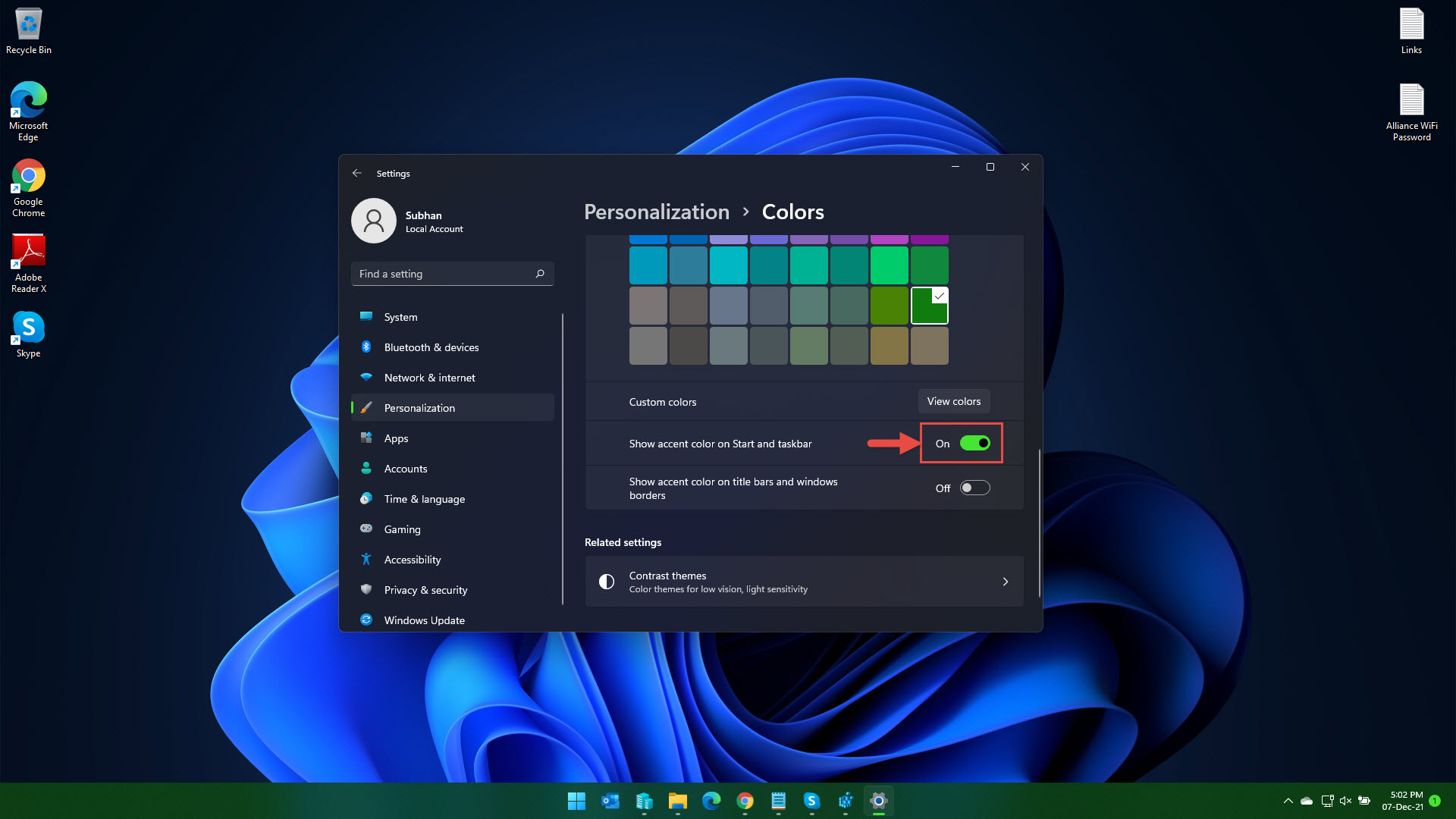
Show accent colour on the taskbar.
Method 3: Registry Tweak
Warning: Editing the Registry incorrectly can cause problems. Back up the Registry before making changes.
1. Press Windows + R, type regedit, and press Enter.
2. Go to HKEY_CURRENT_USER\Software\Microsoft\Windows\CurrentVersion\Themes\Personalize
3. Create a DWORD named UseOLEDTaskbarTransparency and set it to 1.
4. Restart Explorer to apply.
Method 4: TranslucentTB (Full Transparency)
Note: Install TranslucentTB only from the official Microsoft Store or its GitHub releases.
1. Install "TranslucentTB" from the Microsoft Store.
2. Launch it; the taskbar becomes fully transparent by default.
3. Right-click its tray icon to choose Clear, Blur, or Acrylic styles, and per-state behaviour.
Method 5: Combine Effects
1. Enable Settings transparency, then run TranslucentTB for full clarity.
2. Pick an accent colour that complements your wallpaper.
3. Set TranslucentTB to start with Windows for a persistent look.
Troubleshooting
Problem: Transparency toggle does nothing.
Solution: Ensure you’re not in Battery saver (which disables effects) and that your GPU driver is up to date.
Problem: Taskbar is only slightly translucent.
Solution: Windows’ built-in effect is subtle by design — use TranslucentTB for full transparency.
Problem: TranslucentTB resets after reboot.
Solution: Enable "Open at startup" in its settings so it runs automatically.
Problem: Registry value had no effect.
Solution: Restart Explorer or sign out/in; some themes override the value.
Conclusion
Windows’ built-in transparency is subtle, so for a truly see-through taskbar pair it with a free tool like TranslucentTB. A matching accent colour and startup configuration give you a clean, transparent taskbar every time you boot.
</w:pBdr><w:spacing w:before="220" w:after="40"/></w:pPr><w:r><w:rPr><w:b/><w:bCs/><w:color w:val="0B5394"/><w:sz w:val="21"/><w:szCs w:val="21"/><w:rFonts w:ascii="Calibri" w:cs="Calibri" w:eastAsia="Calibri" w:hAnsi="Calibri"/></w:rPr><w:t xml:space="preserve">About TechHub
This guide is part of the TechHub Knowledge Base. For more step-by-step IT guides and support, visit techhub.com.lk.