Overview
Environment variables කියන්නේ programs runtime එකේදී කියවන system-wide සහ per-user settings ගබඩා කරන ඒවා — වඩාත් ප්රසිද්ධ එක තමයි PATH, ඒක Windows එකට executables හොයාගන්නේ කොහෙන්ද කියලා කියනවා. මේ guide එකෙන් environment variables display කරන හැටියි, graphical editor, Command Prompt, සහ PowerShell භාවිත කරලා ඒවා add, edit, නැත්නම් remove කරන හැටියි පෙන්නනවා.
Environment variables කියන්නේ programs runtime එකේදී කියවන settings ගබඩා කරන ඒවා.
Key Takeaways
- scopes දෙකක් තියෙනවා: user variables (ඔබේ account එක) සහ system variables (හැම user කෙනෙක්ටම).
- GUI එකේදී ඒවා System Properties > Environment Variables හරහා edit කරන්න.
- script එකකින් set කරන්න Command Prompt එකේ setx නැත්නම් PowerShell එකේ [Environment]::SetEnvironmentVariable භාවිත කරන්න.
- PATH edit කරන එකෙන් ඕනෑම folder එකකින් programs නමින් run කරන්න පුළුවන්.
Display Environment Variables
1. Command Prompt එක open කරලා current variables ඔක්කොම list කරන්න set type කරන්න.
2. එක variable එකක් බලන්න, echo %VARIABLE_NAME% type කරන්න (උදාහරණයක් විදිහට echo %PATH%).
3. PowerShell එකේදී, ඒවා list කරන්න Get-ChildItem Env: run කරන්න, නැත්නම් එක එකක් සඳහා $Env:PATH.
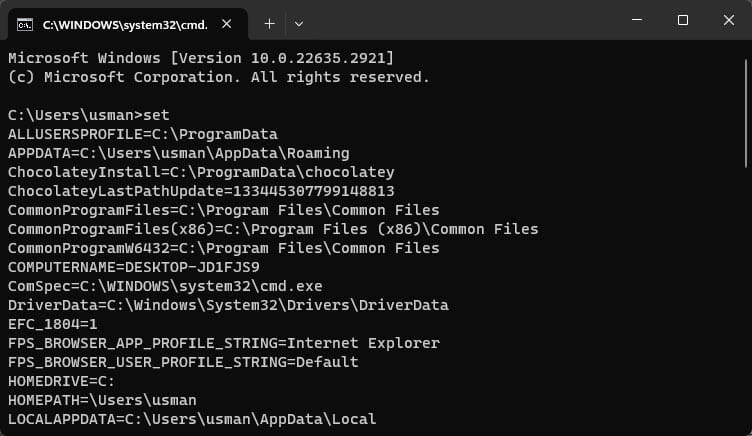
set command එකෙන් Command Prompt එකේ environment variables ඔක්කොම display කරනවා.
Manage Variables Using the GUI
1. Windows key + R press කරලා, SystemPropertiesAdvanced type කරලා, Enter press කරන්න.
2. Environment Variables click කරන්න.
3. User variables (ඔබේ account එකට) නැත්නම් System variables (හැම user කෙනෙක්ටම) යටතේ, variable එකක් select කරලා Edit click කරන්න, නැත්නම් එකක් add කරන්න New click කරන්න.
4. PATH edit කරන්න, Path select කරලා, Edit click කරලා, entries add, change, නැත්නම් remove කරන්න.
5. save කරන්න එක එක dialog එකේ OK click කරන්න.
Note: variables වෙනස් කළාට පස්සේ අලුත් Command Prompt නැත්නම් PowerShell window එකක් open කරන්න — තියෙන windows restart කරනකම් පරණ values තියාගන්නවා.
Set Variables From the Command Line
1. Command Prompt එක open කරන්න.
2. user variable එකක් ස්ථිරව set කරන්න, මේක run කරන්න: setx MY_VAR "value"
3. ඒක හැම user කෙනෙක්ටම set කරන්න (administrator විදිහට run කරලා), /M switch එක add කරන්න: setx MY_VAR "value" /M
4. වෙනස effect වෙන්න terminal එක close කරලා ආයෙත් open කරන්න.
Set Variables With PowerShell
1. PowerShell එක open කරන්න.
2. current user එකට: [Environment]::SetEnvironmentVariable("MY_VAR","value","User")
3. හැම user කෙනෙක්ටම (administrator විදිහට run කරලා): [Environment]::SetEnvironmentVariable("MY_VAR","value","Machine")
4. අලුත් value එක භාවිත කරන්න terminal එක ආයෙත් open කරන්න.
Third-Party Editors
Rapid Environment Editor වගේ tools වලින් variables සහ PATH manage කරන්න වඩා user-friendly interface එකක් දෙනවා, validation සහ පහසු reordering එක්ක. ඒවා optional — බොහෝ users ට built-in editor එක ම ඇති.
Troubleshooting
Problem: අලුත් variable එකක් recognise වෙන්නේ නෑ.
Solution: fresh terminal window එකක් open කරන්න. run වෙන programs සහ shells environment variables කියවන්නේ startup එකේදී විතරයි.
Problem: PATH edit කළාට පස්සේ command එකක් "not recognised" වෙනවා.
Solution: PATH entry එක හරි folder එකට point වෙනවද, typo එකක් නෑ නේද කියලා check කරලා, terminal එක ආයෙත් open කරන්න. entries වල trailing spaces දාන්න එපා.
Problem: setx එකෙන් දිග PATH එකක් truncate කරනවා.
Solution: ඒ වෙනුවට PATH එක GUI එකේ (Environment Variables dialog) edit කරන්න — setx එකට length limit එකක් තියෙනවා, ඒක දිග values කපන්න පුළුවන්.
Problem: ඔබ වැරදි scope එකක් වෙනස් කළා.
Solution: user variables ඔබේ account එකට විතරයි බලපාන්නේ, system variables හැමෝටම බලපානවා කියලා මතක තියාගන්න. හරි section එක edit කරන්න.
Conclusion
කොහෙද බලන්නේ කියලා දැනගත්තම environment variables manage කරන එක ලේසියි. දවසේ edits වලට සහ PATH වෙනස්කම් වලට GUI එක භාවිත කරන්න, script කරන්න ඕන වෙලාවට setx නැත්නම් PowerShell — ඊට පස්සේ terminal එක ආයෙත් open කරන්න මතක තියාගන්න.
About TechHub
මේ guide එක TechHub Knowledge Base එකේ කොටසක්. තව step-by-step IT guides සහ support වලට techhub.com.lk එකට යන්න.