Overview
Windows services are background programs that run without a window — handling networking, printing, updates, and more. Sometimes you need to start, stop, restart, or change how a service launches. This guide covers every method.
Manage background Windows services several ways.
Key Takeaways
- The Services console (services.msc) is the main tool.
- Task Manager’s Services tab offers quick start/stop/restart.
- Command Prompt uses net and sc; PowerShell uses *-Service cmdlets.
- Startup type controls when a service runs (Automatic, Manual, Disabled).
Service Startup Types
- Automatic — starts at boot.
- Automatic (Delayed Start) — starts shortly after boot to speed up login.
- Manual — starts only when needed/triggered.
- Disabled — never starts.
Method 1 — Services Console
1. Press Windows key + R, type services.msc, and press Enter.
2. Find the service, right-click it, and choose Start, Stop, or Restart.
3. To change when it runs, double-click it and set the Startup type, then click OK.
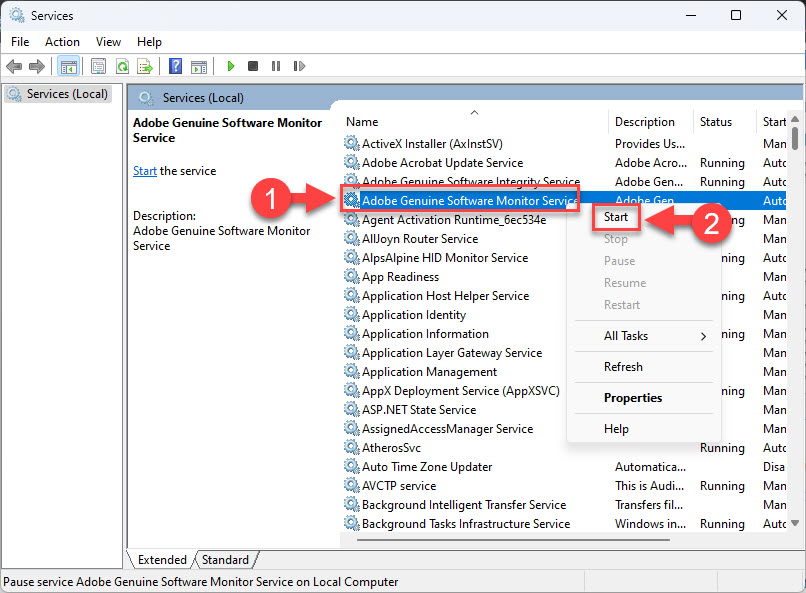
Start a service from the Services console.
Method 2 — Task Manager
1. Press Ctrl + Shift + Esc and open the Services tab.
2. Right-click a service and choose Start, Stop, or Restart.
3. Click "Open Services" for full management.
Method 3 — Command Prompt
1. Open Command Prompt as administrator.
2. Start: net start "ServiceName"; Stop: net stop "ServiceName".
3. Change startup type: sc config "ServiceName" start=auto (or demand/disabled).
4. Query status: sc query "ServiceName".
Method 4 — PowerShell
1. Open PowerShell as administrator.
2. Start: Start-Service -Name "ServiceName"; Stop: Stop-Service -Name "ServiceName"; Restart: Restart-Service -Name "ServiceName".
3. Set startup type: Set-Service -Name "ServiceName" -StartupType Automatic.
4. List services: Get-Service.
Warning: Do not disable critical Windows services unless you are sure — it can break networking, updates, or security features.
Troubleshooting
Problem: "Access denied" managing a service.
Solution: Run the Services console, Command Prompt, or PowerShell as administrator.
Problem: A service will not start.
Solution: Check its dependencies (Dependencies tab), ensure they are running, and review Event Viewer for the error.
Problem: A service restarts itself after stopping.
Solution: Set its Startup type to Manual or Disabled, or stop the trigger/parent that launches it.
Problem: You disabled the wrong service.
Solution: Re-enable it: set Startup type back to Automatic/Manual and start it, using the service’s known-good default.
Conclusion
You can manage Windows services from the Services console for full control, Task Manager for quick actions, or the command line for scripting. Adjust startup types carefully, and avoid disabling essential services.
</w:pBdr><w:spacing w:before="220" w:after="40"/></w:pPr><w:r><w:rPr><w:b/><w:bCs/><w:color w:val="0B5394"/><w:sz w:val="21"/><w:szCs w:val="21"/><w:rFonts w:ascii="Calibri" w:cs="Calibri" w:eastAsia="Calibri" w:hAnsi="Calibri"/></w:rPr><w:t xml:space="preserve">About TechHub
This guide is part of the TechHub Knowledge Base. For more step-by-step IT guides and support, visit techhub.com.lk.