Overview
Windows services කියන්නේ window එකක් නැතුව run වෙන background programs — networking, printing, updates, සහ තව handle කරනවා. සමහරවිට service එකක් start, stop, restart, හෝ ඒක launch වෙන ආකාරය වෙනස් කරන්න ඕන වෙනවා. මේ guide එකෙන් හැම method එකක්ම cover කරනවා.
Background Windows services ක්රම කිහිපයකින් manage කරන්න.
Key Takeaways
- Services console (services.msc) එක ප්රධාන tool එක.
- Task Manager's Services tab එකෙන් quick start/stop/restart දෙනවා.
- Command Prompt net සහ sc; PowerShell *-Service cmdlets පාවිච්චි කරනවා.
- Startup type එකෙන් service එක run වෙන්නේ කවදද control කරනවා (Automatic, Manual, Disabled).
Service Startup Types
- Automatic — boot එකේදී start වෙනවා.
- Automatic (Delayed Start) — login වේගවත් කරන්න boot එකට ටිකකට පස්සේ start වෙනවා.
- Manual — ඕන/triggered වෙලාවට විතරයි start වෙන්නේ.
- Disabled — කවදාවත් start වෙන්නේ නෑ.
Method 1 — Services Console
1. Windows key + R press කරලා services.msc type කරලා Enter කරන්න.
2. Service එක හොයලා, right-click කරලා Start, Stop, හෝ Restart තෝරන්න.
3. ඒක run වෙන්නේ කවදද වෙනස් කරන්න, double-click කරලා Startup type එක set කරලා OK click කරන්න.
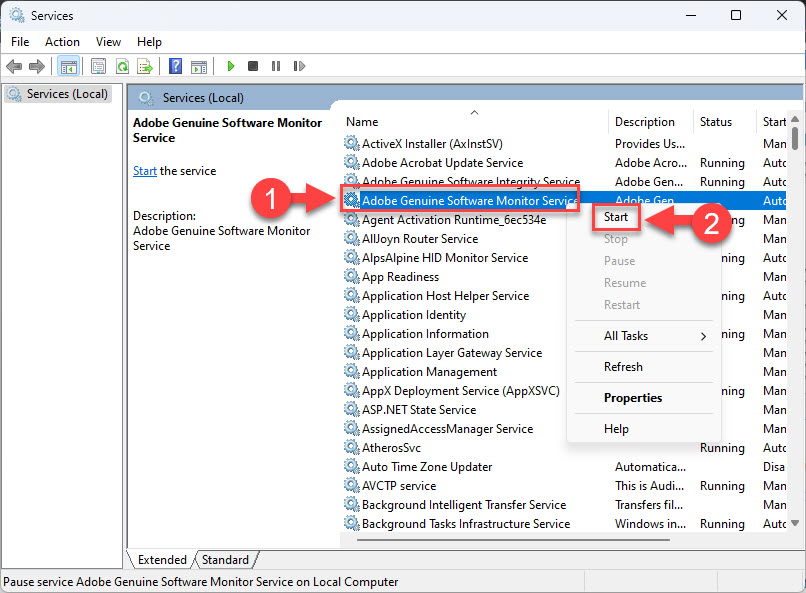
Services console එකෙන් service එකක් start කරන්න.
Method 2 — Task Manager
1. Ctrl + Shift + Esc press කරලා Services tab එක open කරන්න.
2. Service එක right-click කරලා Start, Stop, හෝ Restart තෝරන්න.
3. Full management වලට "Open Services" click කරන්න.
Method 3 — Command Prompt
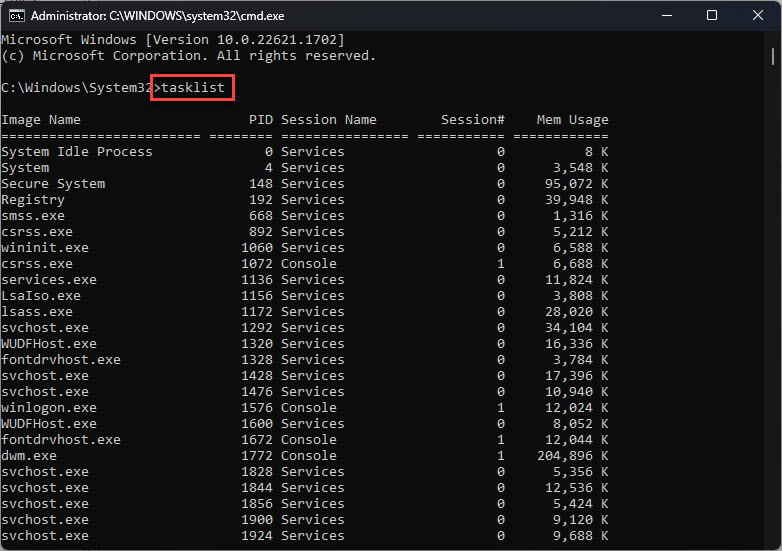
1. Command Prompt එක administrator විදිහට open කරන්න.
2. Start: net start "ServiceName"; Stop: net stop "ServiceName".
3. Startup type වෙනස් කරන්න: sc config "ServiceName" start=auto (හෝ demand/disabled).
4. Status query කරන්න: sc query "ServiceName".
Method 4 — PowerShell
1. PowerShell එක administrator විදිහට open කරන්න.
2. Start: Start-Service -Name "ServiceName"; Stop: Stop-Service -Name "ServiceName"; Restart: Restart-Service -Name "ServiceName".
3. Startup type set කරන්න: Set-Service -Name "ServiceName" -StartupType Automatic.
4. Services list කරන්න: Get-Service.
Warning: Sure නැත්නම් critical Windows services disable කරන්න එපා — ඒකෙන් networking, updates, හෝ security features break වෙන්න පුළුවන්.
Troubleshooting
Problem: Service එකක් manage කරනකොට "Access denied".
Solution: Services console, Command Prompt, හෝ PowerShell එක administrator විදිහට run කරන්න.
Problem: Service එකක් start වෙන්නේ නෑ.
Solution: ඒකේ dependencies (Dependencies tab) බලලා, ඒවා running කියලා බලලා, error එකට Event Viewer review කරන්න.
Problem: Stop කළාට පස්සේ service එක තමන්ම restart වෙනවා.
Solution: ඒකේ Startup type එක Manual හෝ Disabled කරන්න, නැත්නම් ඒක launch කරන trigger/parent එක stop කරන්න.
Problem: වැරදි service එකක් disable කළා.
Solution: ආපහු enable කරන්න: Startup type එක ආපහු Automatic/Manual කරලා start කරන්න, service එකේ known-good default එක පාවිච්චි කරලා.
Conclusion
Windows services full control වලට Services console එකෙන්, quick actions වලට Task Manager එකෙන්, හෝ scripting වලට command line එකෙන් manage කරන්න පුළුවන්. Startup types පරිස්සමින් adjust කරලා, essential services disable කරන එක avoid කරන්න.
About TechHub
මේ guide එක TechHub Knowledge Base එකේ කොටසක්. තව step-by-step IT guides සහ support වලට techhub.com.lk එකට යන්න.