Overview
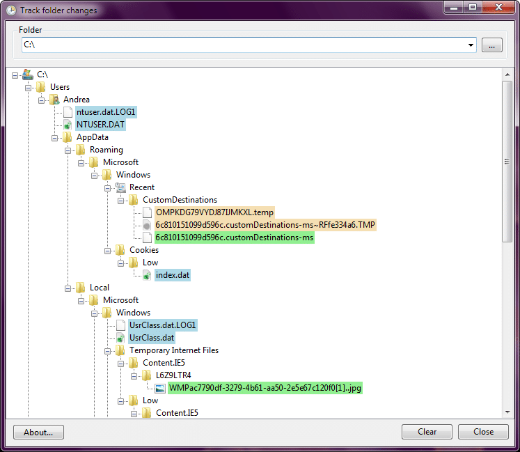
Software install කරනකොට, ඒක බොහෝවිට පේන ඒවාට වඩා files සහ registry entries ගොඩක් වෙනස් කරනවා. ඒ changes monitor කරන එක troubleshooting, clean uninstalls, සහ suspicious behaviour spot කරන්න උදව්. මේ guide එකෙන් file සහ registry changes track කරන tools හතක් cover කරනවා.
Monitoring tools වලින් හරියටම මොන files සහ registry keys වෙනස් වෙනවද කියලා reveal කරනවා.
Key Takeaways
- Snapshot tools before/after states compare කරලා වෙනස් වුණේ මොකද කියලා පෙන්නනවා.
- Real-time tools file/registry activity වෙනකොටම log කරනවා.
- Installs troubleshoot කරන්න, clean uninstallers හදන්න, හෝ malware investigate කරන්න පාවිච්චි කරන්න.
- Process Monitor (Sysinternals) වඩාත්ම powerful real-time option එක.
Snapshot (Before/After) Tools
- Regshot — install එකකට කලින් සහ පස්සේ registry/file snapshot එකක් අරගෙන differences list කරනවා (free, lightweight).
- InstallWatch Pro — installation එකක් අතරතුර changes record කරලා පස්සේ review කරන්න.
- SysTracer — full system snapshots capture කරලා compare කරනවා.
- WhatChanged — changed files සහ registry keys වලට ඉක්මනට scan කරනවා.
Real-Time Monitoring Tools
- Process Monitor (ProcMon) — powerful filters එක්ක live file, registry, සහ process activity log කරන Sysinternals tool එක.
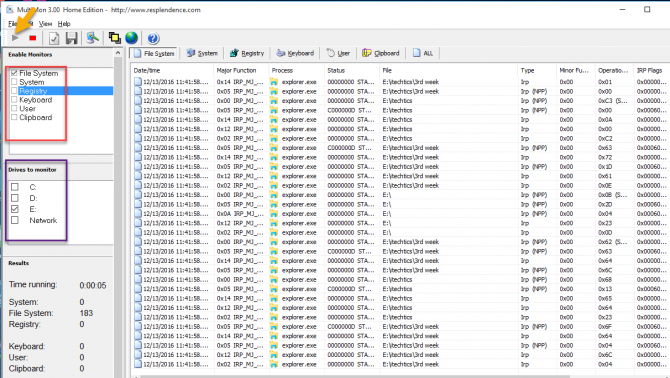
- MultiMon — real time එකේ change types කිහිපයක් monitor කරනවා.
- RegistryChangesView (NirSoft) — registry snapshots compare කරලා changes highlight කරනවා.
Snapshot Tool එකක් පාවිච්චි කරන්නේ කොහොමද (Regshot Example)
1. Regshot ඒකේ official source එකෙන් download කරලා run කරන්න.
2. මුකුත් install කරන්න කලින් current state එක capture කරන්න "1st shot" click කරන්න.
3. Monitor කරන්න ඕන program එක install හෝ run කරන්න.
4. "2nd shot" click කරලා, Compare කරලා added/changed/deleted files සහ registry keys ඔක්කොම report එකක් ගන්න.
Process Monitor පාවිච්චි කරන්නේ කොහොමද
1. Microsoft Sysinternals එකෙන් Process Monitor download කරලා administrator විදිහට run කරන්න.
2. Noise අඩු කරන්න filters set කරන්න (බ. Process Name එකෙන්).
3. Inspect කරන්න ඕන action එක reproduce කරන්න.
4. Captured file සහ registry operations real time එකේ review කරන්න.
Warning: මේ tools download කරන්නේ ඒවායේ official sources (Sysinternals, NirSoft, හෝ vendor site) එකෙන් විතරයි.
Troubleshooting
Problem: ProcMon එකේ events ගොඩක් — කියවන්න බෑ.
Solution: ඕන දේට focus කරන්න process name, path, හෝ operation එකෙන් filters apply කරන්න.
Problem: Snapshot comparison එකේ huge noise.
Solution: First shot එකට කලින් background apps close කරලා, volatile keys exclude කරන්න; Regshot එකෙන් common noisy paths filter කරන්න පුළුවන්.
Problem: Tool එකකට admin rights ඕන.
Solution: System-level file සහ registry changes capture කරන්න administrator විදිහට run කරන්න.
Problem: Clean uninstaller එකක් හදන්න ඕන.
Solution: Installer එකක් add කරපු හැම file/key එකක්ම හොයන්න snapshot diff එක පාවිච්චි කරලා, ඒවා precisely remove කරන්න.
Conclusion
ඔබේ system එකේ ඇත්තටම වෙනස් වෙන්නේ මොකද බලන්න, before/after diffs වලට Regshot වගේ snapshot tool එකක්, හෝ live detail වලට Process Monitor පාවිච්චි කරන්න. ඒවා installs troubleshoot කරන්න, software clean කරන්න, සහ suspicious activity investigate කරන්න invaluable.
About TechHub
මේ guide එක TechHub Knowledge Base එකේ කොටසක්. තව step-by-step IT guides සහ support වලට techhub.com.lk එකට යන්න.