Overview
A window can end up off-screen after disconnecting a second monitor or changing resolution. This guide shows several quick ways to bring it back — mostly with the keyboard.
Bringing an off-screen window back on screen.
Key Takeaways
- Win + Arrow snaps a focused window back into view.
- The Move command lets you drag it with arrow keys.
- Cascade windows repositions everything on screen.
- Fixing display/resolution settings prevents recurrences.
Method 1: Snap with Win + Arrow
1. Click the off-screen app’s taskbar icon to focus it.
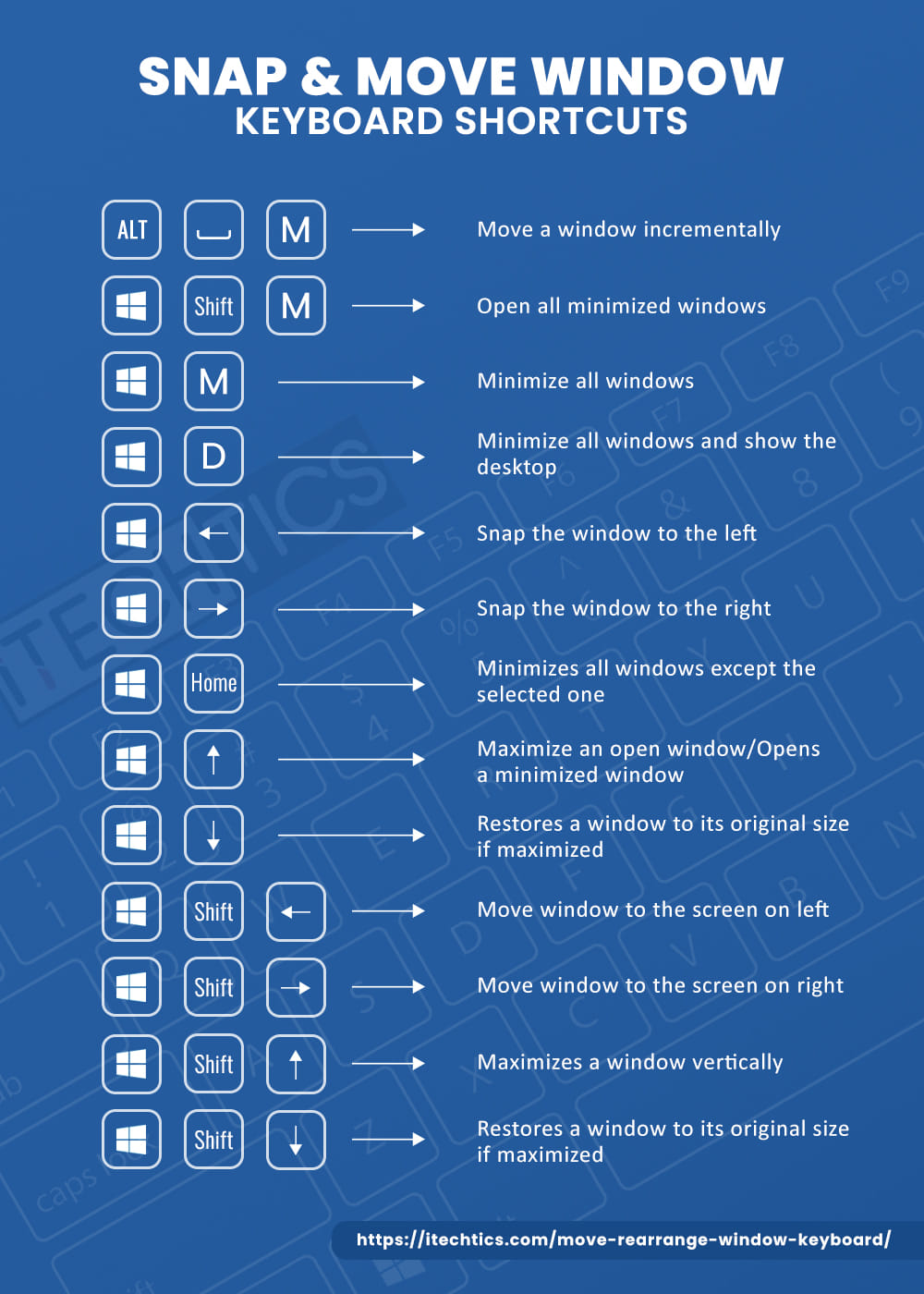
2. Press Windows + Left or Windows + Right to snap it to a side of the current screen.
3. Press Windows + Up to maximize it into view.
Method 2: Use the Move Command
1. Focus the window (Alt + Tab to it, or click its taskbar icon).
2. Press Alt + Space, then M (Move).
3. Press an arrow key once, then move the mouse — the window follows the cursor onto the screen.
4. Click to drop it.
Method 3: Cascade Windows
1. Right-click an empty area of the taskbar.
2. Choose "Cascade windows".
3. All open windows are repositioned onto the visible desktop.
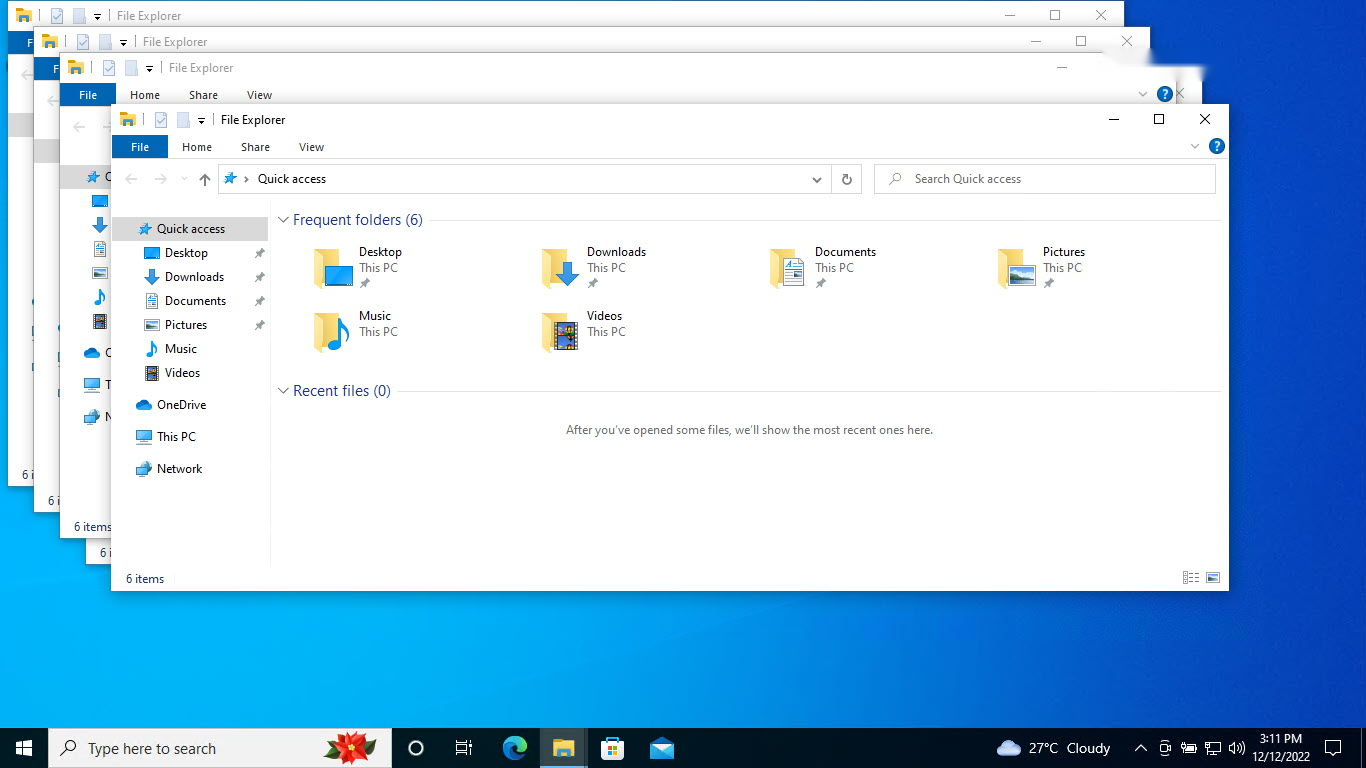
Windows arranged with Cascade.
Method 4: Fix Display Settings
1. Open Settings > System > Display.
2. If a disconnected monitor is still listed, set the layout to "Show only on 1" (or the active screen).
3. Correct the resolution if it changed, then reopen the window.
Troubleshooting
Problem: Snap shortcuts do nothing.
Solution: Ensure Snap is enabled in Settings > System > Multitasking, and that the window is focused first.
Problem: Window still off-screen after Move.
Solution: After Alt+Space > M and one arrow press, move the mouse toward the center of the screen.
Problem: Happens every reboot.
Solution: A remembered multi-monitor layout is the cause — set the display to a single active screen or reconnect the monitor.
Problem: App reopens off-screen.
Solution: Bring it on-screen, then move/resize it and close it normally so it remembers the new position.
Conclusion
An off-screen window is easy to recover: focus it, then use Windows + Arrow to snap it back, or Alt + Space > M to drag it with the keyboard. Correcting your display settings afterward stops it happening again.
</w:pBdr><w:spacing w:before="220" w:after="40"/></w:pPr><w:r><w:rPr><w:b/><w:bCs/><w:color w:val="0B5394"/><w:sz w:val="21"/><w:szCs w:val="21"/><w:rFonts w:ascii="Calibri" w:cs="Calibri" w:eastAsia="Calibri" w:hAnsi="Calibri"/></w:rPr><w:t xml:space="preserve">About TechHub
This guide is part of the TechHub Knowledge Base. For more step-by-step IT guides and support, visit techhub.com.lk.