Overview
Keyboard shortcuts let you snap, move, and switch windows without the mouse — faster for multitasking and essential when a window drifts off-screen. This guide covers the key shortcuts for Windows 7, 10, and 11.
Move and arrange windows entirely with the keyboard.
Key Takeaways
- Windows key + Arrow snaps windows to halves and quarters.
- Alt + Space then M lets you move a window with the arrow keys.
- Windows key + Shift + Arrow moves a window to another monitor.
- Alt + Tab and Windows + Tab switch between open windows.
Snap a Window
- Windows key + Left/Right — snap the window to the left or right half.
- Windows key + Up — maximize; Windows key + Down — restore/minimize.
- After snapping left/right, press Up or Down to snap into a quarter.
Move a Window With Arrow Keys
1. Select the window so it is focused.
2. Press Alt + Space to open the window menu.
3. Press M (Move).
4. Use the arrow keys to move the window, then press Enter to set it (great for windows stuck off-screen).
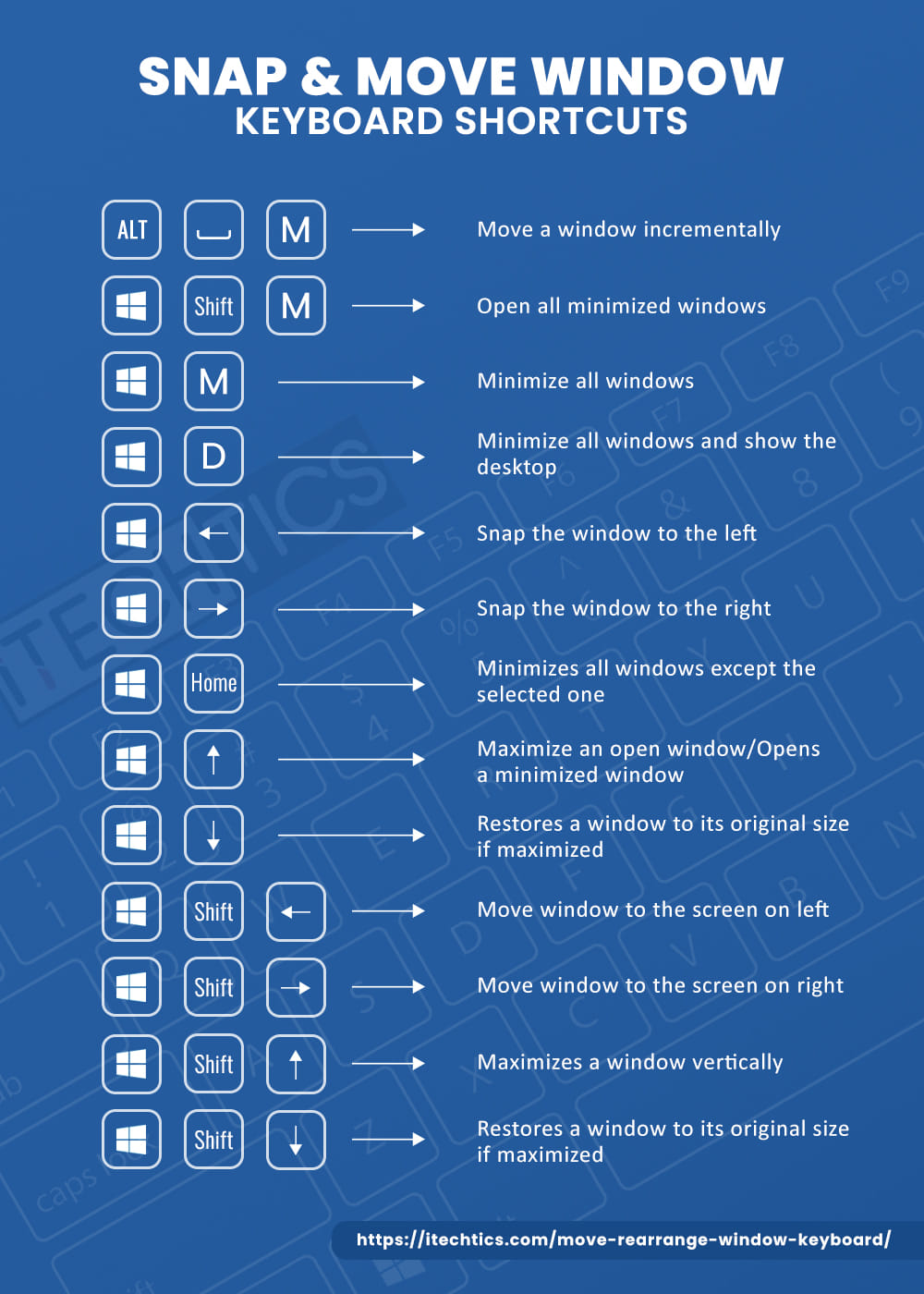
Move and rearrange a window using the keyboard.
Move a Window to Another Monitor
1. Focus the window you want to move.
2. Press Windows key + Shift + Left or Right.
3. The window jumps to the monitor in that direction, keeping its size.
Minimize and Maximize
- Windows key + Up — maximize.
- Windows key + Down — restore, then minimize.
- Windows key + M — minimize all; Windows key + Shift + M — restore them.
- Windows key + Home — minimize all except the active window.
Switch Between Windows
- Alt + Tab — cycle through open windows (hold Alt and tap Tab).
- Ctrl + Alt + Tab — open the switcher and keep it on screen to pick with arrows.
- Windows key + Tab — open Task View to see all windows and virtual desktops.
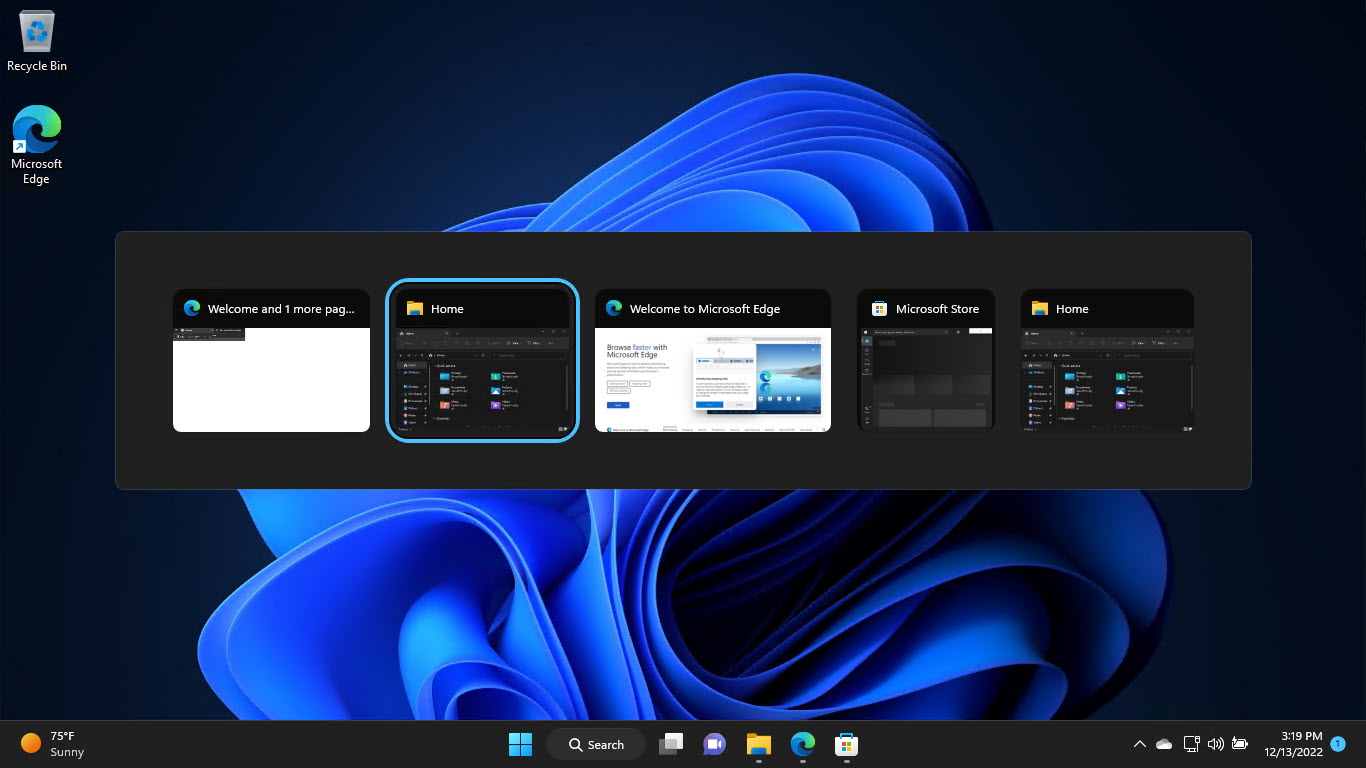
Switch windows with Alt + Tab.
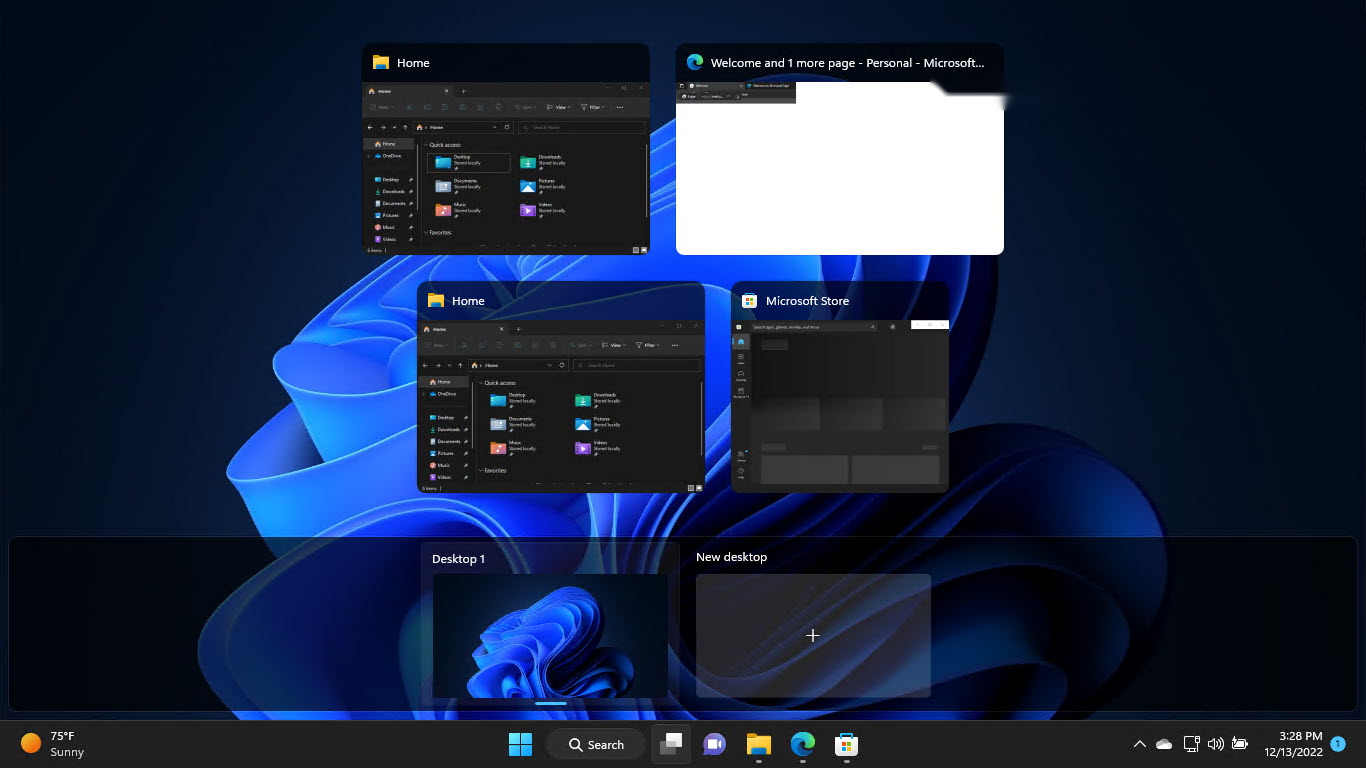
Task View shows all open windows and desktops.
Troubleshooting
Problem: A window is off-screen and I cannot grab it.
Solution: Focus it (Alt + Tab to it), press Alt + Space, then M, and use the arrow keys to bring it back on screen.
Problem: Windows + Arrow snapping does nothing.
Solution: Enable Snap in Settings > System > Multitasking > Snap windows.
Problem: Window will not move to the other monitor.
Solution: Use Windows + Shift + Left/Right, and ensure both monitors are detected in Display settings.
Problem: Alt + Tab feels different.
Solution: Adjust Alt + Tab behavior in Settings > System > Multitasking (e.g. whether Edge tabs appear).
Conclusion
A handful of shortcuts — Windows + Arrows to snap, Alt + Space then M to move, and Windows + Shift + Arrow to change monitors — let you arrange windows quickly without the mouse, and rescue any window that wanders off-screen.
</w:pBdr><w:spacing w:before="220" w:after="40"/></w:pPr><w:r><w:rPr><w:b/><w:bCs/><w:color w:val="0B5394"/><w:sz w:val="21"/><w:szCs w:val="21"/><w:rFonts w:ascii="Calibri" w:cs="Calibri" w:eastAsia="Calibri" w:hAnsi="Calibri"/></w:rPr><w:t xml:space="preserve">About TechHub
This guide is part of the TechHub Knowledge Base. For more step-by-step IT guides and support, visit techhub.com.lk.