Overview
Keyboard shortcuts වලින් mouse එක නැතුව windows snap, move, සහ switch කරන්න පුළුවන් — multitasking වලට වේගවත්, window එකක් off-screen ගියොත් essential. මේ guide එකෙන් Windows 7, 10, සහ 11 වලට key shortcuts cover කරනවා.
Windows සම්පූර්ණයෙන්ම keyboard එකෙන් move කරලා arrange කරන්න.
Key Takeaways
- Windows key + Arrow එකෙන් windows halves සහ quarters වලට snap කරනවා.
- Alt + Space ඊට පස්සේ M එකෙන් arrow keys වලින් window එකක් move කරන්න පුළුවන්.
- Windows key + Shift + Arrow එකෙන් window එකක් වෙන monitor එකකට move කරනවා.
- Alt + Tab සහ Windows + Tab එකෙන් open windows අතර switch කරනවා.
Window එකක් Snap කරන්න
- Windows key + Left/Right — window එක වම් හෝ දකුණු half එකට snap කරන්න.
- Windows key + Up — maximize; Windows key + Down — restore/minimize.
- Left/right snap කළාට පස්සේ, Up හෝ Down press කරලා quarter එකකට snap කරන්න.
Window එකක් Arrow Keys වලින් Move කරන්න
1. Window එක focus වෙන්න select කරන්න.
2. Window menu එක open කරන්න Alt + Space press කරන්න.
3. M (Move) press කරන්න.
4. Arrow keys වලින් window එක move කරලා, set කරන්න Enter press කරන්න (off-screen හිරවුණ windows වලට හොඳයි).
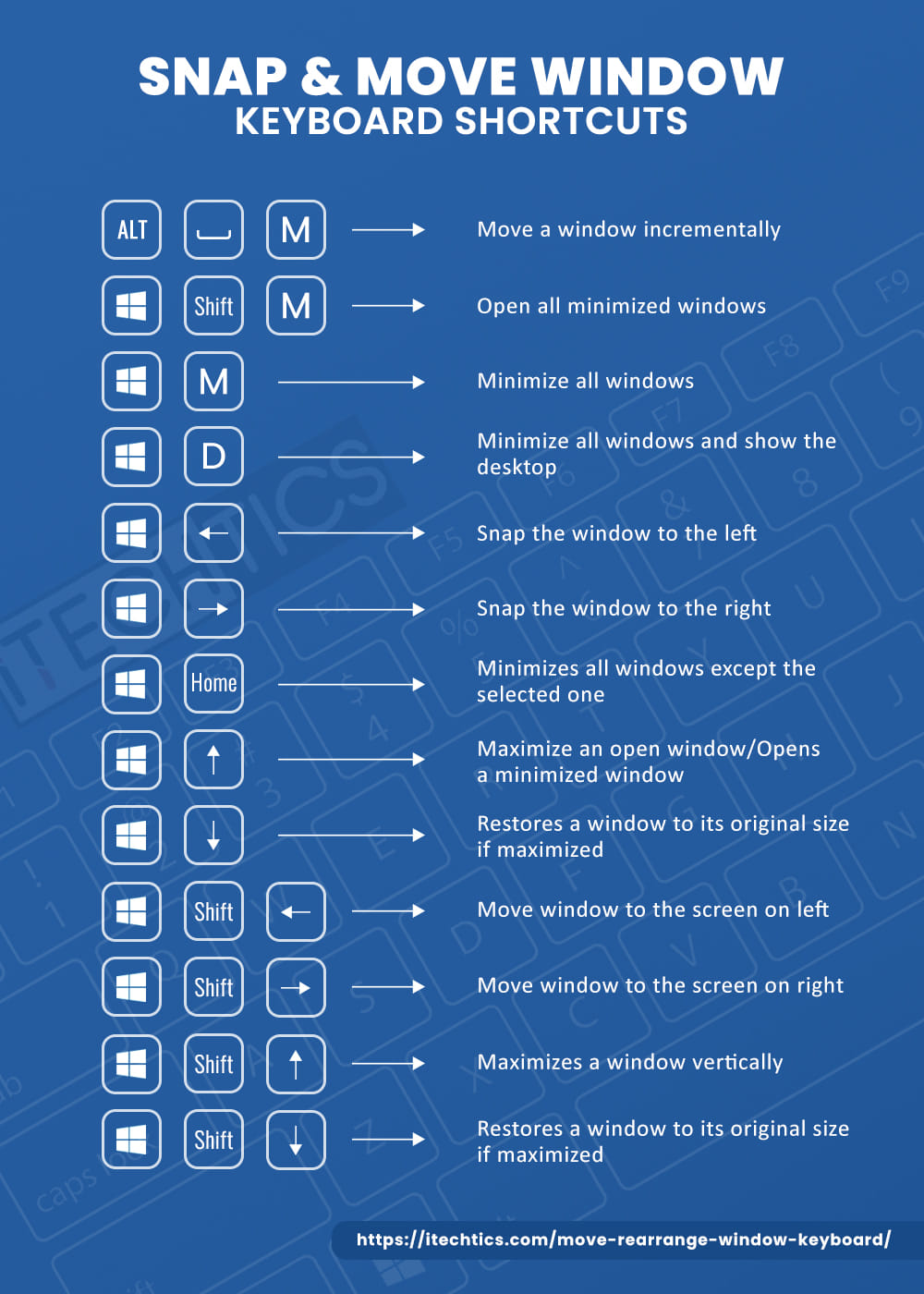
Keyboard එකෙන් window එකක් move කරලා rearrange කරන්න.
Window එකක් වෙන Monitor එකකට Move කරන්න
1. Move කරන්න ඕන window එක focus කරන්න.
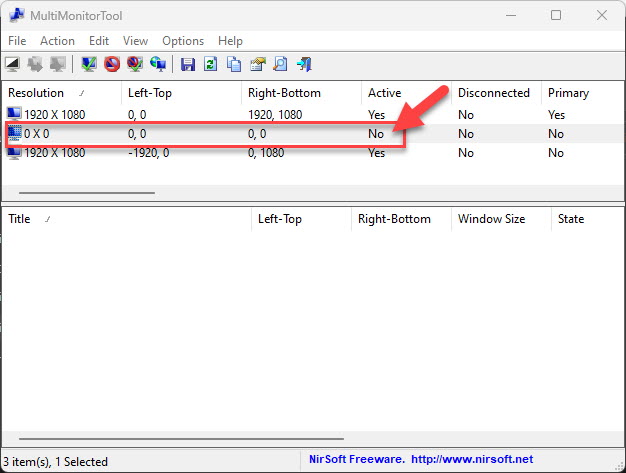
2. Windows key + Shift + Left හෝ Right press කරන්න.
3. Window එක size එක තියාගෙන ඒ direction එකේ monitor එකට jump වෙනවා.
Minimize සහ Maximize
- Windows key + Up — maximize.
- Windows key + Down — restore, ඊට පස්සේ minimize.
- Windows key + M — ඔක්කොම minimize; Windows key + Shift + M — restore.
- Windows key + Home — active window එක හැර ඔක්කොම minimize.
Windows අතර Switch කරන්න
- Alt + Tab — open windows හරහා cycle කරන්න (Alt අල්ලගෙන Tab tap කරන්න).
- Ctrl + Alt + Tab — switcher එක open කරලා screen එකේ තියාගෙන arrows වලින් තෝරන්න.
- Windows key + Tab — windows සහ virtual desktops ඔක්කොම බලන්න Task View open කරන්න.
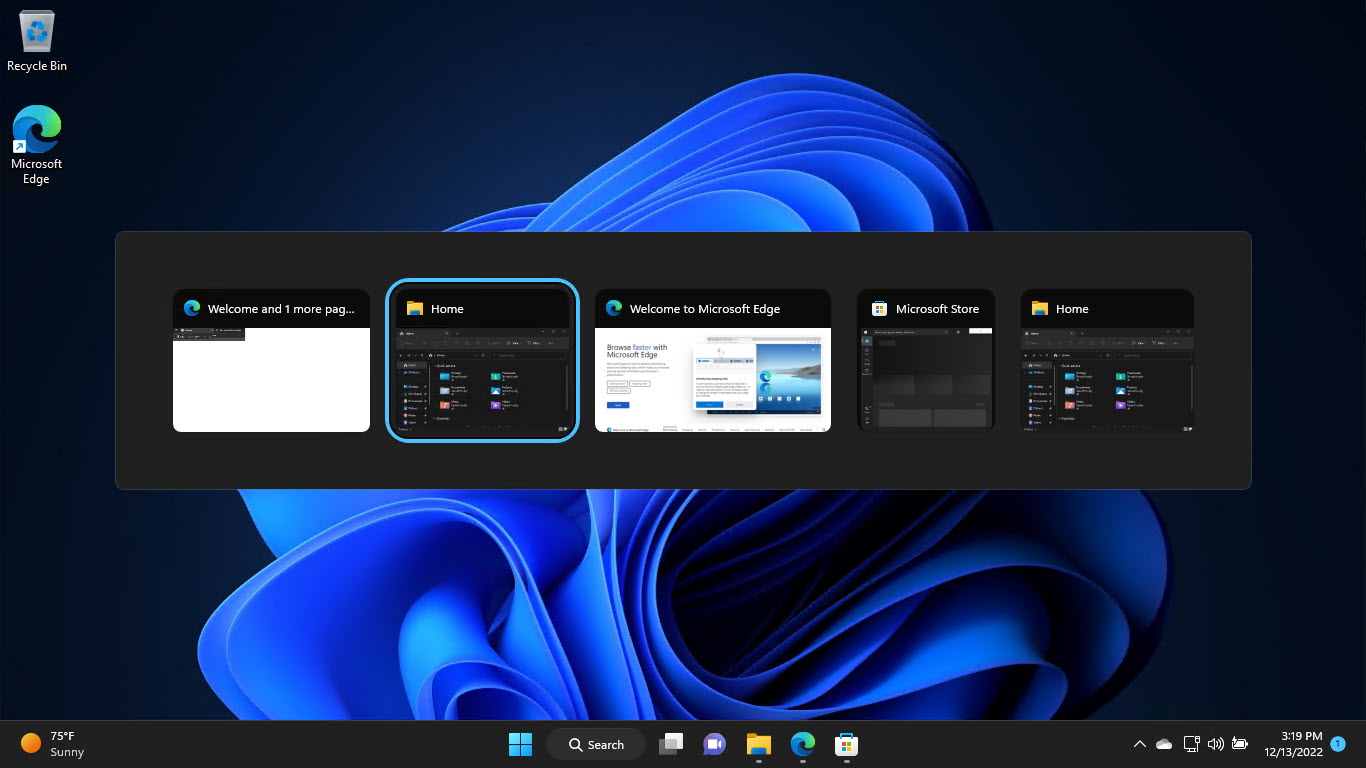
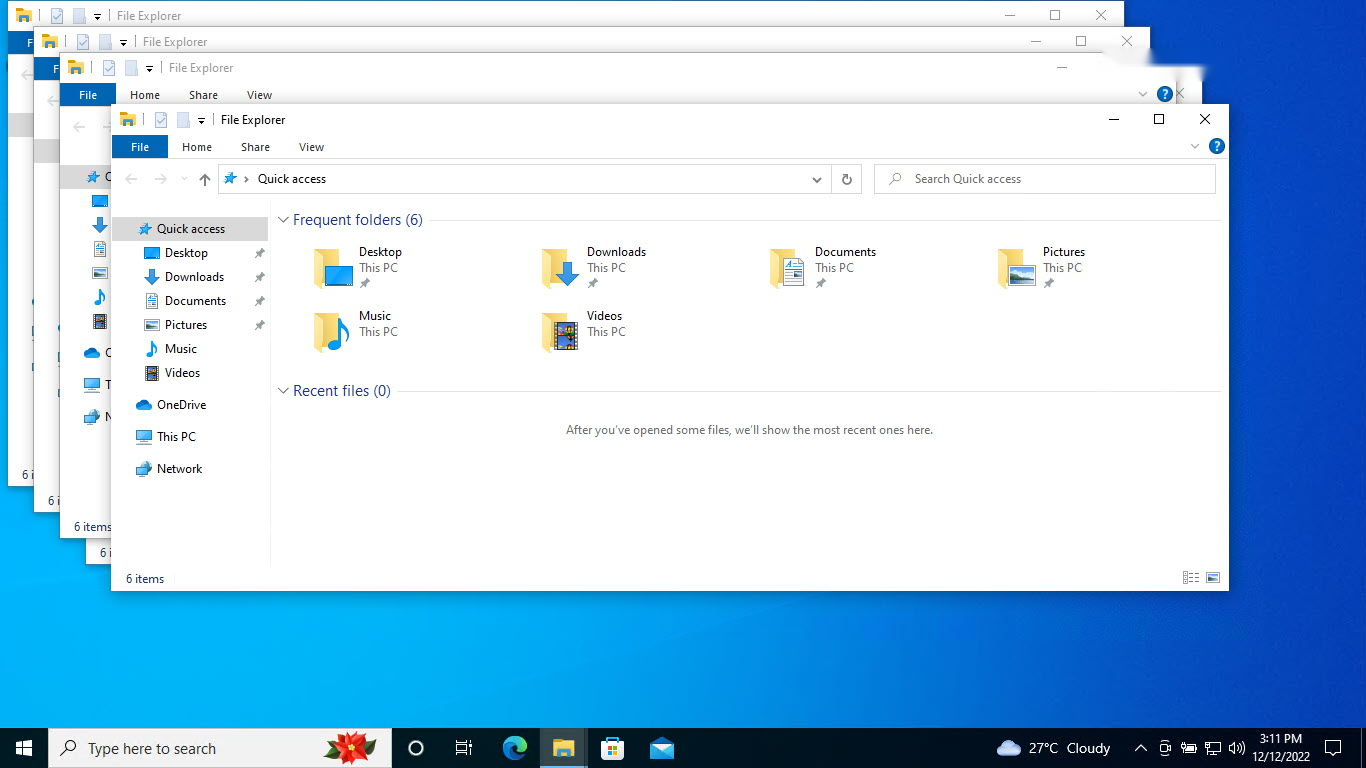
Alt + Tab එකෙන් windows switch කරන්න.
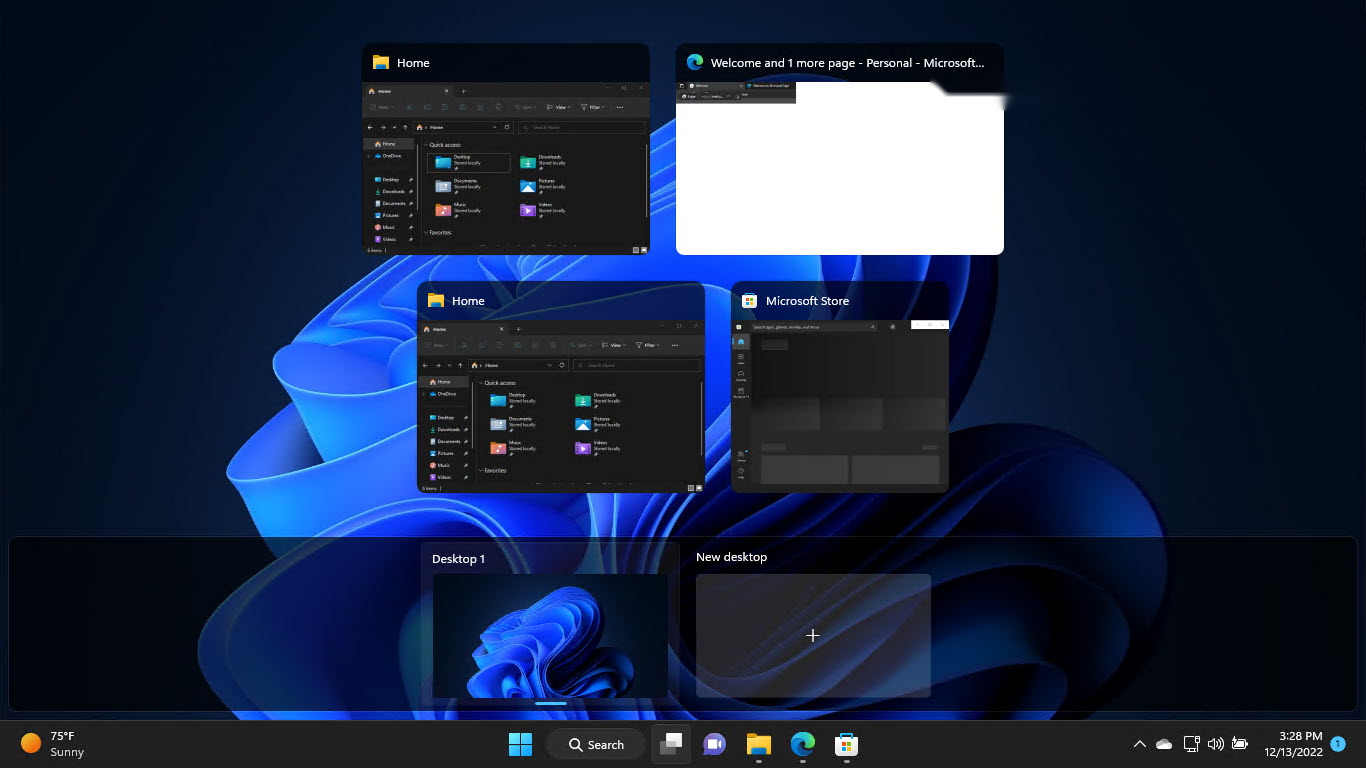
Task View එකෙන් open windows සහ desktops ඔක්කොම පෙන්නනවා.
Troubleshooting
Problem: Window එකක් off-screen, අල්ලගන්න බෑ.
Solution: ඒක focus කරන්න (Alt + Tab එකෙන්), Alt + Space press කරලා, M කරලා, arrow keys වලින් ආපහු screen එකට ගේන්න.
Problem: Windows + Arrow snapping එකෙන් මුකුත් වෙන්නේ නෑ.
Solution: Settings > System > Multitasking > Snap windows එකේ Snap enable කරන්න.
Problem: Window එක වෙන monitor එකට move වෙන්නේ නෑ.
Solution: Windows + Shift + Left/Right පාවිච්චි කරලා, Display settings වල monitors දෙකම detect වෙලා තියෙනවා කියලා බලන්න.
Problem: Alt + Tab වෙනස් වගේ.
Solution: Settings > System > Multitasking එකේ Alt + Tab behavior adjust කරන්න (බ. Edge tabs පෙන්නනවද).
Conclusion
Shortcuts අතලොස්සක් — snap කරන්න Windows + Arrows, move කරන්න Alt + Space ඊට පස්සේ M, monitors වෙනස් කරන්න Windows + Shift + Arrow — වලින් mouse එක නැතුව windows ඉක්මනට arrange කරන්නත්, off-screen යන ඕනෑම window එකක් rescue කරන්නත් පුළුවන්.
About TechHub
මේ guide එක TechHub Knowledge Base එකේ කොටසක්. තව step-by-step IT guides සහ support වලට techhub.com.lk එකට යන්න.