How to Open and Change the RDP Port for Remote Desktop Access
Allow Remote Desktop through the firewall and change the default port 3389 — safely.
Overview
Remote Desktop uses TCP port 3389 by default. This guide shows how to allow RDP through the firewall and change its port — with the security precautions that matter when exposing remote access.
Opening and changing the RDP port.
Warning: Exposing RDP to the internet is risky. Prefer a VPN or an RD Gateway over opening RDP directly. If you must, use strong passwords, Network Level Authentication, account lockout, and consider changing the port and restricting source IPs.
Key Takeaways
- RDP uses TCP 3389 by default.
- Allow it through Windows Firewall to connect on the LAN.
- You can change the port via the Registry.
- Avoid exposing RDP directly to the internet — use a VPN.
Allow RDP Through Windows Firewall
1. Open Windows Defender Firewall > Allow an app through firewall.
2. Enable "Remote Desktop" for the appropriate network profile (Private).
3. Or run: netsh advfirewall firewall add rule name="RDP" dir=in action=allow protocol=TCP localport=3389
4. Ensure Remote Desktop is enabled in Settings > System > Remote Desktop.
Change the Default RDP Port
Warning: Editing the Registry incorrectly can cause problems. Back up the Registry first.
1. Open regedit and go to HKEY_LOCAL_MACHINE\SYSTEM\CurrentControlSet\Control\Terminal Server\WinStations\RDP-Tcp.
2. Double-click "PortNumber", switch to Decimal, and enter a new port (e.g., 3390).
3. Add a firewall rule allowing the new port (and remove the old one).
4. Restart the PC (or the Remote Desktop Services).
5. Connect using host:newport (e.g., 192.168.1.10:3390).
Verify the Port Is Listening
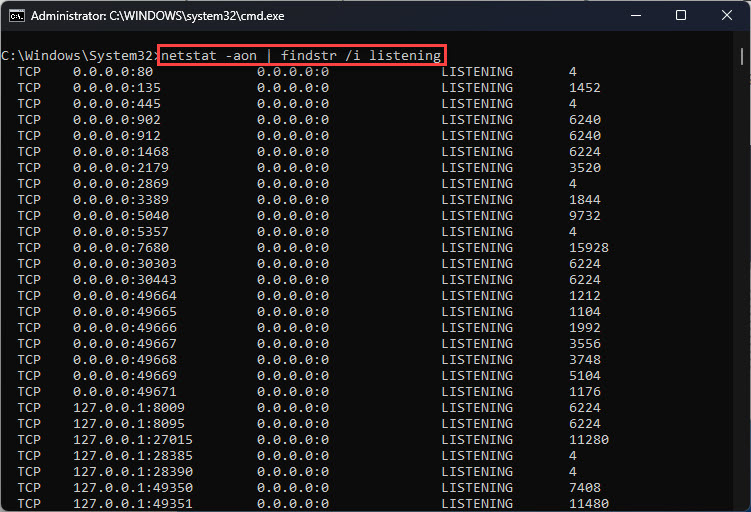
1. Run: netstat -ano | findstr :3389 (or your new port).
2. A LISTENING entry confirms RDP is bound to that port.
3. From another PC, test with Test-NetConnection host -Port <port>.
Troubleshooting
Problem: Can’t connect after changing the port.
Solution: Add a firewall rule for the new port and reboot; connect with host:port.
Problem: RDP works on LAN but not remotely.
Solution: Use a VPN/RD Gateway rather than port-forwarding RDP; direct exposure is unsafe.
Problem: Port still shows 3389.
Solution: Restart after the Registry change; confirm you edited the RDP-Tcp PortNumber in Decimal.
Problem: Security concern.
Solution: Enable NLA, use strong passwords/MFA where possible, restrict source IPs, and prefer VPN access.
Conclusion
To use Remote Desktop, allow it through the firewall and (optionally) change port 3389 via the RDP-Tcp Registry key, adding a matching firewall rule. Most importantly, don’t expose RDP directly to the internet — put it behind a VPN or RD Gateway and harden authentication.