Windows Explorer එක Restart කරන ක්රම 3ක්
Reboot එකක් නොකර explorer.exe restart කරලා frozen වුණු taskbar එකක් හෝ Explorer glitches හදාගන්න.
Overview
Windows Explorer එක restart කරාම taskbar එක, Start menu එක, සහ desktop එක refresh වෙනවා — full reboot එකක් නැතුව freezes සහ glitches හදාගන්න ඉක්මන් fix එකක්. මේ guide එකෙන් ඒක කරන්න ක්රම තුනක් පෙන්නනවා.
Windows Explorer එක restart කරමින්.
Key Takeaways
- Explorer එක restart කරාම taskbar/Start/desktop එක refresh වෙනවා.
- Task Manager එකේ one-click Restart option එකක් තියෙනවා.
- Command line එකෙන් explorer.exe end කරලා relaunch කරන්න පුළුවන්.
- Full reboot එකක් අවශ්ය නෑ.
Method 1: Task Manager (ලේසිම එක)
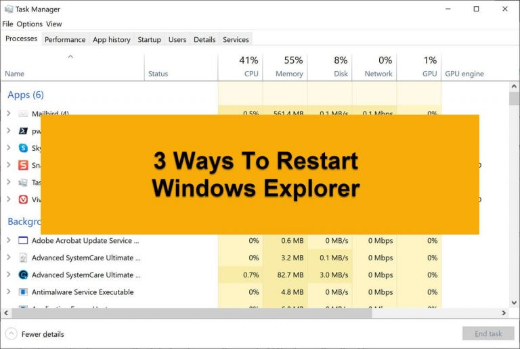
1. Task Manager එක open කරන්න (Ctrl + Shift + Esc).
2. Processes list එකේ "Windows Explorer" එක හොයාගන්න.
3. ඒක right-click කරලා "Restart" තෝරන්න.
4. taskbar/desktop එක එකවරම refresh වෙනවා.
Method 2: Manually End කරලා Restart කරන එක
1. Task Manager එකේ "Windows Explorer" > End task තෝරන්න.
2. taskbar/desktop එක අතුරුදහන් වෙනවා (ඒක expected).
3. File > Run new task click කරලා, explorer.exe type කරලා, Enter press කරන්න.
4. Explorer එක relaunch වෙනවා.
Method 3: Command Line
1. Command Prompt එක open කරන්න.
2. මේක run කරන්න: taskkill /f /im explorer.exe
3. ඊට පස්සේ: start explorer.exe
4. නැත්නම් combine කරන්න: taskkill /f /im explorer.exe & start explorer.exe
Optional: Batch File
1. උඩ command දෙකත් එක්ක .bat file එකක් හදන්න.
2. Explorer restart කරන්න ඕන හැම වෙලාවකම ඒක double-click කරන්න.
3. මේක නිතර කරනවා නම් හරිම පහසුයි.
Troubleshooting
Problem: Taskbar එක ආපහු ආවේ නෑ.
Solution: Task Manager > File > Run new task > explorer.exe open කරලා ඒක relaunch කරන්න.
Problem: Explorer එක නිතරම crash වෙනවා.
Solution: sfc /scannow run කරන්න, icon/thumbnail cache එක clear කරන්න, සහ shell extensions check කරන්න (ShellExView).
Problem: Command එක access denied කියනවා.
Solution: Command Prompt එක administrator විදිහට run කරන්න.
Problem: End task කරාට පස්සේ screen එකේ මුකුත් නෑ.
Solution: ඒක expected — Task Manager එකේ Run new task එකෙන් start explorer.exe කරන්න.
Conclusion
Windows Explorer එක restart කරන එක stuck වුණු taskbar එකකට හෝ Explorer glitches වලට වේගවත් fix එකක්. One-click පහසුවට Task Manager එකේ "Restart" option එක පාවිච්චි කරන්න, නැත්නම් taskkill/start explorer.exe commands (ඕන නම් batch file එකක් විදිහට) පාවිච්චි කරන්න — reboot එකක් අවශ්ය නෑ.