Overview
App එකක් different user කෙනෙක් විදිහට run කරන එකෙන් users සම්පූර්ණයෙන් switch නොකර වෙන account එකක credentials පාවිච්චි කරන්න දෙනවා — admin tasks වලට handy. මේ guide එකෙන් ඒක කරන ක්රම හයක් සහ option එක නෑ නම් restore කරන ආකාරය cover කරනවා.
Windows එකේ app එකක් different user කෙනෙක් විදිහට run කරන්න.
Key Takeaways
- Shift + right-click එකෙන් "Run as different user" reveal කරනවා.
- runas command එකෙන් prompt එකකින් එකම දේ කරනවා.
- PowerShell සහ shortcuts වෙන credentials යටතේ launch කරන්න පුළුවන්.
- Secondary Logon service එක running වෙන්න ඕන.
Prerequisite: Secondary Logon Service
1. services.msc open කරන්න.
2. "Secondary Logon" Running කියලා බලන්න (Manual/Automatic කරන්න).
3. RunAs features මේ service එක මත depend වෙනවා.
Method 1: Context Menu
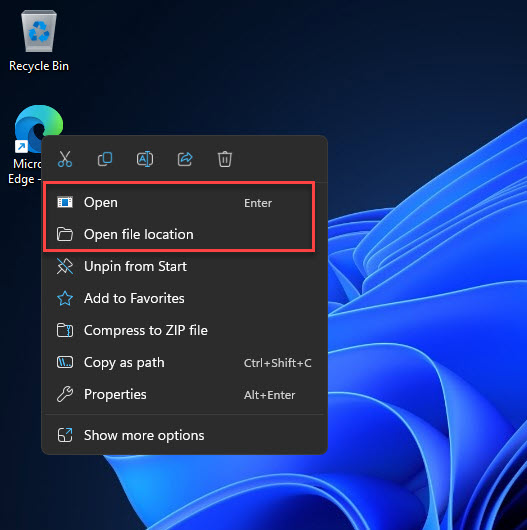
1. Shift අල්ලගෙන program එක හෝ ඒකේ shortcut එක right-click කරන්න.
2. "Run as different user" තෝරන්න.
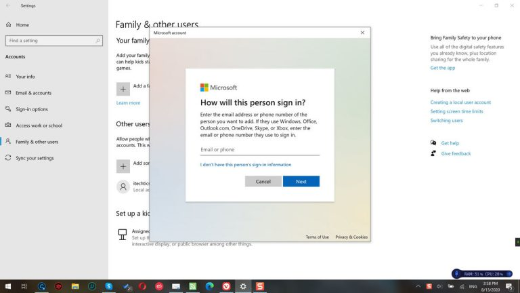
3. වෙන account එකේ username එකයි password එකයි ඇතුළත් කරන්න.
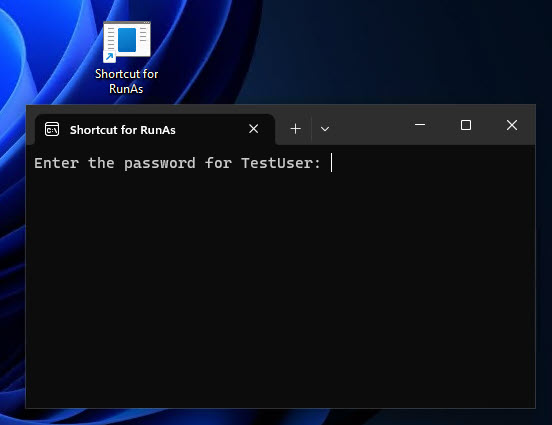
වෙන user කෙනෙකුගේ password එක ඇතුළත් කරන්න.
Method 2: runas Command
1. Command Prompt හෝ Run dialog එක open කරන්න.
2. Run: runas /user:DOMAIN\username "C:\Path\app.exe"
3. Prompt වුණාම password එක ඇතුළත් කරන්න.
Method 3: PowerShell
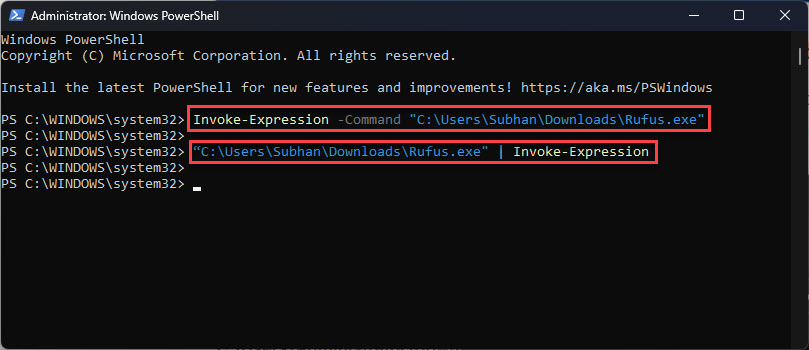
1. Run: Start-Process "app.exe" -Credential (Get-Credential)
2. Dialog එකේ target account එකේ credentials ඇතුළත් කරන්න.
3. App එක ඒ user යටතේ launch වෙනවා.
Method 4: Shortcut
1. target එක එක්ක shortcut එකක් හදන්න: runas /user:username "C:\Path\app.exe"
2. ඒක double-click කරලා password එක ඇතුළත් කරලා ඒ user විදිහට launch කරන්න.
Method 5: RunAsTool (Optional)
Note: RunAsTool වගේ third-party tool එකක් පාවිච්චි කරනවා නම්, ඒක download කරන්නේ ඒකේ official source එකෙන් විතරයි.
1. RunAsTool එකෙන් credentials save කරලා standard users ලාට specific apps admin විදිහට run කරන්න පුළුවන්.
2. ඒක credentials store කරන නිසා පරිස්සමින් configure කරන්න.
Method 6: Start Menu
1. Start menu එක open කරලා app එක හොයන්න.
2. Shift + right-click > More > "Run as different user" (available නම්).
3. Credentials ඇතුළත් කරන්න.
Missing Option එක Restore කරන්න
Warning: Registry එක වැරදියට edit කරන එකෙන් problems ඇති වෙන්න පුළුවන්. මුලින් Registry එක backup කරන්න.
1. Start menu එකේ enable කරන්න, ShowRunAsDifferentUserInStart policy එක set කරන්න.
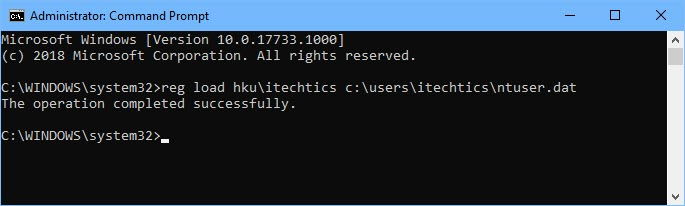
2. regedit එකේ HKEY_LOCAL_MACHINE\SOFTWARE\Microsoft\Windows\CurrentVersion\Policies\Explorer වලට යන්න.
3. ShowRunasDifferentuserinStart = 1 කියන DWORD එකක් හදලා Explorer restart කරන්න.
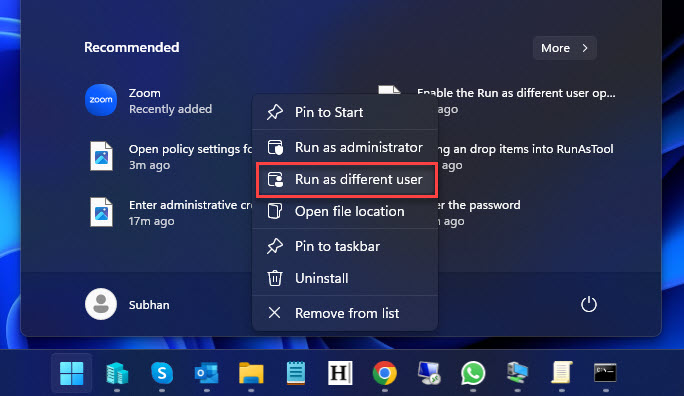
Menu එකේ "Run as different user" enable කරලා.
Troubleshooting
Problem: Menu එකෙන් option එක නෑ.
Solution: Right-click කරනකොට Shift අල්ලගන්න, Secondary Logon running කියලා බලන්න, නැත්නම් Start-menu policy එක enable කරන්න.
Problem: "The user profile cannot be loaded".
Solution: Target account එක එක පාරක් sign in වෙලා තියෙන්න ඕන වෙන්න පුළුවන්, නැත්නම් profile issue එකක් — මුලින් ඒ user විදිහට sign in වෙන්න.
Problem: runas smart card එකක් ඉල්ලනවා.
Solution: Account එක network-only credentials පාවිච්චි කරනවා නම් /netonly add කරන්න, නැත්නම් correct logon type එක පාවිච්චි කරන්න.
Problem: Access denied.
Solution: Target account එකට app එක run කරන්නත් ඒකේ folder එක access කරන්නත් permission තියෙනවා කියලා බලන්න.
Conclusion
Windows එකෙන් program එකක් වෙන account එකක් යටතේ run කරන්න ක්රම ගොඩක් දෙනවා — Shift + right-click එකේ ඉඳලා runas command එකයි PowerShell එකේ -Credential එකයි දක්වා. Secondary Logon service එක running තියාගෙන, menu option එක නෑ නම් quick policy tweak එකකින් ආපහු ගේන්න.
About TechHub
මේ guide එක TechHub Knowledge Base එකේ කොටසක්. තව step-by-step IT guides සහ support වලට techhub.com.lk එකට යන්න.