Overview
Outlook can send your emails later at a time you choose, and automatically reply when you are away. Scheduling helps you write now and send at the right moment, while Out-of-Office replies keep contacts informed during a holiday or leave. This guide covers both on the web, desktop, and Android.
Schedule emails and set automatic replies in Outlook.
Key Takeaways
- Use Delay Delivery / Send later to schedule an email for a future time.
- Out-of-Office (Automatic Replies) sends a set message while you are away.
- Both features are available on Outlook web, desktop, and mobile.
- You can set start and end times so replies turn off automatically.
Schedule Emails — Outlook on the Web
1. Compose your email as usual.
2. Click the arrow next to Send and choose Schedule send.
3. Pick a date and time, then confirm.
4. The email moves to Drafts/Outbox and sends automatically at that time.
Schedule Emails — Outlook Desktop
1. Compose your email.
2. On the Options tab, click Delay Delivery.
3. Under Delivery options, tick "Do not deliver before" and set the date and time.
4. Click Close, then Send — it waits in the Outbox until the scheduled time (Outlook must be running for classic accounts).
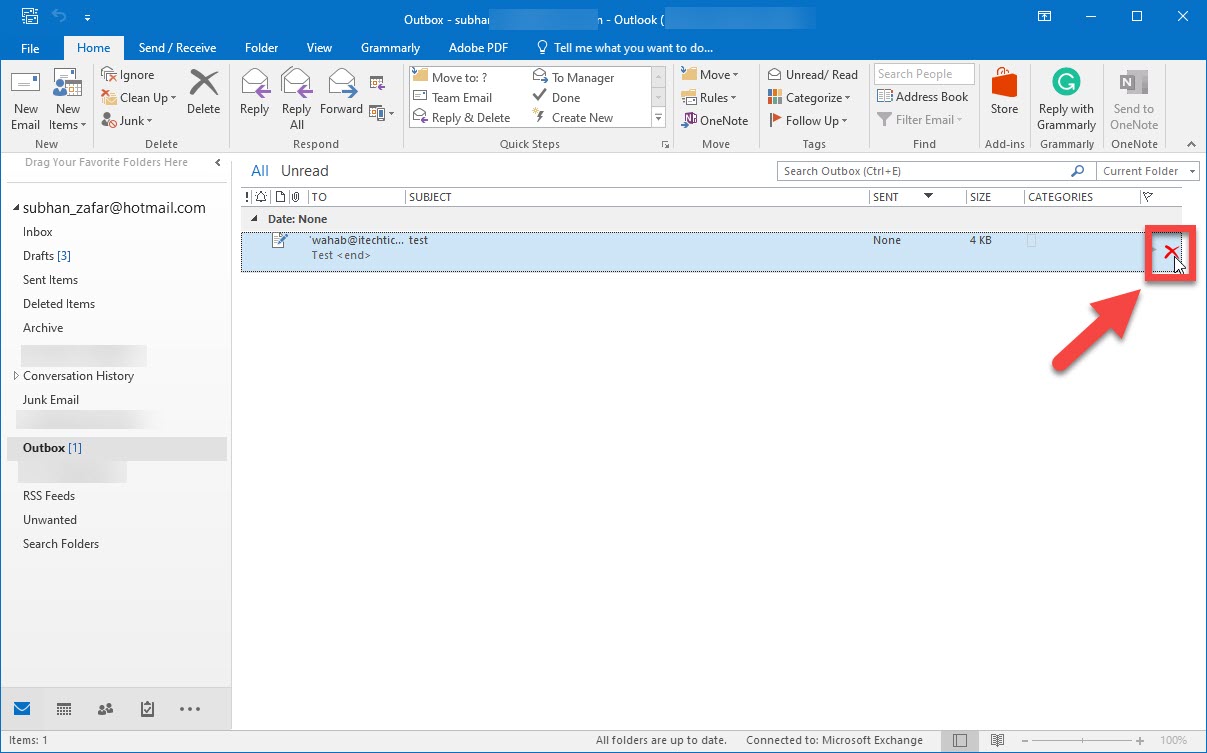
You can cancel or reschedule a scheduled email before it sends.
Schedule Emails — Outlook for Android
1. Compose your email in the Outlook app.
2. Tap the three-dot menu and choose Schedule send.
3. Pick a time and confirm.
Out-of-Office Replies — Outlook on the Web
1. Open Settings (gear) > Mail > Automatic replies.
2. Turn on Automatic replies.
3. Optionally set a start and end time.
4. Type your message (and a separate one for external senders if desired), then Save.
Out-of-Office Replies — Outlook Desktop
1. Go to File > Automatic Replies (Out of Office).
2. Select "Send automatic replies" and optionally set a time range.
3. Type your message on the Inside My Organization and Outside My Organization tabs.
4. Click OK.
Note: Automatic Replies (Out of Office) on desktop requires a Microsoft 365/Exchange account. For other accounts, use a rule or set it via Outlook on the web.
Out-of-Office Replies — Outlook for Android
1. Open the Outlook app and tap your account in Settings.
2. Tap Automatic replies.
3. Turn it on, set the time range, type your message, and save.
Troubleshooting
Problem: My scheduled email did not send.
Solution: For classic desktop accounts using Delay Delivery, Outlook must be open at the scheduled time. Use Outlook on the web/Microsoft 365 for server-side scheduling.
Problem: Automatic Replies option is missing.
Solution: It requires a Microsoft 365/Exchange account. On other accounts, set up an auto-reply rule or use Outlook on the web.
Problem: Replies are not turning off.
Solution: Set an end time when enabling Automatic Replies, or turn them off manually when you return.
Problem: External contacts are not getting replies.
Solution: Enable the "Outside my organization" message and ensure it is allowed by your mail admin.
Conclusion
Scheduling emails and setting Out-of-Office replies keeps your communication timely and professional. Use Schedule send for the right timing and Automatic Replies to cover your time away — available across Outlook on the web, desktop, and mobile.
</w:pBdr><w:spacing w:before="220" w:after="40"/></w:pPr><w:r><w:rPr><w:b/><w:bCs/><w:color w:val="0B5394"/><w:sz w:val="21"/><w:szCs w:val="21"/><w:rFonts w:ascii="Calibri" w:cs="Calibri" w:eastAsia="Calibri" w:hAnsi="Calibri"/></w:rPr><w:t xml:space="preserve">About TechHub
This guide is part of the TechHub Knowledge Base. For more step-by-step IT guides and support, visit techhub.com.lk.