Overview
Metered connection එකකින් Windows එකට කියනවා data cap එකක් ඇතුළේ ඉන්න උදව් වෙන්න background data use එක limit කරන්න කියලා. Default විදිහට, Windows metered networks වල updates ගොඩක් pause කරනවා — නමුත් ඒකෙන් අලුත් threats වලින් ඔයාව protect කරන වැදගත් Microsoft Defender security intelligence updates ත් delay වෙන්න පුළුවන්. මේ guide එකෙන් අනිත් loku updates restrict කරගෙනම metered connection එකක් උඩින් Defender security updates download වෙන්න allow කරන ක්රම කිහිපයක් පෙන්නනවා.
Key Takeaways
- Metered connections වලින් data save කරන්න background downloads restrict කරනවා.
- Security intelligence (definition) updates පොඩියි, නමුත් protection එකට critical.
- සියලුම download limits අස්සේ නොදාම security updates විතරක් metered connections උඩින් allow කරන්න පුළුවන්.
- මේ setting එක PowerShell, Group Policy, Task Scheduler, නැත්නම් Registry එකෙන් apply කරන්න පුළුවන්.
Note: Security intelligence updates සාමාන්යයෙන් එකකට megabytes කිහිපයක් විතරයි, ඒ නිසා ඒවා metered connection එකක් උඩින් allow කරන එකෙන් ඔයාගේ data usage එකට වෙන බලපෑම අඩුයි.
Method 1: Using PowerShell
පහසුම ක්රමය තමයි තනි Microsoft Defender PowerShell command එකක්.
1. Start click කරලා, "PowerShell" type කරලා, Windows PowerShell right-click කරලා, Run as administrator තෝරන්න.
2. UAC prompt එක approve කරන්න.
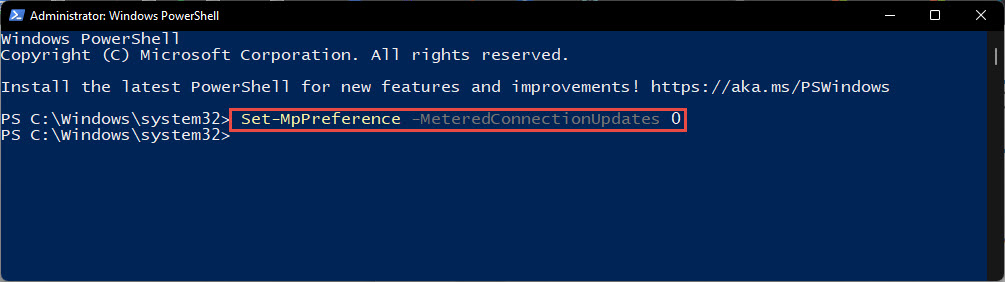
3. මේ command එක type කරන්න: Set-MpPreference -MeteredConnectionUpdates $true
4. Enter press කරන්න. දැන් Defender එකෙන් metered networks වලත් security intelligence updates download කරනවා.
5. පස්සේ ආපහු reverse කරන්න, $true වෙනුවට $false දාලා ඒම command එකම run කරන්න.
PowerShell එකෙන් metered-connection updates enable කිරීම.
Method 2: From Group Policy
Windows Pro, Enterprise, Education editions වල Group Policy Editor එක use කරන්න පුළුවන්.
1. Windows + R press කරලා, gpedit.msc type කරලා, Enter press කරන්න.
2. Computer Configuration > Administrative Templates > Windows Components > Microsoft Defender Antivirus > Signature Updates වෙත යන්න.
3. "Allow definition updates from Microsoft Update on metered connections" double-click කරන්න.
4. Enabled තෝරලා, Apply සහ OK click කරන්න.
5. Editor එක close කරලා, ක්ෂණිකව apply වෙන්න elevated command prompt එකක gpupdate /force run කරන්න.
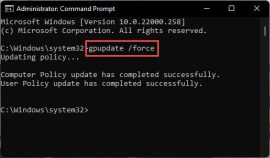
Metered-connection update policy එක enable කිරීම.
Method 3: From the Registry
ඔයාගේ edition එකේ Group Policy නැත්නම්, එම setting එකම Registry Editor එකේ apply කරන්න පුළුවන්.
Warning: Registry එක වැරදියට edit කරොත් system problems ඇති වෙන්න පුළුවන්. වෙනස්කම් කරන්න කලින් registry එක back up කරන්න (File > Export).
1. Windows + R press කරලා, regedit type කරලා, Enter press කරන්න. UAC prompt එක approve කරන්න.
2. HKEY_LOCAL_MACHINE\SOFTWARE\Policies\Microsoft\Windows Defender\Signature Updates වෙත navigate කරන්න. Keys නැත්නම් create කරන්න.
3. Right pane එකේ right-click කරලා MeteredConnectionUpdates කියන DWORD (32-bit) value එකක් create කරන්න.
4. Metered connections උඩින් updates enable කරන්න ඒකේ value data එක 1 කරන්න.
5. Registry Editor එක close කරලා computer එක restart කරන්න.
Method 4: Schedule Regular Updates
Alternative එකක් විදිහට, connection type එක මොකක් වුණත් definitions current තියාගන්න, Defender update command එක schedule එකකට run කරන Task Scheduler task එකක් create කරන්න පුළුවන්.
1. Task Scheduler open කරලා Create Basic Task තෝරන්න.
2. Task එකට නමක් දාලා daily trigger එකක් set කරන්න.
3. Action එකට, Start a program තෝරලා "%ProgramFiles%\Windows Defender\MpCmdRun.exe" වෙත point කරලා -SignatureUpdate argument එක දෙන්න.
4. Wizard එක finish කරන්න. Task එකෙන් ඔයාගේ schedule එකට Defender definitions updated තියාගන්නවා.
Troubleshooting
Problem: PowerShell command එකෙන් access error එකක් return කරනවා.
Solution: PowerShell administrator විදිහට run වෙනවා කියලා confirm කරගන්න. Command එක enter කරන්න කලින් ඒක right-click කරලා Run as administrator තෝරන්න.
Problem: Group Policy path එක නැහැ.
Solution: ඔයා Windows Home එකේ ඉන්නවා වෙන්න ඇති, ඒකේ Group Policy Editor එක නැහැ. ඒ වෙනුවට PowerShell නැත්නම් Registry method එක use කරන්න.
Problem: Metered network එකක තාමත් updates download වෙන්නේ නැහැ.
Solution: Setting එක apply වුණා කියලා confirm කරන්න, network එක connected කියලා check කරන්න, Windows Security > Virus & threat protection > Check for updates වලින් manually Defender update එකක් run කරන්න.
Problem: මට ආපහු metered connections උඩින් updates නවත්තන්න ඕන.
Solution: Set-MpPreference -MeteredConnectionUpdates $false run කරන්න, Group Policy එක disable කරන්න, නැත්නම් registry value එක ආපහු 0 කරන්න.
Conclusion
Microsoft Defender security intelligence updates metered connections උඩින් allow කරන එක buddhimath balance එකක් — ඒකෙන් ඔයාගේ antivirus protection එක current තියාගෙනම loku, අත්යවශ්ය නොවන downloads limit කරනවා. ඉක්මන් වෙනසකට PowerShell තෝරන්න, persistent policy එකකට Group Policy හෝ Registry තෝරන්න, නැත්නම් updates සම්පූර්ණයෙන් automate කරන්න Task Scheduler තෝරන්න.
About TechHub
මේ guide එක TechHub Knowledge Base එකේ කොටසක්. තව step-by-step IT guides සහ support වලට techhub.com.lk එකට යන්න.