How to Transfer Files Between a VM and the Host in Hyper-V
Move files to and from Hyper-V virtual machines using Enhanced Session, network shares, or VHDX.
Overview
Unlike some hypervisors, Hyper-V has no simple drag-and-drop by default. This guide covers the practical ways to transfer files between a Hyper-V VM and the host: Enhanced Session Mode, a network share, and mounting a VHDX.
Key Takeaways
- Enhanced Session Mode enables clipboard/drive redirection.
- A shared folder over the network is the most flexible method.
- You can copy files by mounting the VM’s VHDX (VM off).
- PowerShell Copy-VMFile works for Guest Services.
Method 1: Enhanced Session Mode
1. In Hyper-V Manager, ensure Enhanced Session Mode is enabled (Hyper-V Settings > Enhanced Session Mode Policy).
2. Connect to the VM; when prompted, choose Local Resources and share drives/clipboard.
3. You can then copy-paste files or access host drives from inside the VM.
4. Works best with Windows guests that support enhanced session.
Method 2: Network Share
1. Create a shared folder on the host (right-click folder > Properties > Sharing).
2. Ensure the VM and host can reach each other (Default Switch or an internal/private network).
3. From the VM, open \\HOST-IP\ShareName and copy files.
4. This is the most universal method across guest OSes.
Method 3: Copy-VMFile (Guest Services)
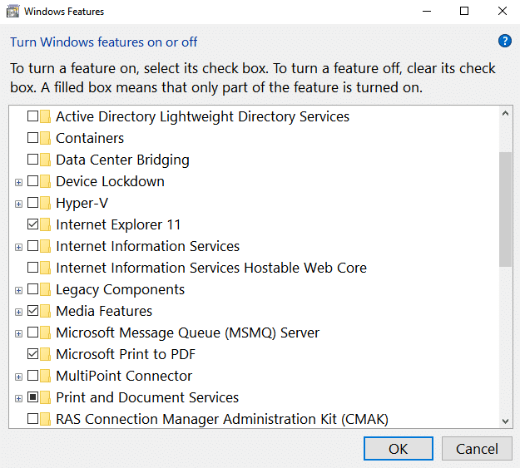
1. Enable "Guest Services" in the VM’s Integration Services settings.
2. On the host, run: Copy-VMFile "VMName" -SourcePath "C:\file.txt" -DestinationPath "C:\file.txt" -CreateFullPath -FileSource Host
3. This copies host-to-guest without a network.
Method 4: Mount the VHDX (VM Off)
1. Shut down the VM.
2. On the host, double-click the VM’s .vhdx to mount it as a drive.
3. Copy files to/from it, then eject.
4. Never mount a VHDX while the VM is running.
Troubleshooting
Problem: Enhanced Session unavailable.
Solution: Enable it in Hyper-V settings and use a supported Windows guest; Linux guests often need the network method.
Problem: Can’t reach the share.
Solution: Put the VM on the Default Switch/internal network and confirm both firewalls allow file sharing.
Problem: Copy-VMFile fails.
Solution: Enable Guest Services in the VM’s Integration Services and ensure the guest is running.
Problem: VHDX won’t mount.
Solution: The VM must be off; a running VM locks the disk.
Conclusion
Hyper-V offers several file-transfer routes: Enhanced Session Mode for clipboard/drive redirection, a network share for universal access, Copy-VMFile via Guest Services, or mounting the VHDX while the VM is off. Pick the one that fits your guest OS and workflow.