Overview
Microsoft Management Console (MMC) එකෙන් remote computer එකක් target කරන්න පුළුවන් administrative snap-ins host කරනවා — ඔබේම desk එකෙන් services, event logs, සහ තව manage කරන්න දෙනවා. මේ guide එකෙන් prerequisites සහ connect කරන steps cover කරනවා, manage කරන්න authorized machines වලට විතරයි configure කරලා.
Remote computer එකක් manage කරන්න MMC පාවිච්චි කරන්න.
Note: Remote management configure කරන්නේ ඔබ අයිති හෝ explicitly administer කරන්න authorized computers වල විතරයි.
Key Takeaways
- MMC snap-ins network එක හරහා වෙන computer එකකට connect වෙන්න පුළුවන්.
- Remote PC එකට හරි firewall rules සහ services enabled වෙන්න ඕන.
- ඔබේ account එකට remote PC එකේ administrative rights ඕන.
- ගොඩක් built-in snap-ins (Services, Event Viewer, Device Manager) remote targets support කරනවා.
Prerequisites
- PCs දෙකම එකම network/domain එකේ (හෝ workgroup එකකට proper credentials).
- Remote computer එකේ administrator account එකක්.
- Network discovery සහ අදාළ services running.
Firewall එක හරහා Remote Management Allow කරන්න
1. Remote PC එකේ, Windows Defender Firewall > Allow an app through firewall open කරන්න.
2. Appropriate network profile එකට "Windows Management Instrumentation (WMI)" සහ "Remote Event Log Management" enable කරන්න.
3. Changes apply කරන්න.
Remote Management Services Start කරන්න
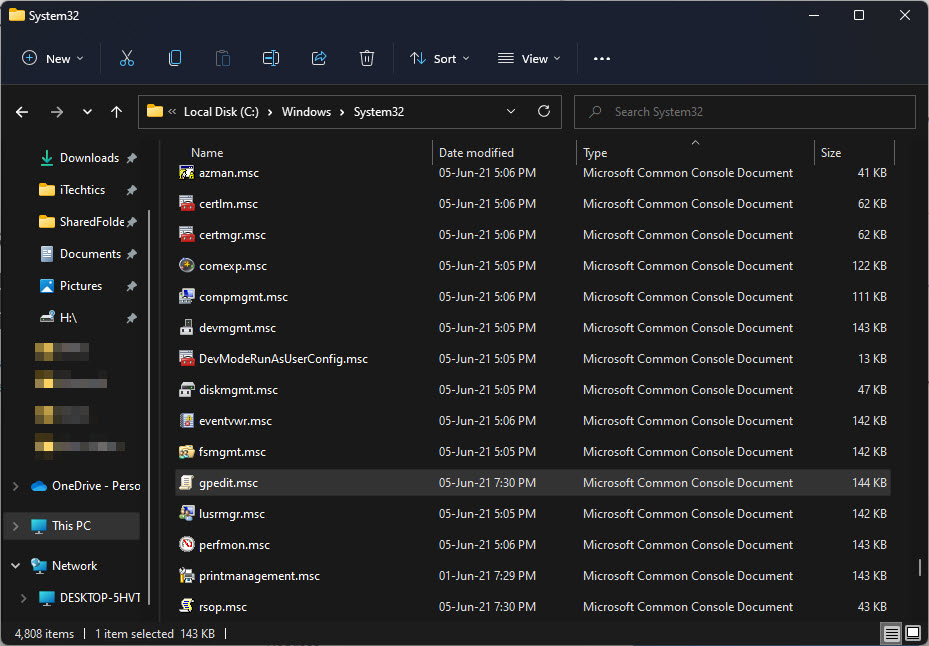
1. Remote PC එකේ, services.msc open කරන්න.
2. "Windows Remote Management (WS-Management)" සහ "Remote Registry" running කියලා බලන්න (ඕන නම් Automatic කරන්න).
3. ඕන නම් WinRM configure කරන්න elevated prompt එකක winrm quickconfig run කරන්න.
Warning: සමහර guides UAC remote restrictions disable කරන්න suggest කරනවා. ඔබේ environment එක specifically require කරනවා නම් විතරයි මේක වෙනස් කරලා, ඊට පස්සේ revert කරන්න — ඒක security අඩු කරනවා.
MMC Snap-in එකකින් Connect කරන්න
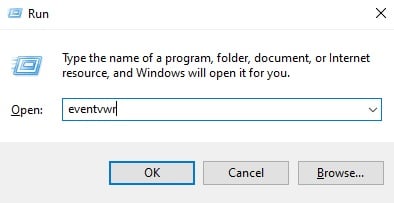
1. ඔබේ PC එකේ, Windows + R press කරලා mmc type කරලා Enter කරන්න.
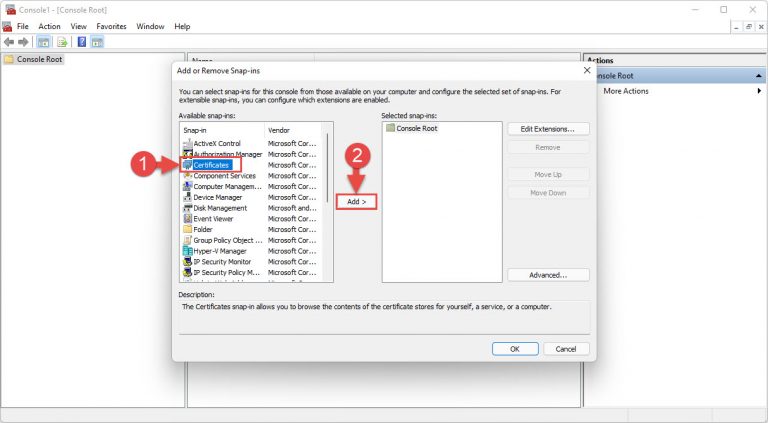
2. File > Add/Remove Snap-in click කරන්න.
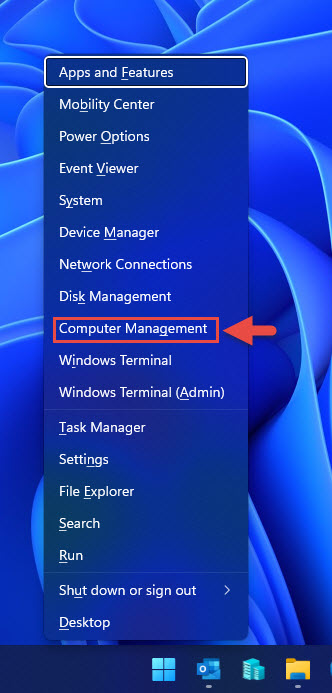
3. Snap-in එකක් (බ. Services හෝ Computer Management) තෝරලා Add click කරන්න.
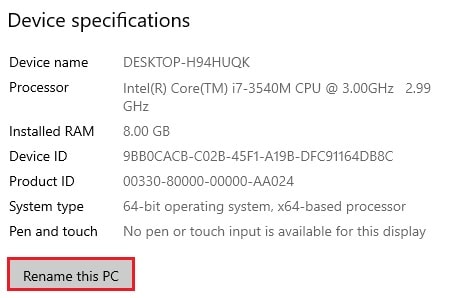
4. Prompt වුණාම, "Another computer" select කරලා remote PC එකේ name/IP ඇතුළත් කරන්න.
5. OK click කරලා remote machine එක connect කරලා manage කරන්න.

Remote computer එකකට successfully access කරනවා.
Troubleshooting
Problem: Connect කරනකොට "Access is denied".
Solution: ඔබේ account එකට remote PC එකේ admin rights තියෙනවා කියලා confirm කරලා, ඒ machine/domain එකට correct credentials දෙන්න.
Problem: "The RPC server is unavailable".
Solution: WMI/Remote firewall rules enable කරලා, Remote Registry සහ WinRM services running කියලා බලන්න.
Problem: Snap-in connect වෙනවා ඒත් data නෑ.
Solution: Remote PC එකේ corresponding service එක (බ. Remote Registry) start කරලා snap-in එක ආපහු open කරන්න.
Problem: Domain එකක වැඩ කරනවා ඒත් workgroup එකක නෑ.
Solution: Workgroups වලට matching local admin credentials සහ UAC/LocalAccountTokenFilterPolicy considerations ඕන — PCs දෙක එකිනෙකා trust කරනවා කියලා verify කරන්න.
Conclusion
හරි firewall rules, services, සහ permissions තියෙනකොට, MMC snap-ins එකෙන් remote computer එකක් ළඟ ඉන්නවා වගේම administer කරන්න දෙනවා. ඕන එක විතරයි enable කරලා, authorized machines විතරයි manage කරලා, ඉවර වුණාම ඕනෑම security relaxations revert කරන්න.
About TechHub
මේ guide එක TechHub Knowledge Base එකේ කොටසක්. තව step-by-step IT guides සහ support වලට techhub.com.lk එකට යන්න.