Overview
Root certificates are the anchors of trust that Windows uses to verify secure websites, signed software, and encrypted connections. Windows updates them automatically, but on isolated or rarely updated machines the store can fall behind, causing certificate errors. This guide shows how to view, refresh, and manually import trusted root certificates.
Key Takeaways
- Root certificates let Windows trust secure sites and signed applications.
- Windows normally updates them automatically through Windows Update.
- You can view the current store using the Certificates MMC snap-in or PowerShell.
- Offline machines can be refreshed manually with an SST file exported from an online PC.
View the Trusted Root Store
1. Press Win + R, type mmc, and press Enter.
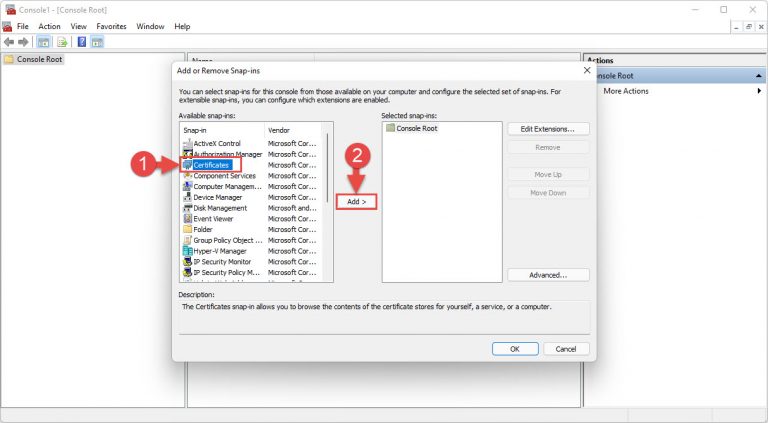
2. Choose File > Add/Remove Snap-in, select Certificates, click Add, and pick Computer account.
3. Expand Trusted Root Certification Authorities > Certificates to see every trusted root.
Adding the Certificates snap-in for the computer account in MMC.
TIP: In PowerShell you can list the same store quickly with: Get-ChildItem -Path Cert:\LocalMachine\Root
Method 1: Let Windows Update Refresh Them
1. Open Settings > Windows Update and click Check for updates.
2. Install any available updates, which include the latest trusted root certificate list.
3. Restart if prompted.
Method 2: Update Root Certificates Offline
1. On an online PC, open an elevated Command Prompt and run: certutil -generateSSTFromWU roots.sst
2. Copy the roots.sst file to the offline computer.
3. Right-click the SST file, choose Install, select "Local Machine", and place the certificates in the Trusted Root Certification Authorities store.
WARNING: Only import root certificates from sources you fully trust. A malicious root certificate can let an attacker impersonate secure websites, so never install SST files from unknown senders.
Method 3: Import a Single Certificate
1. Double-click the .cer or .crt file and click Install Certificate.
2. Choose Local Machine and select "Place all certificates in the following store".
3. Browse to Trusted Root Certification Authorities and finish the wizard.
Troubleshooting
Problem: Websites show certificate or "not trusted" errors on an offline PC.
Solution: The root store is likely outdated. Generate an SST file on an online machine with certutil and import it, or connect the PC to Windows Update.
Problem: certutil is not recognised.
Solution: Run the command in an elevated Command Prompt; certutil ships with Windows but requires administrator rights for store changes.
Problem: A newly imported certificate is still not trusted.
Solution: Confirm it was placed in Trusted Root Certification Authorities for the Local Machine, not the current user, then restart.
Problem: You need to remove a certificate you no longer trust.
Solution: Open the Certificates MMC, locate it under Trusted Root Certification Authorities, right-click and choose Delete.
Conclusion
A current root certificate store is essential for safe browsing and software trust. Let Windows Update handle it where possible, and use certutil with an SST file to refresh isolated machines — importing only certificates from sources you trust completely.
About TechHub
This guide is part of the TechHub Knowledge Base. For more step-by-step IT guides and support, visit techhub.com.lk.