Overview
Command Prompt keeps a history of commands for the current session. This guide shows how to view, search, re-run, save, and clear that history using doskey and built-in shortcuts.
Checking Command Prompt history.
Key Takeaways
- doskey /history lists the session’s commands.
- F7 shows a scrollable history popup.
- You can save the history to a text file.
- History clears when the window closes (per-session).
View History with doskey
1. Open Command Prompt.
2. Run: doskey /history
3. All commands from the current session are listed in order.
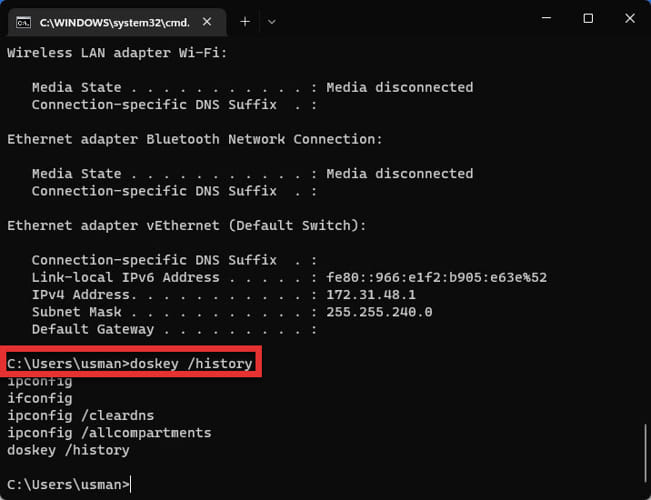
doskey /history output.
View History with Keyboard Shortcuts
1. Press F7 for a popup list of previous commands; use arrows to select and Enter to run.
2. Press Up/Down arrows to cycle through commands.
3. Press F8 to cycle matches for what you’ve typed so far.
Viewing history via the F7 popup.
Re-run Commands from History
1. Press F9, type the command’s number (from doskey /history), and press Enter.
2. Or select it from the F7 popup and press Enter.
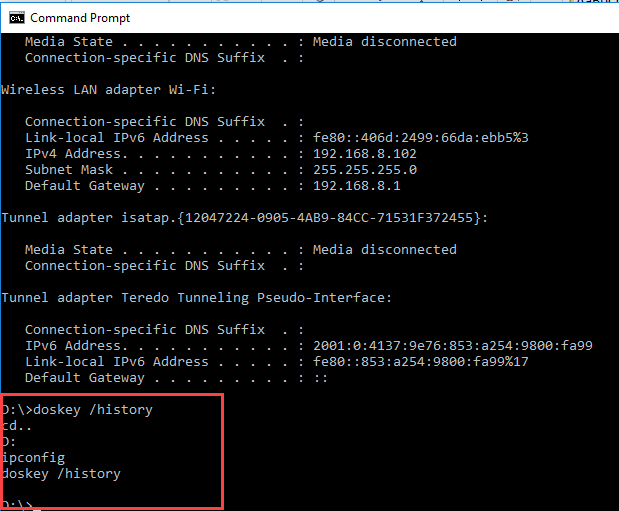
Executing a command from history.
Save History to a File
1. Run: doskey /history > C:\cmd-history.txt
2. Open the text file to review or archive your commands.
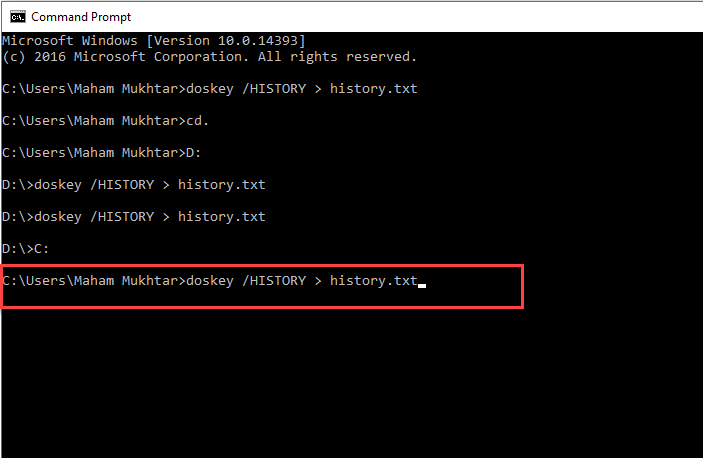
Saving history to a text file.
Clear History and PowerShell Note
1. Clear the session history by pressing Alt+F7 (or just close the window).
2. In PowerShell/Terminal, use Get-History to view and Clear-History to clear the session; PSReadLine also keeps a persistent history file.
Troubleshooting
Problem: History is empty in a new window.
Solution: CMD history is per-session — it starts fresh each time you open a new window.
Problem: Want persistent history.
Solution: Use PowerShell/Terminal, which (via PSReadLine) saves history across sessions to a file.
Problem: F7 popup doesn’t appear.
Solution: Ensure you’re in a genuine console window; some terminals remap keys — check their settings.
Problem: Need more than the buffer.
Solution: Increase the "Command History" buffer size in the console Properties.
Conclusion
Command Prompt makes it easy to review your session commands with doskey /history and the F7 popup, and to re-run or save them. For history that persists across sessions, switch to PowerShell or Windows Terminal.
</w:pBdr><w:spacing w:before="220" w:after="40"/></w:pPr><w:r><w:rPr><w:b/><w:bCs/><w:color w:val="0B5394"/><w:sz w:val="21"/><w:szCs w:val="21"/><w:rFonts w:ascii="Calibri" w:cs="Calibri" w:eastAsia="Calibri" w:hAnsi="Calibri"/></w:rPr><w:t xml:space="preserve">About TechHub
This guide is part of the TechHub Knowledge Base. For more step-by-step IT guides and support, visit techhub.com.lk.