4 Ways to View and Save the List of Installed Windows Updates
See update history and export a list using Settings, DISM, PowerShell, and wmic.
Overview
Knowing which updates are installed helps with troubleshooting and auditing. This guide shows four ways to view — and export — the list of installed Windows updates.
Viewing installed Windows updates.
Key Takeaways
- Settings shows an update history.
- DISM and wmic list installed packages/hotfixes.
- PowerShell’s Get-Hotfix exports easily to CSV.
- Use these to confirm a specific KB is installed.
Method 1: Update History (Settings)
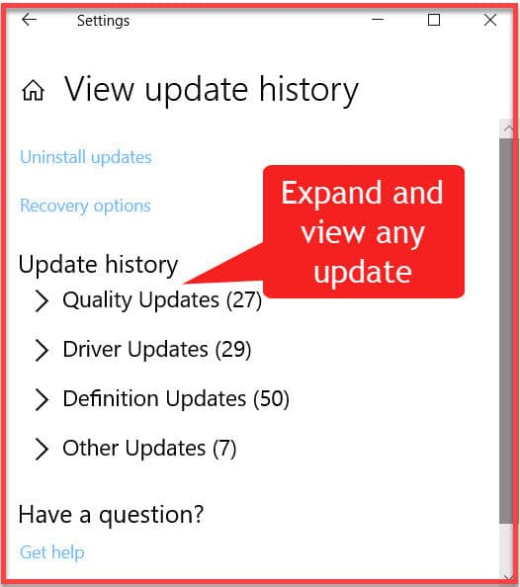
1. Open Settings > Windows Update > Update history.
2. Expand the categories (Quality, Driver, Definition, Feature updates).
3. Click "Uninstall updates" to see removable KBs.
Method 2: PowerShell (Get-Hotfix)
1. Open PowerShell.
2. List updates: Get-Hotfix
3. Export to CSV: Get-Hotfix | Export-Csv C:\updates.csv -NoTypeInformation
4. Check a specific KB: Get-Hotfix -Id KB5001234
Method 3: Command Line (wmic / systeminfo)
1. List hotfixes: wmic qfe list brief /format:table
2. Or run systeminfo and read the "Hotfix(s)" section.
3. Save output: wmic qfe list brief > C:\hotfixes.txt
Method 4: DISM
1. Open Command Prompt as administrator.
2. Run: DISM /Online /Get-Packages /Format:Table
3. This lists installed packages, including updates.
Troubleshooting
Problem: Get-Hotfix misses some updates.
Solution: It lists MSU/QFE hotfixes; use DISM /Get-Packages or Update history for the full picture.
Problem: Need it for many PCs.
Solution: Script Get-Hotfix | Export-Csv and run remotely with Invoke-Command.
Problem: Can’t find a specific KB.
Solution: Search Get-Hotfix -Id KBxxancilla, and check Update history for feature updates.
Problem: Want removable updates.
Solution: Use Settings > Update history > Uninstall updates to see what can be removed.
Conclusion
View installed updates in Settings > Update history for a quick look, and use Get-Hotfix (PowerShell) or DISM/wmic to list and export them. Get-Hotfix piped to Export-Csv is the easiest way to save an auditable list.