Overview
හැම Windows file එකකටම folder එකකටම timestamps තුනක් තියෙනවා — Date Created, Date Modified, සහ Date Accessed. ඒවා PowerShell එකෙන් හෝ Attribute Changer සහ NirCmd වගේ tools වලින් වෙනස් කරන්න පුළුවන්. මේ guide එකෙන් ඒ ආකාරය, සහ එක එක timestamp එකෙන් අදහස් වෙන්නේ මොකද කියලා පෙන්නනවා.
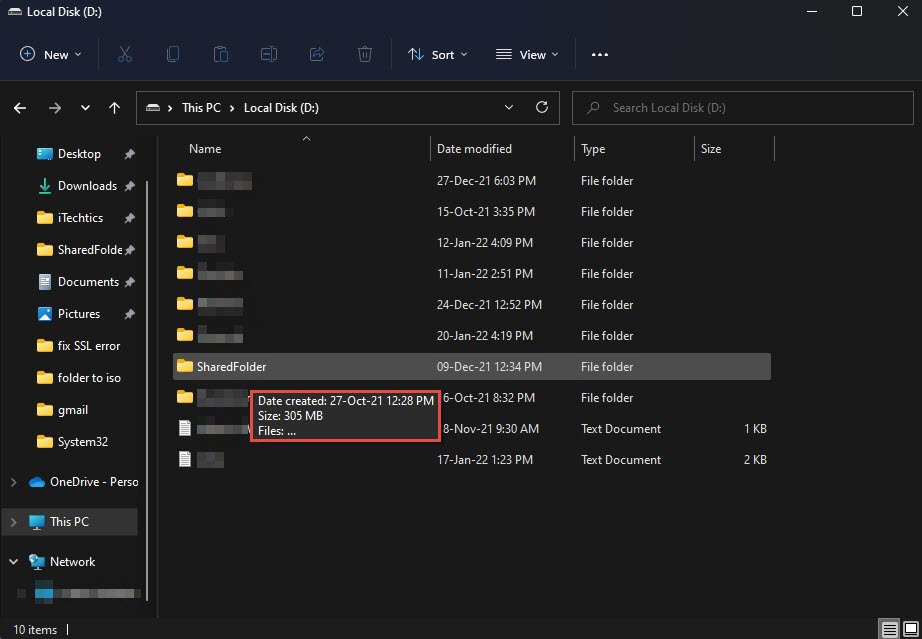
Files සහ folders වල created, modified, සහ accessed timestamps තියෙනවා.
Key Takeaways
- Timestamps තුනක් තියෙනවා: CreationTime, LastWriteTime (modified), සහ LastAccessTime.
- PowerShell එකෙන් lines කිහිපයකින් තුනම set කරන්න පුළුවන්.
- Attribute Changer සහ NirCmd graphical/command-line alternatives දෙනවා.
- Timestamps වෙනස් කරන එක organizing, testing, සහ metadata restore කරන්න useful.
Timestamps තුන
- Date Created — file එක මේ volume එකේ මුලින්ම හැදුණ වෙලාව.
- Date Modified (LastWriteTime) — ඒකේ contents අන්තිමට වෙනස් වුණ වෙලාව.
- Date Accessed — අන්තිමට open/read කරපු වෙලාව (Windows මේක හැමවෙලේම update නොකරන්න පුළුවන්).
Method 1 — PowerShell එකෙන් Timestamps වෙනස් කරන්න
1. PowerShell open කරන්න.
2. Modified date එක set කරන්න: (Get-Item "C:\path\file.txt").LastWriteTime = "2024-01-15 10:30:00"
3. Created date එක set කරන්න: (Get-Item "C:\path\file.txt").CreationTime = "2024-01-15 10:30:00"
4. Accessed date එක set කරන්න: (Get-Item "C:\path\file.txt").LastAccessTime = "2024-01-15 10:30:00"
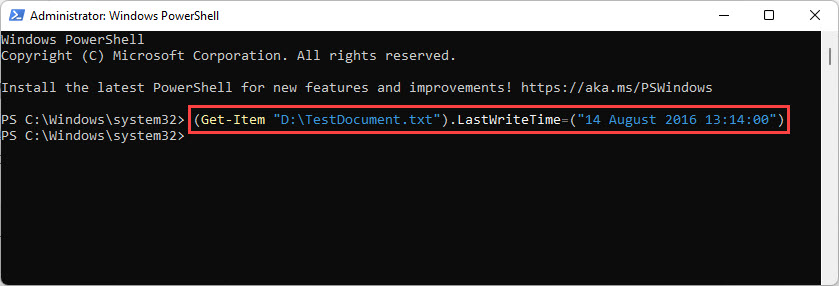
PowerShell එකෙන් එක එක timestamp attribute එක set කරන්න පුළුවන්.
Tip: තුනම එකවර වෙනස් කරන්න, folder එකකට Get-ChildItem එක ForEach-Object හරහා pipe කරලා repeat කරන්න.
Files ගොඩකට තුනම වෙනස් කරන්න
1. Target folder එකේ PowerShell open කරන්න.
2. Run: Get-ChildItem -Recurse | ForEach-Object { $_.CreationTime = $_.LastWriteTime = $_.LastAccessTime = "2024-01-15 10:30:00" }
3. මේකෙන් හැම file එකකටම folder එකකටම timestamps තුනම set කරනවා.
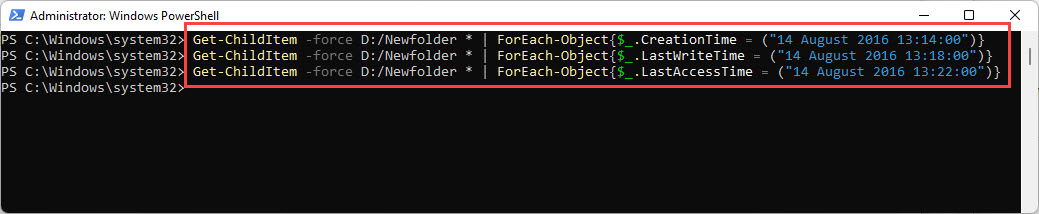
Timestamps තුනම වෙනස් කරන PowerShell command එකක්.
Method 2 — Attribute Changer
1. Attribute Changer (official) download කරලා install කරන්න.
2. File එකක් හෝ folder එකක් right-click කරලා Change Attributes තෝරන්න.
3. වෙනස් කරන්න ඕන timestamps tick කරලා, අලුත් date/time එක set කරලා apply කරන්න.
Method 3 — NirCmd
1. NirSoft (official) එකෙන් NirCmd download කරන්න.
2. Run: nircmd.exe setfiletime "C:\path\file.txt" "15-01-2024 10:30:00" "15-01-2024 10:30:00"
3. Times දෙක created සහ modified timestamps set කරනවා.
Troubleshooting
Problem: Date Accessed වෙනස් වෙන්නේ නෑ.
Solution: Windows performance වලට last-access updates බොහෝවිට disable කරනවා. PowerShell LastAccessTime assignment එක තවම වැඩ කරනවා, ඒත් system එක auto-update නොකරන්න පුළුවන්.
Problem: Timestamp එකක් set කරනකොට "Access denied".
Solution: PowerShell administrator විදිහට run කරලා, file එක modify කරන්න permission තියෙනවා කියලා බලන්න.
Problem: PowerShell එකේ date format errors.
Solution: "2024-01-15 10:30:00" වගේ unambiguous format එකක්, නැත්නම් [datetime] value එකක් පාවිච්චි කරන්න.
Problem: Files ගොඩක් වෙනස් කරන්න ඕන.
Solution: Get-ChildItem -Recurse loop එක, නැත්නම් graphical bulk change එකට Attribute Changer පාවිච්චි කරන්න.
Conclusion
PowerShell එකෙන් file timestamps වෙනස් කරන එක ඉක්මනුයි — CreationTime, LastWriteTime, සහ LastAccessTime direct set කරන්න. Bulk හෝ graphical edits වලට, Attribute Changer සහ NirCmd handy alternatives.
About TechHub
මේ guide එක TechHub Knowledge Base එකේ කොටසක්. තව step-by-step IT guides සහ support වලට techhub.com.lk එකට යන්න.