Overview
Screen brightness එක වෙනස් කරන්න Settings app එක හෝ Quick Settings panel එක open කරන්න ඕන නෑ. WMI පාවිච්චි කරලා, Command Prompt හෝ PowerShell හරහා, command line එකෙන් කෙළින්ම brightness set කරන්න Windows ඉඩ දෙනවා. මේක automation, keyboard shortcuts, සහ remote හෝ scripted sessions වලදී brightness adjust කරන්න ප්රයෝජනවත්.
Key Takeaways
- Windows එකෙන් WMI classes WmiMonitorBrightness සහ WmiMonitorBrightnessMethods හරහා brightness control එක expose කරනවා.
- PowerShell එකට current brightness එක read කරන්නත්, 0 ඉඳන් 100 percent අලුත් level එකක් set කරන්නත් පුළුවන්.
- Command Prompt එකට ඒම PowerShell command එකම inline call කරලා brightness වෙනස් කරන්න පුළුවන්.
- මේ ක්රමය software-controlled backlights තියෙන බොහෝ laptops සහ සියලුම all-in-one PCs වල වැඩ කරනවා, ඒත් external desktop monitors ගොඩකක වැඩ කරන්නේ නෑ.
Note: Command-line brightness control එක රඳා පවතින්නේ display එක software brightness (Windows brightness slider එක පාවිච්චි කරන ඒම control එකම) support කරන එක මතයි. Standalone desktop monitors ගොඩකක් brightness expose කරන්නේ ඒවගේ physical buttons හරහා විතරයි, ඒවා respond කරන්නේ නෑ.
Change Brightness Using PowerShell
PowerShell එකෙන් cleanest control එක දෙන අතර current level එකත් report කරන්න පුළුවන්.
1. Start button එක right-click කරලා "Windows PowerShell" හෝ "Terminal" open කරන්න.
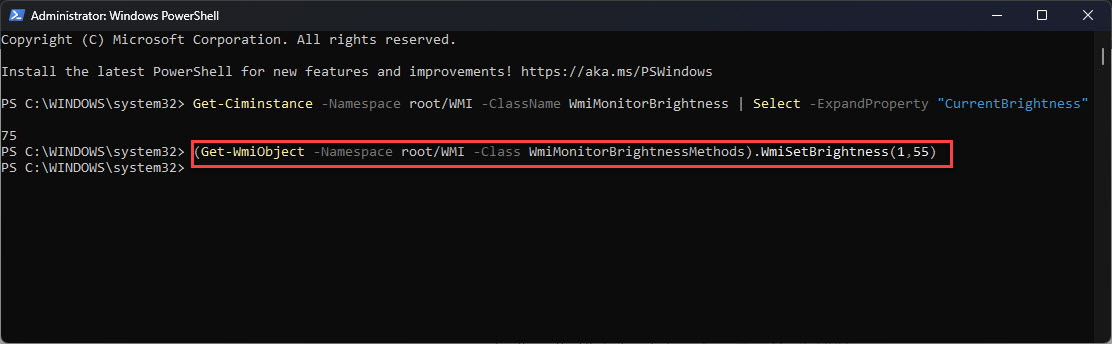
2. Current brightness එක check කරන්න, run කරන්න: (Get-WmiObject -Namespace root/WMI -Class WmiMonitorBrightness).CurrentBrightness
3. Brightness එක set කරන්න, run කරන්න: (Get-WmiObject -Namespace root/WMI -Class WmiMonitorBrightnessMethods).WmiSetBrightness(1,LEVEL) — LEVEL වෙනුවට 0 ඉඳන් 100 අගයක් දාන්න.
4. උදාහරණයක් විදිහට, (Get-WmiObject -Namespace root/WMI -Class WmiMonitorBrightnessMethods).WmiSetBrightness(1,50) එකෙන් brightness එක 50 percent වලට set කරනවා.
PowerShell එකෙන් screen brightness level එක set කරන එක.
Tip: පළවෙනි argument එක (1) කියන්නේ වෙනස බලපෑම් ඇති වෙන්න seconds වලින් timeout එකක්. ඔබේ favorite levels one-line scripts හෝ shortcuts විදිහට save කරලා ක්ෂණික day/night brightness switching කරගන්න.
Change Brightness Using Command Prompt
Command Prompt එකට native brightness command එකක් නෑ, ඒත් ඒම PowerShell one-liner එකම inline run කරන්න පුළුවන්.
1. Start menu එක open කරලා, cmd type කරලා, Command Prompt open කරන්න.
2. Run කරන්න: powershell (Get-WmiObject -Namespace root/WMI -Class WmiMonitorBrightnessMethods).WmiSetBrightness(1,LEVEL)
3. LEVEL වෙනුවට ඔබට ඕන percentage එක දාන්න, උදාහරණයක් විදිහට bright වලට 80 හෝ dim වලට 10.
4. Enter press කරන්න එතකොට brightness එක වහාම වෙනස් වෙනවා.
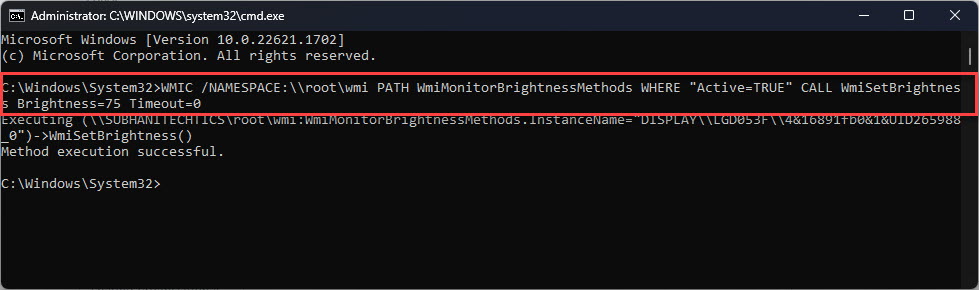
Command Prompt එකෙන් PowerShell call කරලා screen brightness වෙනස් කරන එක.
Troubleshooting
Problem: Command එක run වෙනවා ඒත් brightness වෙනස් වෙන්නේ නෑ.
Solution: ඔබේ display එක software brightness control support කරන්නේ නැති එකට ඉඩ තියෙනවා. මේක external desktop monitors වල සාමාන්යයි — monitor එකේ physical buttons හෝ DDC/CI control වලට Monitorian වගේ tool එකක් පාවිච්චි කරන්න.
Problem: WMI class එක හම්බුවෙන්නේ නෑ කියලා PowerShell error එකක් return කරනවා.
Solution: PowerShell administrator විදිහට run කරලා, ඔබ laptop-style backlight එකක් තියෙන device එකක ඉන්නවා කියලා confirm කරන්න. සමහර systems වලට display driver එකේ WMI provider එක තියෙන්න ඕන.
Problem: CurrentBrightness එකෙන් value එකක් return කරනවා ඒත් WmiSetBrightness fail වෙනවා.
Solution: LEVEL value එක 0 සහ 100 අතර integer එකක් කියලා, සහ third-party brightness app එකක් setting එක override කරන්නේ නෑ කියලා තහවුරු කරන්න.
Problem: සම්පූර්ණ command එක type නොකර quick toggle එකක් ඔබට ඕන.
Solution: Command එක .ps1 හෝ .bat file එකක save කරන්න, නැත්නම් desktop shortcut එකක් හදන්න — එතකොට එක click එකකින් preset brightness එකක් set කරගන්න පුළුවන්.
Conclusion
Command line එකෙන් brightness control කරන එක ඉක්මන් සහ scriptable. PowerShell එකට WMI හරහා level එක read කරන්නත් set කරන්නත් පුළුවන්, Command Prompt එකට ඒම command එකම inline call කරන්නත් පුළුවන්. ඔබට කැමති levels shortcuts විදිහට save කරලා, Settings කවදාවත් open නොකර ක්ෂණිකව brightness switch කරගන්න.
About TechHub
මේ guide එක TechHub Knowledge Base එකේ කොටසක්. තව step-by-step IT guides සහ support වලට techhub.com.lk එකට යන්න.