Overview
Overheat වෙන CPU එකක් නිසා throttling, crashes සහ hardware life එක අඩුවීම වෙනවා. Windows එකේ built-in CPU thermometer එකක් නෑ, ඒ නිසා temperatures බලන්නේ BIOS/UEFI එකෙන් හෝ free monitoring app එකකින්. මේ guide එකෙන් ඔබේ CPU temperature එක check කරන ආකාරය, healthy range එක මොකක්ද, සහ high temperatures අඩු කරගන්නේ කොහොමද කියලා පෙන්නනවා.
CPU temperature එක monitor කරන එකෙන් PC එක cool සහ stable තියාගන්න උදව් වෙනවා.
Key Takeaways
- Windows එකේ built-in CPU temperature display එකක් නෑ — BIOS එක හෝ monitoring app එකක් පාවිච්චි කරන්න.
- Core Temp, HWMonitor, HWiNFO වගේ free tools real-time per-core temps පෙන්නනවා.
- Idle එකේ 30–50°C විතර normal; load එකේදී ~80°C දක්වා සාමාන්යයෙන් හොඳයි.
- දිගටම 90–100°C ළඟ නම් — ඒ throttling — cooling එක වැඩි දියුණු කරන්න.
Method 1 — BIOS/UEFI එකෙන් Check කරන්න
1. Restart කරලා BIOS/UEFI එකට යන්න (බොහෝවිට boot එකේදී Del, F2 හෝ F10).
2. Hardware Monitor, PC Health හෝ status section එකක් හොයන්න.
3. එතන CPU temperature එක කියවන්න.
4. මතක තියාගන්න — මේකෙන් පෙන්නන්නේ idle temperature එක විතරයි (Windows load එකක් නැතුව).
Method 2 — Monitoring App එකක් පාවිච්චි කරන්න
1. Core Temp, HWMonitor හෝ HWiNFO වගේ reputable tool එකක් එහෙ official site එකෙන් download කරන්න.
2. Install කරලා open කරන්න.
3. Current, minimum සහ maximum CPU (සහ per-core) temperatures බලන්න.
4. Idle එකේදීත්, heavy tasks වලදීත් values බලන්න — load එකේදී කොච්චර උණුසුම් වෙනවද කියලා දැනගන්න.
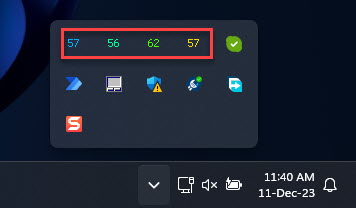
Monitoring app එකක් real-time per-core CPU temperatures පෙන්නනවා.
Safe CPU Temperature එකක් කියන්නේ?
- Idle: 30–50°C විතර normal.
- Under load: ~80°C දක්වා සාමාන්යයෙන් acceptable.
- 85–95°C: උණුසුම් — විශේෂයෙන් දිගු loads වලට cooling එක check කරන්න.
- 100°C: CPU එක එහි thermal limit එකේ — ඒක තමන්ව රැකගන්න throttle හෝ shut down වෙනවා.
High CPU Temperatures වලට හේතු
- Dust වහගත්තු fans සහ heatsinks නිසා airflow එක අඩුවීම.
- වියලිච්ච හෝ හරියට apply නොකරපු thermal paste.
- ප්රමාණවත් නැති case ventilation එකක් හෝ fail වෙන CPU cooler එකක්.
- Heavy background processes, overclocking හෝ room එකේ ambient temperature එක වැඩිවීම.
Temperatures අඩුවෙන් තියාගන්නේ කොහොමද
- Fans, vents සහ heatsink එකේ dust නිතිපතා clean කරන්න.
- හොඳ case airflow එකක් තියෙනවද, fans ඔක්කොම කැරකෙනවද කියලා බලන්න.
- Cooler එක පරණ නම් quality thermal paste එකක් නැවත apply කරන්න.
- Runaway background apps close කරන්න, laptop vents block වෙන්න දෙන්න එපා (cooling pad එකක් පාවිච්චි කරන්න).
Troubleshooting
Problem: සැහැල්ලු use එකේදීත් temperatures 90°C+ දක්වා යනවා.
Solution: Task Manager එකේ runaway process එකක් තියෙනවද බලන්න, cooler එකේ dust clean කරන්න, CPU fan එක කැරකෙනවද verify කරන්න.
Problem: Load එකේදී PC එක හදිසියේ shut down වෙනවා.
Solution: ඒක thermal protection එක. Cooling එක වැඩි දියුණු කරන්න, thermal paste නැවත apply කරන්න, heatsink එක හරියට seat වෙලාද බලන්න.
Problem: Monitoring app එකේ temperature එකක් පෙන්නන්නේ නෑ.
Solution: Administrator විදිහට run කරලා update කරන්න; සමහර apps වලට newer CPUs කියවන්න latest version එක ඕන.
Problem: Laptop එක උණුසුම් වෙනවා.
Solution: Hard surface එකක හෝ cooling pad එකක පාවිච්චි කරන්න, vents clear තියන්න, temperatures high නම් internal fan එක clean කරන්න.
Conclusion
Free monitoring app එකකින් ඔබේ CPU temperature එක check කරන්න විනාඩි කිහිපයයි යන්නේ. Idle temps 30–50°C range එකේත්, loads ~80°C ට පහළත් තියාගන්න; දිගටම high readings දකිනවා නම් dust, airflow සහ thermal paste ගැන බලන්න.
About TechHub
මේ guide එක TechHub Knowledge Base එකේ කොටසක්. තව step-by-step IT guides සහ support වලට techhub.com.lk එකට යන්න.