Overview
Clearing your browsing history removes the record of sites you visited, along with cookies and cached files if you choose. It frees space, fixes some loading issues, and protects your privacy on shared devices. This guide shows how in every major browser.
Clear history, cookies, and cache to protect privacy and fix browser issues.
Key Takeaways
- The universal shortcut to open the clear-data dialog is Ctrl + Shift + Delete (Cmd + Shift + Delete on Mac).
- Choose a time range (Last hour to All time) and what to clear (history, cookies, cache).
- Clearing cookies signs you out of websites.
- On mobile, the option is in the browser’s Settings > Privacy.
Google Chrome (Desktop)
1. Press Ctrl + Shift + Delete (or Menu > Delete browsing data).
2. Choose a Time range (e.g. All time).
3. Tick Browsing history (and Cookies / Cached files if desired).
4. Click Delete data.
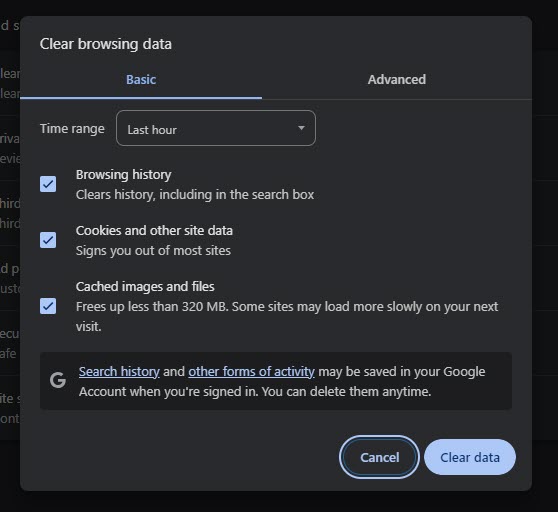
The clear browsing data dialog in Chrome.
Chrome (Android)
1. Tap the three-dot menu > Delete browsing data (or History > Delete).
2. Pick a time range and the data types.
3. Tap Delete data.
Microsoft Edge
1. Press Ctrl + Shift + Delete.
2. Choose the time range and tick Browsing history (and more if needed).
3. Click Clear now.
Mozilla Firefox
1. Press Ctrl + Shift + Delete.
2. Set the Time range to clear and tick Browsing & Download History.
3. Click OK (Clear Now).
Opera and Vivaldi
1. Press Ctrl + Shift + Delete to open the clear-data dialog.
2. Choose the time range and data types.
3. Confirm to clear.
Safari (Mac)
1. Open Safari > History > Clear History (or Settings > Privacy > Manage Website Data).
2. Choose the time range.
3. Click Clear History.
Tip: To browse without saving history at all next time, use a private/incognito window.
Troubleshooting
Problem: History keeps coming back.
Solution: If you are signed in and syncing, history may sync from other devices. Clear it on all devices or turn off history sync.
Problem: You got signed out of websites.
Solution: That happens when you clear cookies. Sign back in; clear only "Browsing history" if you want to stay logged in.
Problem: Cannot find the option on mobile.
Solution: Look under the browser’s Settings > Privacy and security > Clear browsing data.
Problem: Some sites still load old content.
Solution: Also clear Cached images and files, then reload the page.
Conclusion
Ctrl + Shift + Delete opens the clear-data dialog in almost every browser. Pick your time range and data types to wipe history, cookies, and cache — or use private browsing to avoid saving history in the first place.
</w:pBdr><w:spacing w:before="220" w:after="40"/></w:pPr><w:r><w:rPr><w:b/><w:bCs/><w:color w:val="0B5394"/><w:sz w:val="21"/><w:szCs w:val="21"/><w:rFonts w:ascii="Calibri" w:cs="Calibri" w:eastAsia="Calibri" w:hAnsi="Calibri"/></w:rPr><w:t xml:space="preserve">About TechHub
This guide is part of the TechHub Knowledge Base. For more step-by-step IT guides and support, visit techhub.com.lk.