Overview
After a Windows upgrade, the previous installation is kept in a Windows.old folder so you can roll back. It can take up many gigabytes. Once you are happy with the new version, you can safely delete it. This guide shows the safe ways to do it.
The Windows.old folder stores your previous installation and can be removed.
Warning: Deleting Windows.old removes your ability to roll back to the previous Windows version. Only delete it once you are sure the new version works well, and back up any personal files that might still be inside it.
Key Takeaways
- Windows.old lets you roll back for ~10 days after an upgrade.
- It can occupy 10–20+ GB of disk space.
- Use Storage settings or Disk Cleanup to remove it safely.
- You cannot simply delete it in File Explorer due to permissions.
Method 1 — Storage Settings (Recommended)
1. Open Settings > System > Storage > Temporary files.
2. Tick "Previous Windows installation(s)".
3. Click Remove files and confirm.
Method 2 — Disk Cleanup
1. Press Windows key + R, type cleanmgr, and press Enter; select the C: drive.
2. Click "Clean up system files".
3. Tick "Previous Windows installation(s)", then OK > Delete Files.
Disk Cleanup can remove previous Windows installations.
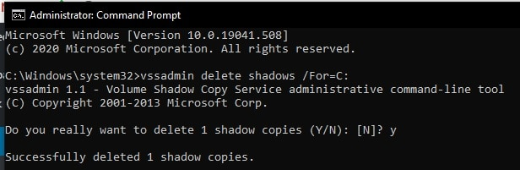
Method 3 — Command Prompt
1. Open Command Prompt as administrator.
2. Take ownership: takeown /F C:\Windows.old\* /R /A /D Y
3. Grant permissions: cacls C:\Windows.old\*.* /T /grant administrators:F
4. Delete it: rmdir /S /Q C:\Windows.old
Troubleshooting
Problem: I cannot delete it in File Explorer.
Solution: Use Storage settings or Disk Cleanup, which have the permissions to remove protected system folders.
Problem: "Previous Windows installation(s)" is not listed.
Solution: It may have auto-deleted after ~10 days, or there is no Windows.old; nothing to remove.
Problem: The command-line delete fails.
Solution: Run as administrator and take ownership first (takeown/cacls), then rmdir; reboot if files are locked.
Problem: I might still need old files.
Solution: Copy any personal files out of Windows.old\Users before deleting, since rollback and the folder will be gone.
Conclusion
Once your upgraded Windows is stable, removing Windows.old frees significant space. Use Storage settings or Disk Cleanup for a safe, permission-aware delete — just remember it ends your ability to roll back.
</w:pBdr><w:spacing w:before="220" w:after="40"/></w:pPr><w:r><w:rPr><w:b/><w:bCs/><w:color w:val="0B5394"/><w:sz w:val="21"/><w:szCs w:val="21"/><w:rFonts w:ascii="Calibri" w:cs="Calibri" w:eastAsia="Calibri" w:hAnsi="Calibri"/></w:rPr><w:t xml:space="preserve">About TechHub
This guide is part of the TechHub Knowledge Base. For more step-by-step IT guides and support, visit techhub.com.lk.