Overview
Drivers ඇත්තද කියලා තහවුරු කරගන්නත්, ඒවා වෙනස් කරලා නැහැ කියලා තහවුරු කරගන්නත් Windows එකට drivers digitally signed වෙලා තියෙන්න ඕන. ඉඳහිට ඔයාට unsigned driver එකක් install කරන්න වෙන්න පුළුවන් — පරණ හෝ අමුතු hardware වලට. මේ guide එකෙන් driver signature enforcement disable කරන්නේ කොහොමද කියලා පෙන්නනවා, එක වතාවක් boot වෙන විදිහේ සිට permanent setting එකක් දක්වා, ඒ වගේම risks මොනවද කියලත් පැහැදිලි කරනවා.
Driver signature enforcement disable කරාම ඔයාට unsigned drivers install කරන්න පුළුවන්.
Warning: Unsigned drivers verify වෙලා නැති නිසා ඒවා unstable හෝ malicious වෙන්න පුළුවන්. විශ්වාසවන්ත, හොඳ source එකකින් ගත්ත, ඔයා විශ්වාස කරන driver එකක් install කරන්න විතරක් enforcement disable කරන්න, ඒ වගේම temporary (one-time) method එකට වැඩි කැමැත්තක් දක්වන්න.
Key Takeaways
- Driver signing එකෙන් driver එකක් ඇත්තද, වෙනස් වෙලා නැද්ද කියලා verify කරනවා.
- ආරක්ෂිතම විකල්පය තමයි Startup Settings හරහා one-time disable එක (reboot එකෙන් පස්සේ ආපහු හරි වෙනවා).
- Command Prompt (bcdedit) සහ Group Policy වලින් මේක permanently disable කරන්න පුළුවන්.
- ඔයාගේ විශ්වාසවන්ත driver එක install කරාට පස්සේ enforcement ආපහු enable කරන්න.
What Is Driver Signing?
Driver signature එකක් කියන්නේ driver එක දන්නා publisher කෙනෙක්ගෙන් ආපු එකක් බවත්, වෙනස් වෙලා නැහැ කියලත් තහවුරු කරන digital certificate එකක්. Enforcement එකෙන් valid signature එකක් නැති drivers block කරලා, වෙනස් වුණු හෝ malicious drivers වලින් system එක ආරක්ෂා කරනවා.
Method 1 — One-Time Disable via Startup Settings (Recommended)
1. Settings > System > Recovery open කරලා, Advanced startup යටතේ Restart now click කරන්න.
2. Troubleshoot > Advanced options > Startup Settings වලට ගිහින්, Restart click කරන්න.
3. list එක ආවම, "Disable driver signature enforcement" එකට 7 (හෝ F7) press කරන්න.
4. මේ session එකට enforcement off වෙලා Windows boot වෙනවා — ඔයාගේ driver එක install කරලා, enforcement ආපහු ගන්න reboot කරන්න.
Method 2 — Command Prompt (bcdedit)
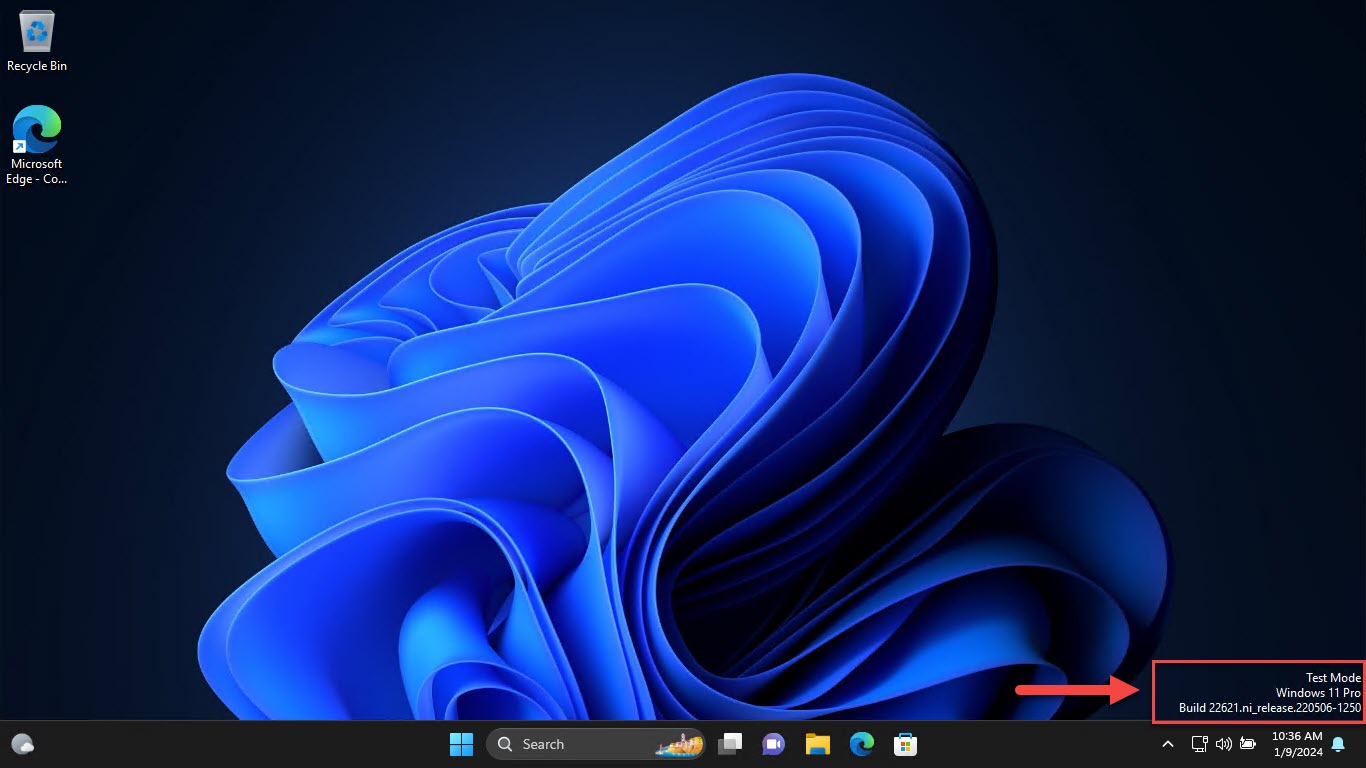
Warning: මේක ආපහු හරවනකම් තියෙනවා, ඒ වගේම desktop එකේ watermark එකක් පෙන්නන්න පුළුවන්. පස්සේ enforcement ආපහු enable කරන්න.
1. Command Prompt එක administrator විදිහට open කරන්න.
2. මේක run කරන්න: bcdedit /set nointegritychecks on
3. PC එක restart කරලා driver එක install කරන්න.
4. පස්සේ enforcement ආපහු enable කරන්න මේක run කරන්න: bcdedit /set nointegritychecks off
Method 3 — Group Policy
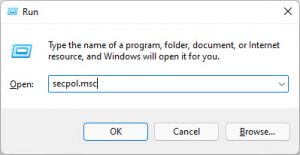
1. Windows key + R press කරලා, gpedit.msc type කරලා, Enter press කරන්න (Pro/Enterprise).
2. User Configuration > Administrative Templates > System > Driver Installation වලට යන්න.
3. "Code signing for device drivers" open කරලා, Enabled කරලා, Ignore තෝරන්න.
4. OK click කරලා restart කරන්න.
Method 4 — Advanced Boot Menu
1. PC එක restart කරලා Advanced Boot Options වලට යන්න (සමහර systems වල Shift අල්ලගෙන Restart click කරලා).
2. Startup Settings open කරලා restart කරන්න.
3. ඒ boot එකට driver signature enforcement disable කරන්න F7 / 7 press කරන්න.
Troubleshooting
Problem: Reboot එකකින් පස්සේ enforcement ආපහු on වෙනවා.
Solution: Startup Settings method එක නිකම්ම one-time විදිහට හදලා තියෙන්නේ. Permanent වෙනසකට bcdedit හෝ Group Policy method එක පාවිච්චි කරන්න.
Problem: Desktop එකේ test-mode watermark එකක් පෙන්නනවා.
Solution: Integrity checks/test signing off වුණාම මේක සාමාන්ය දෙයක්. මේක අයින් කරන්න enforcement ආපහු enable කරන්න (bcdedit /set nointegritychecks off).
Problem: Driver එක තාමත් install වෙන්නේ නැහැ.
Solution: enforcement disable කරලා boot කරාද කියලා තහවුරු කරගන්න, installer එක administrator විදිහට run කරන්න, ඒ වගේම driver එක ඔයාගේ Windows version එකට සහ architecture එකට ගැළපෙනවද කියලා බලන්න.
Problem: ඔයාට ආපහු උපරිම security එක ඕන.
Solution: install කරාට පස්සේ enforcement ආපහු enable කරන්න, ඒ වගේම පුළුවන් තරම් විශ්වාසවන්ත, signed drivers විතරක් තියාගන්න.
Conclusion
Driver signature enforcement disable කරාම, අත්යවශ්ය වෙලාවට ඔයාට unsigned drivers install කරන්න පුළුවන්. One-time Startup Settings method එකට වැඩි කැමැත්තක් දක්වන්න, විශ්වාසවන්ත drivers විතරක් install කරන්න, ඒ වගේම system එක ආරක්ෂිතව තියාගන්න පස්සේ enforcement ආපහු enable කරන්න.
About TechHub
මේ guide එක TechHub Knowledge Base එකේ කොටසක්. තව step-by-step IT guides සහ support වලට techhub.com.lk එකට යන්න.