Overview
Apps administrator විදිහට run කරන එකෙන් powerful privileges දෙනවා. Shared computer එකක, specific app එකක් elevated run වෙන එක නවත්තන්න, නැත්නම් standard users ලාට elevate කරන්න බැරි වෙන්න "Run as administrator" option එකම අයින් කරන්න ඕන වෙන්න පුළුවන්. මේ guide එකෙන් ඒ ආකාරය පෙන්නනවා.
Apps elevated run වෙන එක නවත්තන්න හෝ option එකම අයින් කරන්න පුළුවන්.
Warning: Registry එක හෝ security policy එක edit කරන එක සියලුම elevation වලට බලපානවා. මුලින් registry එක backup කරලා restore point එකක් හදන්න, admin account එකක් තියාගන්න.
Key Takeaways
- Program එකක Compatibility settings වල "Run this program as an administrator" untick කරලා ඒක elevate වෙන එක නවත්තන්න.
- Context-menu එකේ "Run as administrator" එක registry එකෙන් අයින් කරන්න.
- Local Security Policy එකෙන් standard users ලාට elevation එක සම්පූර්ණයෙන් deny කරන්න පුළුවන්.
- PC එක manage කරන්න අඩුම එක administrator account එකක් තියාගන්න.
Method 1 — Specific Program එකක් Admin විදිහට Run වෙන එක නවත්තන්න
1. Program එකේ shortcut එක හෝ .exe එක right-click කරලා Properties තෝරන්න.
2. Compatibility tab එක open කරන්න.
3. "Run this program as an administrator" untick කරලා OK click කරන්න.
4. Greyed out නම්, මුලින් "Change settings for all users" click කරන්න.
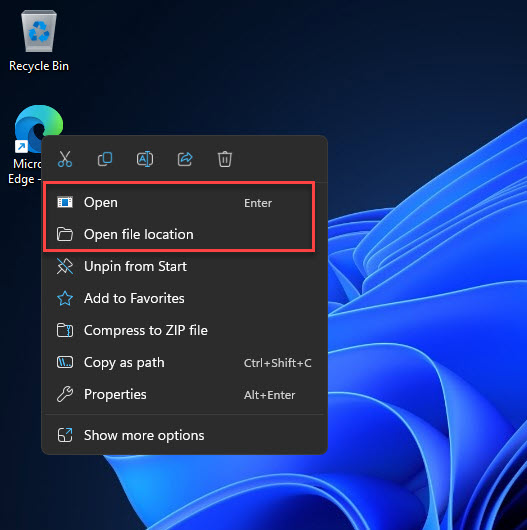
Program එකක Compatibility tab එකේ "Run as administrator" option එක.
Method 2 — Context Menu එකෙන් "Run as Administrator" අයින් කරන්න
Warning: Registry edit — මුලින් backup කරන්න (File > Export).
1. Registry Editor (regedit) open කරන්න.
2. HKEY_CLASSES_ROOT\*\shellex\ContextMenuHandlers සහ runas keys (සහ exefile\shell\runas) වලට යන්න.
3. Option එක hide කරන්න runas command keys rename හෝ remove කරන්න (පස්සේ restore කරන්න original names note කරන්න).
4. Apply කරන්න sign out කරලා ආපහු sign in වෙන්න.
Method 3 — Standard Users ලාට Elevation Deny කරන්න
1. Windows key + R press කරලා secpol.msc type කරලා Enter කරන්න (Pro/Enterprise).
2. Local Policies > Security Options වලට යන්න.
3. "User Account Control: Behavior of the elevation prompt for standard users" open කරන්න.
4. "Automatically deny elevation requests" කරලා OK click කරන්න.
5. දැන් standard users ලාට apps administrator විදිහට run කරන්න බෑ.
Troubleshooting
Problem: App එකකට admin rights ඕන, දැන් fail වෙනවා.
Solution: ඒ specific app එකට elevation ආපහු enable කරන්න (Compatibility tab), නැත්නම් ඕන තැන grant කරන්න — ඔබ බලාපොරොත්තු වෙන දේ විතරයි block කරන්න.
Problem: secpol.msc available නෑ.
Solution: Local Security Policy Pro/Enterprise only. Home එකේ equivalent registry value එක (UAC policies key එකේ ConsentPromptBehaviorUser) පාවිච්චි කරන්න.
Problem: Context-menu option එක අයින් කරලා ආපහු ඕන.
Solution: Rename/export කරපු registry keys restore කරන්න, නැත්නම් backup එක import කරන්න.
Problem: Elevation එකෙන් ඔබවම lock out වුණා.
Solution: Administrator account එකකින් sign in වෙලා security policy හෝ registry change එක reverse කරන්න.
Conclusion
Elevation level කිහිපයකින් curb කරන්න පුළුවන්: එක app එකක් ඒකේ Compatibility tab එකෙන් නවත්තන්න, context-menu option එක registry එකෙන් hide කරන්න, නැත්නම් Local Security Policy එකෙන් standard users ලාට elevation deny කරන්න. Admin account එකක් ළඟ තියාගෙන, system-wide settings වෙනස් කරන්න කලින් backup කරන්න.
About TechHub
මේ guide එක TechHub Knowledge Base එකේ කොටසක්. තව step-by-step IT guides සහ support වලට techhub.com.lk එකට යන්න.