2 Ways to Disable the Touch Screen in Windows
Turn off the touchscreen via Device Manager or the Registry, and re-enable it anytime.
Overview
You might disable a touchscreen to prevent accidental touches, save power, or troubleshoot. This guide shows how to turn it off via Device Manager or the Registry — and how to turn it back on.
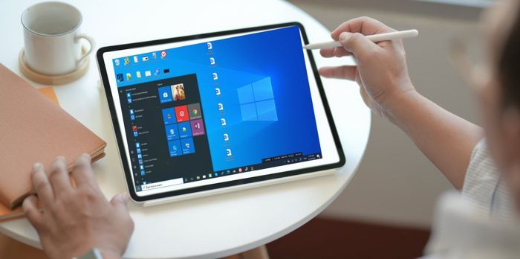
Disabling the touchscreen in Windows.
Key Takeaways
- Device Manager toggles the touchscreen device on/off.
- The Registry can disable it more persistently.
- Re-enabling is the reverse of each method.
- The device is "HID-compliant touch screen".
Method 1: Device Manager
1. Press Windows + X > Device Manager.
2. Expand "Human Interface Devices".
3. Right-click "HID-compliant touch screen" > Disable device.
4. Confirm; the touchscreen stops responding. (Enable device to reverse.)
Disable the HID-compliant touch screen.
Method 2: Registry (Persistent)
Warning: Editing the Registry incorrectly can cause problems. Back up the Registry first.
1. Open regedit and go to HKEY_CURRENT_USER\Software\Microsoft\Wisp\Touch.
2. Create/modify the DWORD "TouchGate" and set it to 0 to disable (1 to enable).
3. Restart the PC to apply.
Re-enable the Touch Screen
1. Device Manager: right-click "HID-compliant touch screen" > Enable device.
2. Registry: set TouchGate back to 1 and restart.
3. If the device is missing, "Scan for hardware changes" in Device Manager.
Troubleshooting
Problem: No "HID-compliant touch screen" entry.
Solution: Enable "Show hidden devices" in Device Manager; the device may be listed differently or the driver missing.
Problem: Re-enabled but not working.
Solution: Scan for hardware changes, or reinstall the touchscreen driver from the OEM.
Problem: Reverts after update.
Solution: A Windows update can re-enable the device — disable it again in Device Manager.
Problem: Multiple touch entries.
Solution: Disable each "HID-compliant touch screen" entry if there’s more than one.
Conclusion
Disable the touchscreen quickly via Device Manager (Disable the HID-compliant touch screen), or use the TouchGate Registry value for a persistent setting. Re-enable with the same tool whenever you want touch back.