Overview
Deleted files sit in the Recycle Bin and keep taking up disk space until you empty it. Each drive has a hidden $RECYCLE.BIN folder that stores them. This guide explains the folder, whether it is safe to clear, and how to empty the Recycle Bin in several ways.
The hidden $RECYCLE.BIN folder stores deleted files until emptied.
Key Takeaways
- The Recycle Bin holds deleted files; emptying it frees disk space.
- Each drive has its own hidden $RECYCLE.BIN folder.
- It is safe to empty — but check first, since emptying is permanent.
- You can empty it from the desktop, Settings, command line, or Storage Sense.
Is It Safe to Delete the $RECYCLE.BIN Folder?
Yes — emptying the Recycle Bin (or clearing $RECYCLE.BIN) only removes already-deleted files. Windows recreates the folder automatically. Just remember that anything removed this way is permanently deleted, so check for files you might still need first.
Check How Much Space It Uses
1. Right-click the Recycle Bin and choose Properties to see/configure its size limit.
2. Or open Settings > System > Storage and review Temporary files, which includes the Recycle Bin.
3. A tool like WinDirStat can also show $RECYCLE.BIN usage per drive.
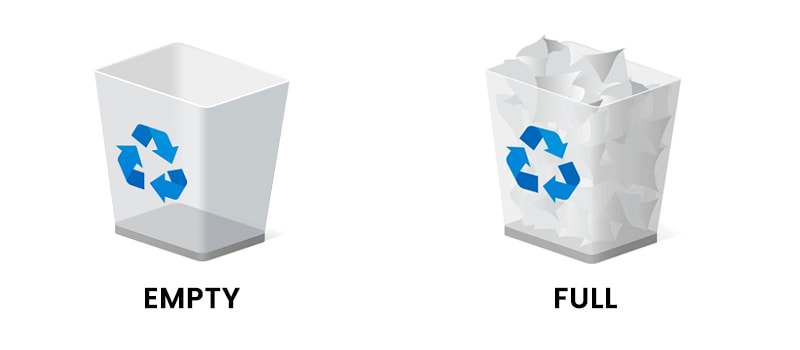
An empty versus a full Recycle Bin.
Method 1 — Empty From the Desktop
1. Right-click the Recycle Bin icon on the desktop.
2. Choose Empty Recycle Bin.
3. Confirm to permanently delete the contents.
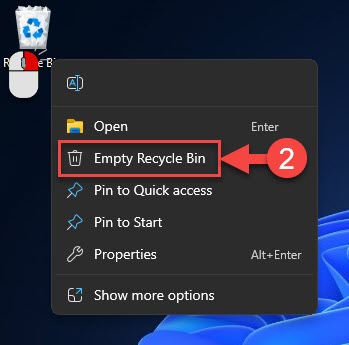
Empty the Recycle Bin from its right-click menu.
Method 2 — Empty From Settings
1. Open Settings > System > Storage > Temporary files.
2. Tick Recycle Bin.
3. Click Remove files.
Method 3 — Empty From the Command Line
1. Open Command Prompt as administrator.
2. Run: rd /s /q C:\$Recycle.bin
3. Repeat for other drives (e.g. D:\$Recycle.bin). Windows recreates the folder automatically.
Method 4 — Automatic With Storage Sense
1. Open Settings > System > Storage and turn on Storage Sense.
2. Configure it to empty the Recycle Bin after a set number of days.
3. It then clears old deleted files automatically.
Frequently Asked Questions
Problem: Why are there two Recycle Bins?
Solution: Each drive has its own hidden $RECYCLE.BIN, and per-user subfolders exist. The desktop icon aggregates them.
Problem: The Recycle Bin icon is missing.
Solution: Right-click desktop > Personalize > Themes > Desktop icon settings, and tick Recycle Bin.
Problem: Files skip the Recycle Bin.
Solution: Check Recycle Bin Properties — "Don’t move files to the Recycle Bin" may be selected, or the file was too large for its size limit.
Problem: It fills up again quickly.
Solution: Lower the Recycle Bin size limit in Properties, or use Storage Sense to clear it automatically.
Conclusion
Emptying the Recycle Bin is a quick way to reclaim space. Use the desktop or Settings for everyday cleanup, the command line to clear the hidden folder, and Storage Sense to keep it tidy automatically — just confirm you no longer need the files first.
</w:pBdr><w:spacing w:before="220" w:after="40"/></w:pPr><w:r><w:rPr><w:b/><w:bCs/><w:color w:val="0B5394"/><w:sz w:val="21"/><w:szCs w:val="21"/><w:rFonts w:ascii="Calibri" w:cs="Calibri" w:eastAsia="Calibri" w:hAnsi="Calibri"/></w:rPr><w:t xml:space="preserve">About TechHub
This guide is part of the TechHub Knowledge Base. For more step-by-step IT guides and support, visit techhub.com.lk.