Overview
Microsoft is deprecating WMIC (the Windows Management Instrumentation command-line tool) and removing it from recent Windows versions. The modern replacement is PowerShell’s CIM and WMI cmdlets. This guide explains why WMIC is going away and how to do the same tasks in PowerShell.
WMIC is being deprecated in favour of PowerShell CIM/WMI cmdlets.
Key Takeaways
- WMIC is deprecated and being removed from Windows.
- Use PowerShell’s Get-CimInstance (preferred) or Get-WmiObject instead.
- CIM cmdlets query the same WMI classes WMIC used.
- Update scripts now to avoid breakage on newer Windows builds.
What Is WMIC?
WMIC let you query and manage Windows via WMI from the command line — for example listing processes, hardware, or the BIOS serial number. It is now legacy, replaced by PowerShell’s richer and more secure CIM/WMI cmdlets.
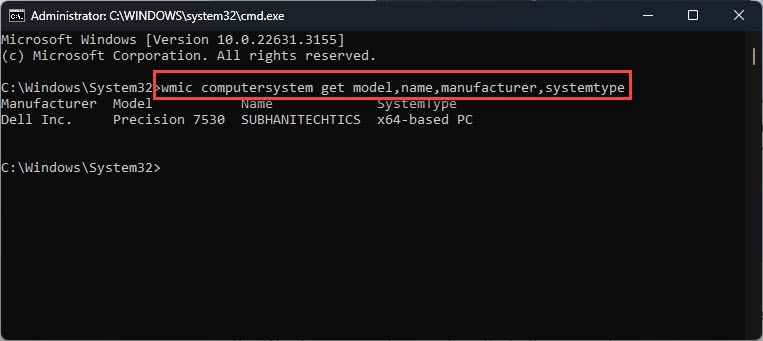
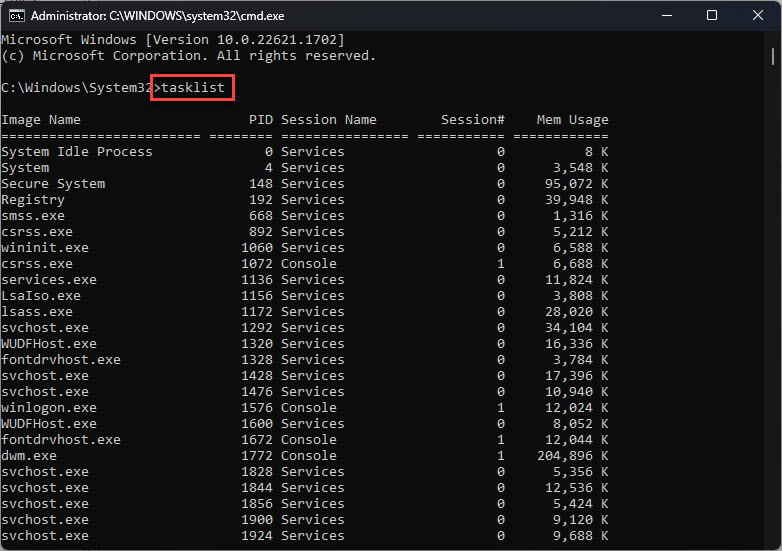
WMIC was used to get system information from the command line.
The Modern Replacements
- Get-CimInstance — the recommended cmdlet; uses the modern WS-Man protocol.
- Get-WmiObject — older cmdlet (also deprecated long-term) that still works on many systems.
- Both query the same WMI classes WMIC referenced.
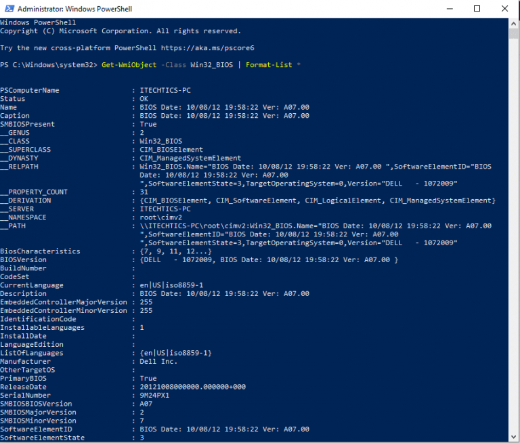
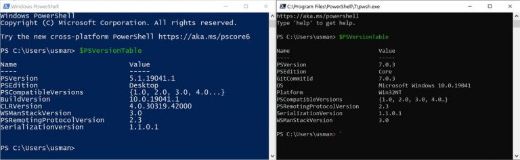
Discover CIM cmdlets available in PowerShell.
WMIC → PowerShell Examples
- List processes — WMIC: wmic process list brief → PowerShell: Get-CimInstance Win32_Process
- BIOS serial — WMIC: wmic bios get serialnumber → PowerShell: (Get-CimInstance Win32_BIOS).SerialNumber
- Disk drives — WMIC: wmic diskdrive get model,size → PowerShell: Get-CimInstance Win32_DiskDrive | Select Model,Size
- OS info — WMIC: wmic os get caption,version → PowerShell: Get-CimInstance Win32_OperatingSystem | Select Caption,Version
- Computer model — WMIC: wmic computersystem get model → PowerShell: (Get-CimInstance Win32_ComputerSystem).Model
Run a Method (Terminate a Process)
1. WMIC: wmic process where name="notepad.exe" call terminate
2. PowerShell: Get-CimInstance Win32_Process -Filter "Name='notepad.exe'" | Invoke-CimMethod -MethodName Terminate
3. Or more simply: Stop-Process -Name notepad -Force
Troubleshooting
Problem: wmic is no longer recognized.
Solution: WMIC has been removed on your build. Use Get-CimInstance in PowerShell, or re-enable the legacy WMIC optional feature temporarily if absolutely needed.
Problem: A script relies on WMIC output.
Solution: Rewrite it with Get-CimInstance and select the same properties; the WMI class names are the same.
Problem: Get-WmiObject is missing in PowerShell 7.
Solution: Use Get-CimInstance, which is the supported cmdlet in modern PowerShell.
Problem: You need remote queries.
Solution: Get-CimInstance -ComputerName supports remote systems over WS-Man, replacing WMIC’s /node option.
Conclusion
WMIC is on its way out, but everything it did is available in PowerShell. Switch your commands and scripts to Get-CimInstance now to stay compatible with current and future Windows versions.
</w:pBdr><w:spacing w:before="220" w:after="40"/></w:pPr><w:r><w:rPr><w:b/><w:bCs/><w:color w:val="0B5394"/><w:sz w:val="21"/><w:szCs w:val="21"/><w:rFonts w:ascii="Calibri" w:cs="Calibri" w:eastAsia="Calibri" w:hAnsi="Calibri"/></w:rPr><w:t xml:space="preserve">About TechHub
This guide is part of the TechHub Knowledge Base. For more step-by-step IT guides and support, visit techhub.com.lk.